Power Up Z-Image Turbo with Qwen-VL in ComfyUI (Tutorial)
Discover the new Z image turbo model. In this tutorial, you will learn how to supercharge Z image using large language models.
Getting started with Z-Image Turbo with Qwen VL
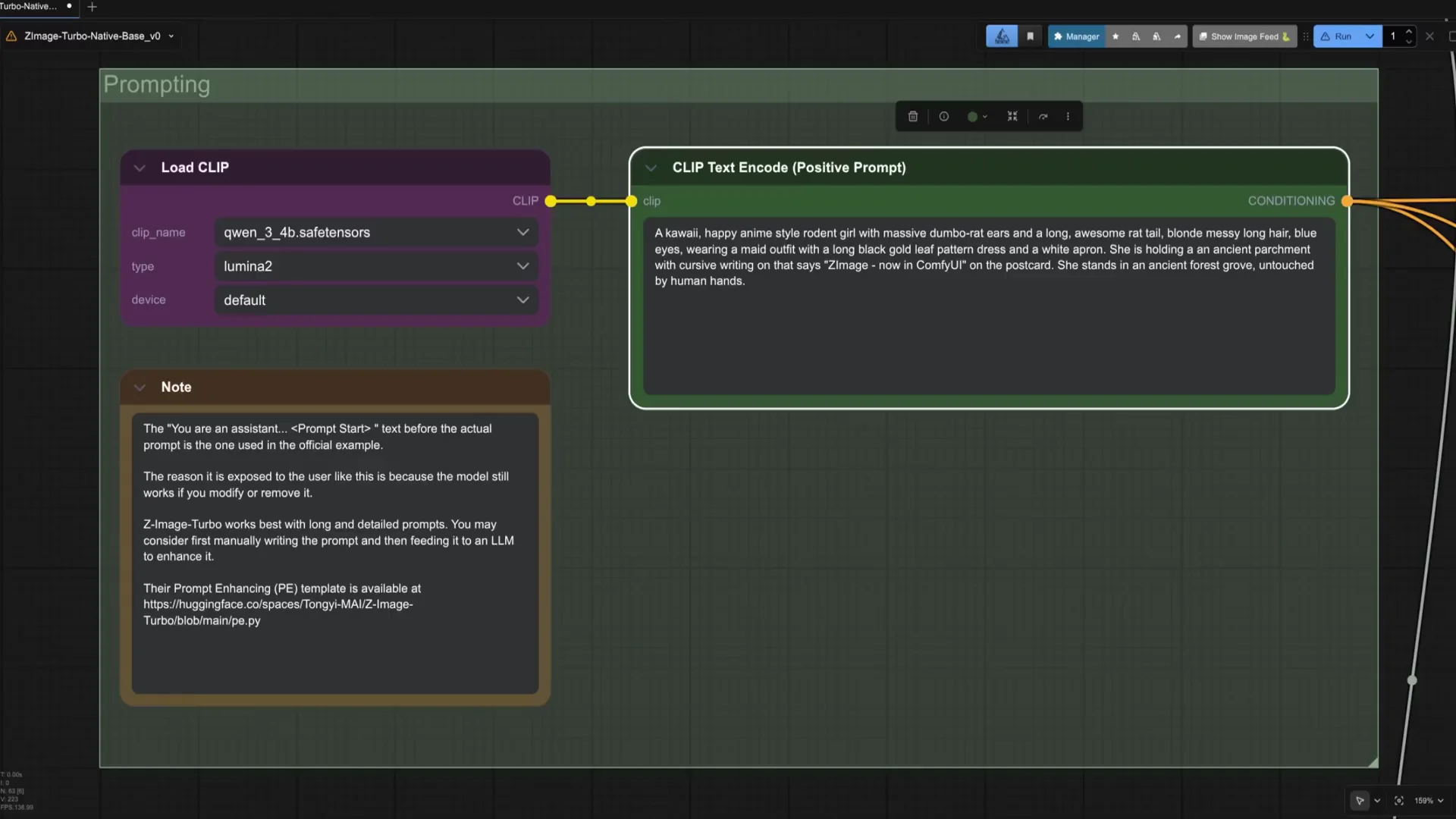
Start Comfy UI and load the Z image turbo template. If you have not done it yet, install the models required to run Z image. Zimage uses the Qwen 3 visual language model as text encoder. This opens new possibilities in how to create images interacting with large language models.
In this tutorial, we will explore and experiment with Qwen 3VL to create a new way of creating AI images. The Qwen image one bridge custom node pack explains in very great detail how this approach works.
Required nodes and restart
You will need to install Comfy UI KJ nodes, Comfy UI Qwen from AI lab, and the Comfy UI Qwen image one bridge I just told you about. When everything is installed, restart Comfy UI.
Configure Qwen VL in the workflow
We start by adding the Qwen node. This node integrates the Qwen visual language models to see and talk to images and videos.
We will select the 4B parameters FP8 instruct version of Qwen 3. This is the same version as the text encoder. Take into account that the files for this node and the encoder are different, although they are the same model. For low GPU use, it is better to use the 4-bit quant, but we will use the 8 bit.
Prepare the source images
In this workflow, we are going to integrate the face features of a lady with a different clothing in a snowy background. For that we are going to load the three images using the load image node first. If your images have very high resolution or different sizes, you may want to resize them first.
Add an image concatenate multi so we can put the three images next to each other. Connect to a preview image node and to the image input of the Qwen node. Don't forget to activate the match image size widget in the concatenate node. If everything is set up correctly, the three images are combined in one large image. When we prompt in Qwen, we will refer to each of the images in this combined layout.
Prompt Qwen VL to build the description
To have enough space to write, connect a multi-line string primitive node to the text box in the Qwen node. Here I am asking the VLM to create a prompt that combines the face features of the first image, the clothing of the second, and the background of the third image. I try to give some structure to the prompt for each of the features I want to combine including also the specific details that I want the model to include like age, colors, mood, etc. This is just an example and it is highly experimental. Please feel free to create your own prompts.
You can now connect the response outlet from Qwen to the text box of the clip text encode node. It is good to also check the text response to confirm the prompt is according to what you want. Connect a preview text node for that. The first time the model is downloaded and then loaded into the VLM, so please be patient. Check that the prompt follows your instructions. In this case, it is good enough and we will use it to generate the first image. If not good, you can try changing the seed of the Qwen node or adjusting the prompt.
Generate with Z-Image Turbo and iterate
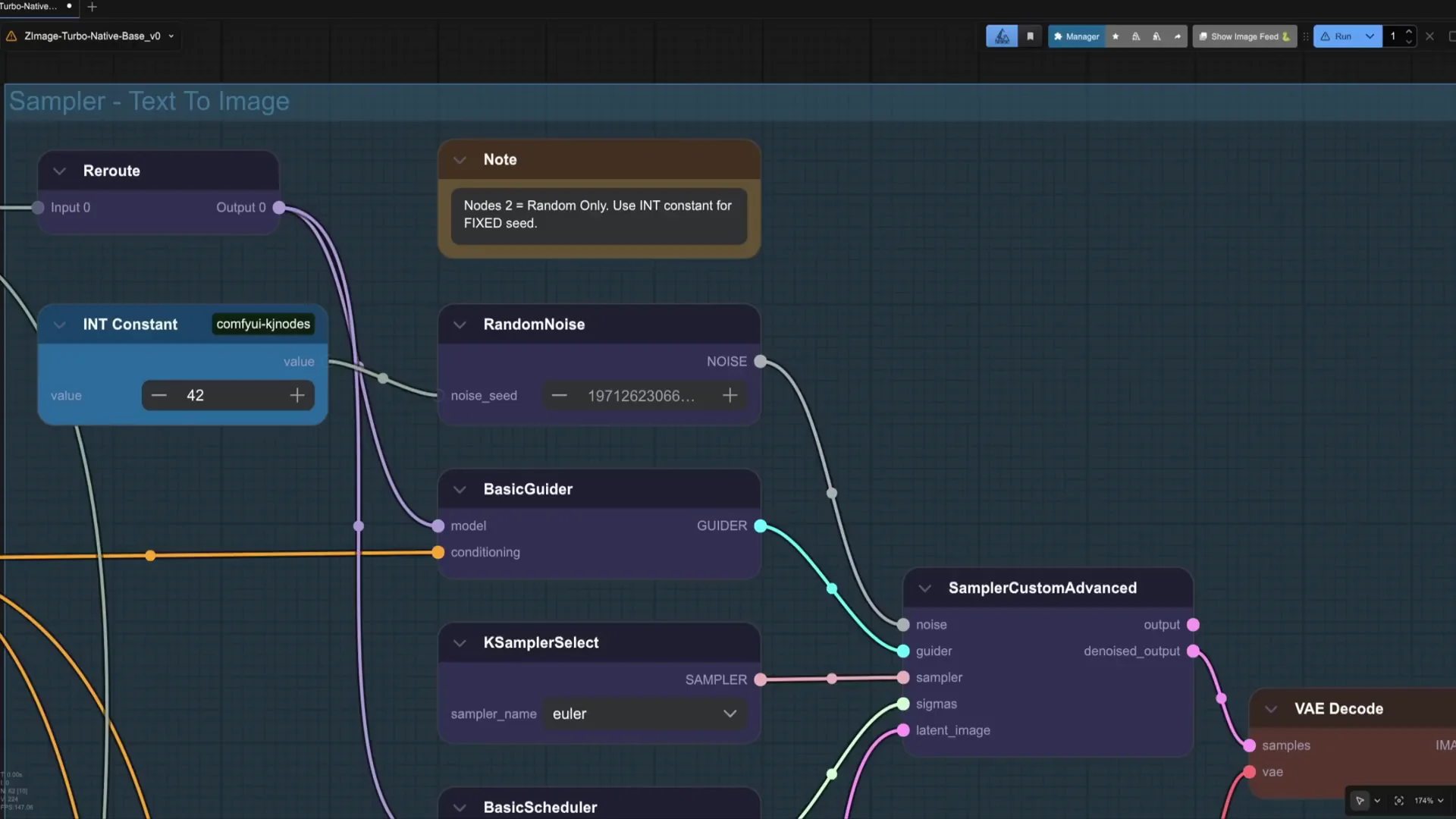
Run the workflow. Z image is rather fast, so it is really good to iterate and actually interact with the visual language model. We have managed to combine the features of the three images. Take into account though that Zimage Turbo is not an edit model, so the image will not be an exact pixel copy of either the face, the clothing, and the scene.
Use the Z image text encoder for deeper control
However, we can further interact with the visual language model using the Z image text encoder. Replace the regular clip text encoder with this new one. Connect the response of the Qwen node to the user prompt box of the Z image text encode node.
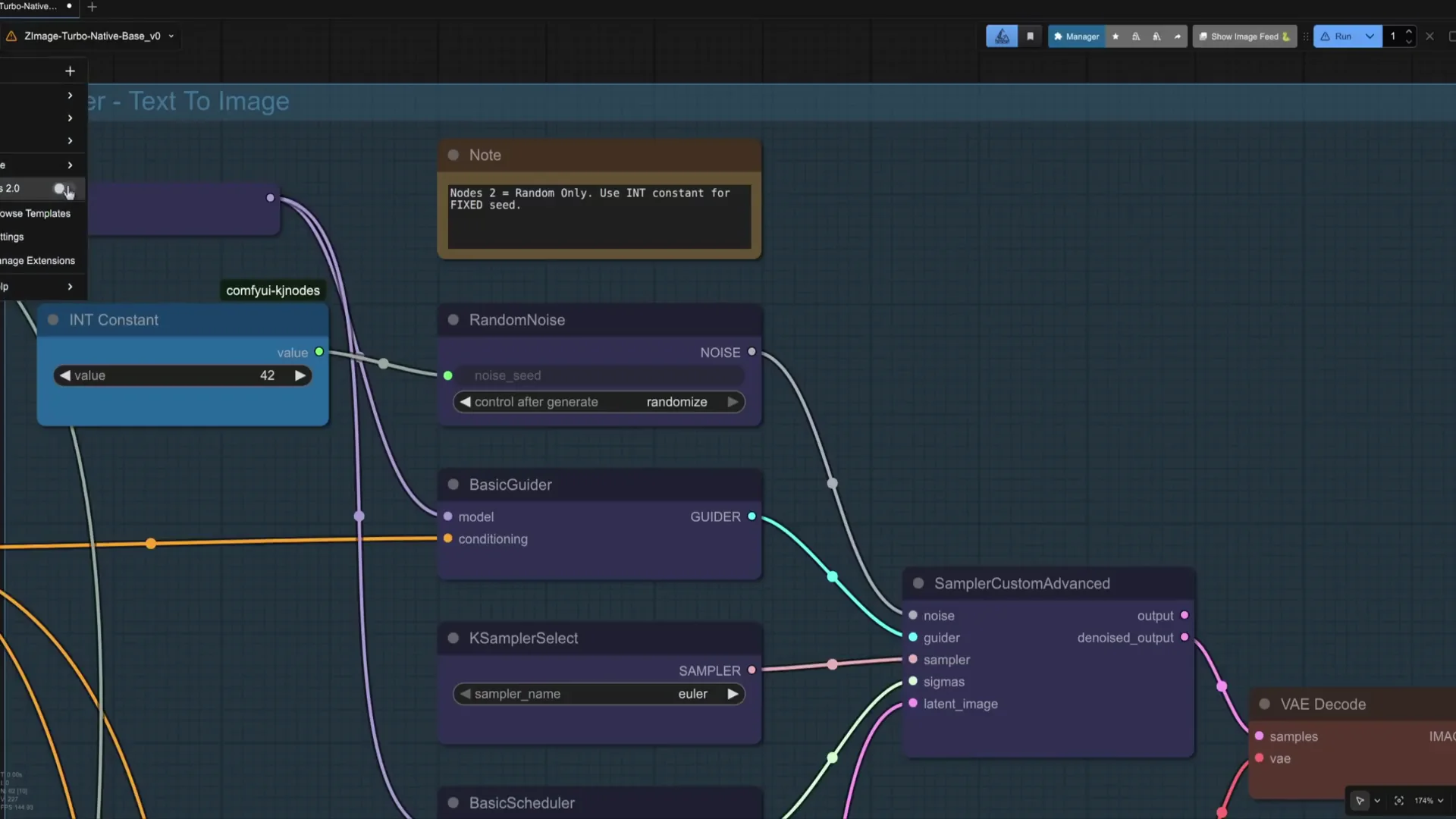
This node has different prompt boxes. Simplifying with the system prompt, we can define the style. In the user prompt, we describe the image we want to create and the thinking content box can be used to reinforce certain concepts, add details or for example specify location of objects.
The node contains a set of system prompt templates which you can try and experiment with. They are also a good example of how you can use the system and thinking prompts which you can also adjust depending on your prompt and creation. For example, we are taking the collage template preset and modify it to get a more visible effect with Qwen image one bridge.
Iterative changes with Turn Builder
We can also continue making changes in the image as we are having a chat with the LLM at the turn builder node which you see is similar to the Z image text encoder. Connect the clip and then the conversation outlet of the encoder to the previous input of the turn builder. Connect a preview text node to the formatted text to see what happens.
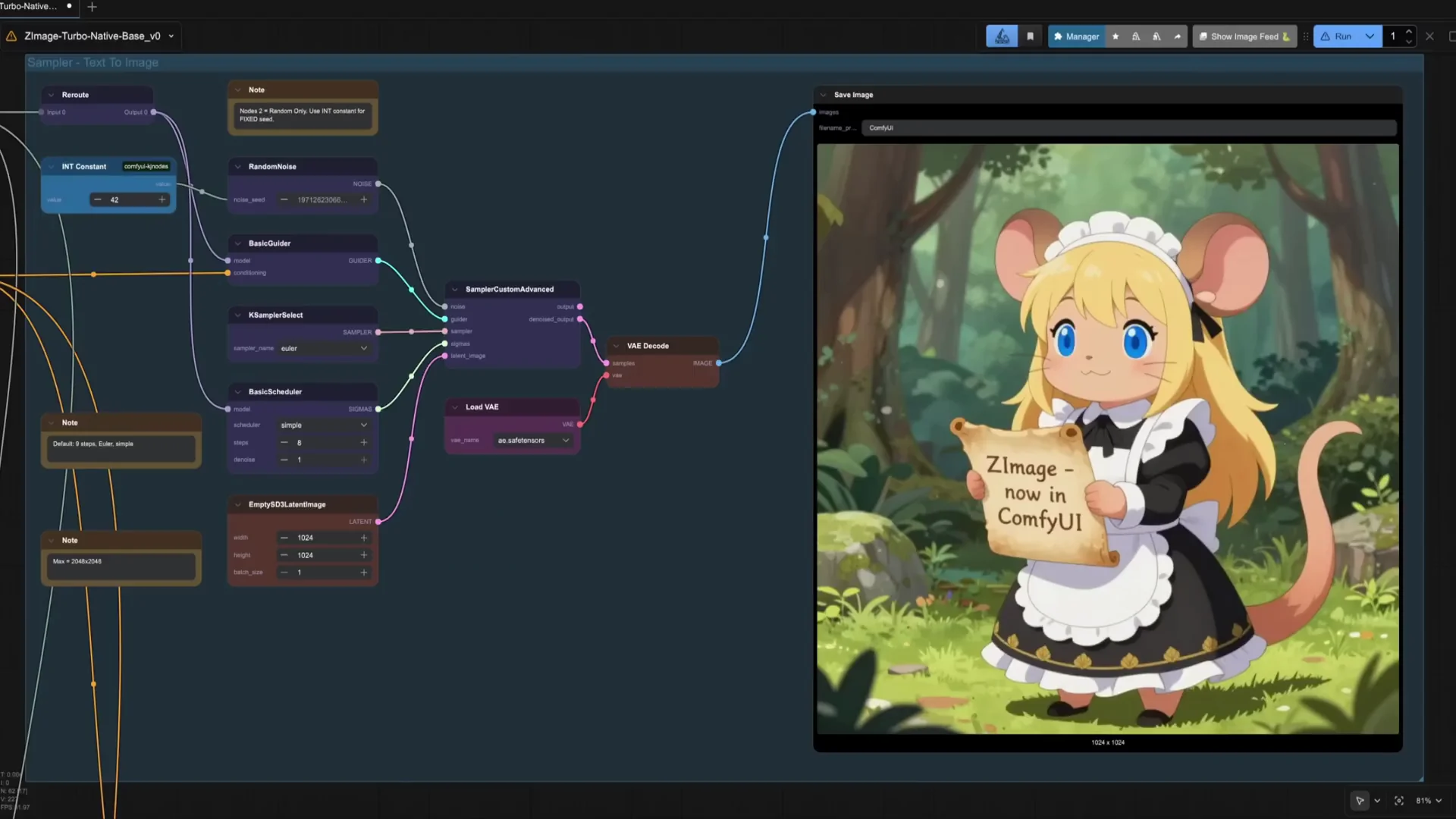
Tell in the user prompt to wear red gloves and hat. The new prompt carries the previous conversation we had in the first text encode node, but at the bottom you can see that there is also the new instruction. Now it is just matter of connecting this new text encoder to the K sampler and generate the image. Reconnect the positive prompt to the new turn builder node and the negative to a conditioning zero out node. The new image has picked up the new instruction and now the lady has red gloves and hat.
Again, be aware this is not an edit node, so it will be difficult to make big changes in the image, but it works nicely to add new details and objects. Of course, you can continue with the conversation by just repeating the turn builder sampling and V decoding nodes. Just reconnect the conversation of the turn builder nodes sequentially and change the user and thinking prompts for the new image iteration.
Example iteration: add seasonal details
In this example, we are going to add some Christmas decorations and details. In the thinking node, we can add some more details and define the position of the new objects. Now it is just matter of making more iterations or changing parts of the conversation.
Final thoughts
Either if you are trying to synthesize a new reality, create a Christmas card or make amazing designs, Z image in combination with visual language models is a great tool to explore. I hope that this tutorial has shown you the creative potential of combining AI image generation in combination with LLMs.
Recent Posts

How to use Grok 2.0 Image Generator?
Learn how to access Grok 2.0’s AI image generator (Premium required), write better prompts, and avoid pitfalls like real people and brands. Step-by-step tips.
How to use Instagram AI Image Generator?
Use Meta AI in Instagram DMs to turn text into images—and even animate them. It’s free, fast, and built in. No external apps needed; create art right in chat.
Leonardo AI 2026 Beginner’s Guide: Create Stunning Images Fast
Learn Leonardo AI step by step—sign up, explore Home, and generate or enhance photos with free, powerful tools. A quick, clear starter for beginners.