How to use Samsung AI Photo Editor: Object Eraser, Selection & GIFs
You can do several things with the AI photo editing tool on your Samsung Galaxy . Here are the most beloved ones: how to enable it, how to use Object eraser, how to use AI selection, including creating a GIF or moving images from a video.
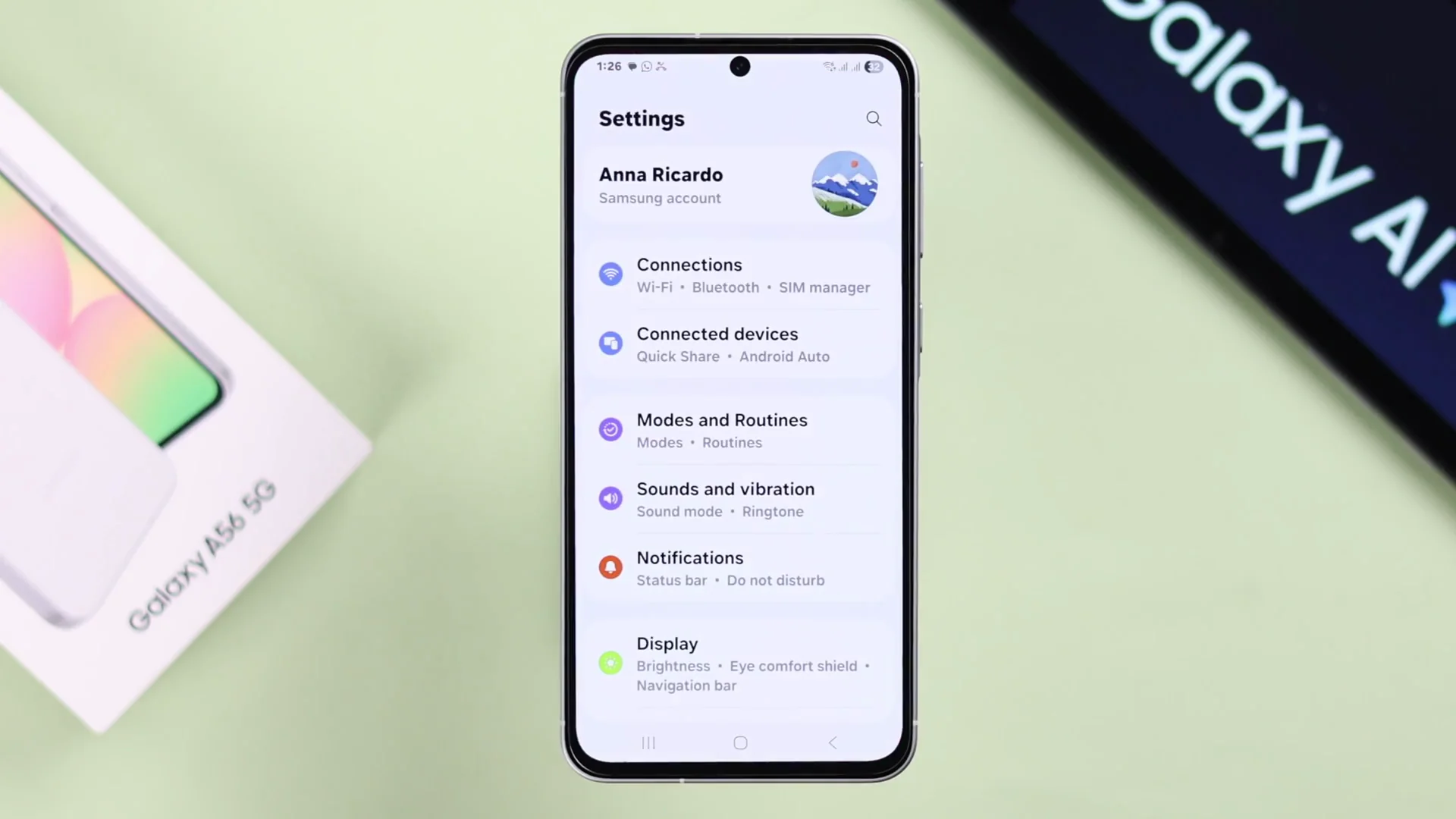
Enable Samsung AI Photo Editing
- Make sure you have logged into your Samsung account on your device, otherwise you won't be able to use it.
- Open Settings.
- Scroll down to Advanced features, then Intelligence features.
- Here you can take a look at what functions you can perform with the AI tools.
Samsung Galaxy AI Photo Editing - Object Eraser
Remove unwanted objects
- Open Gallery and open a photo.
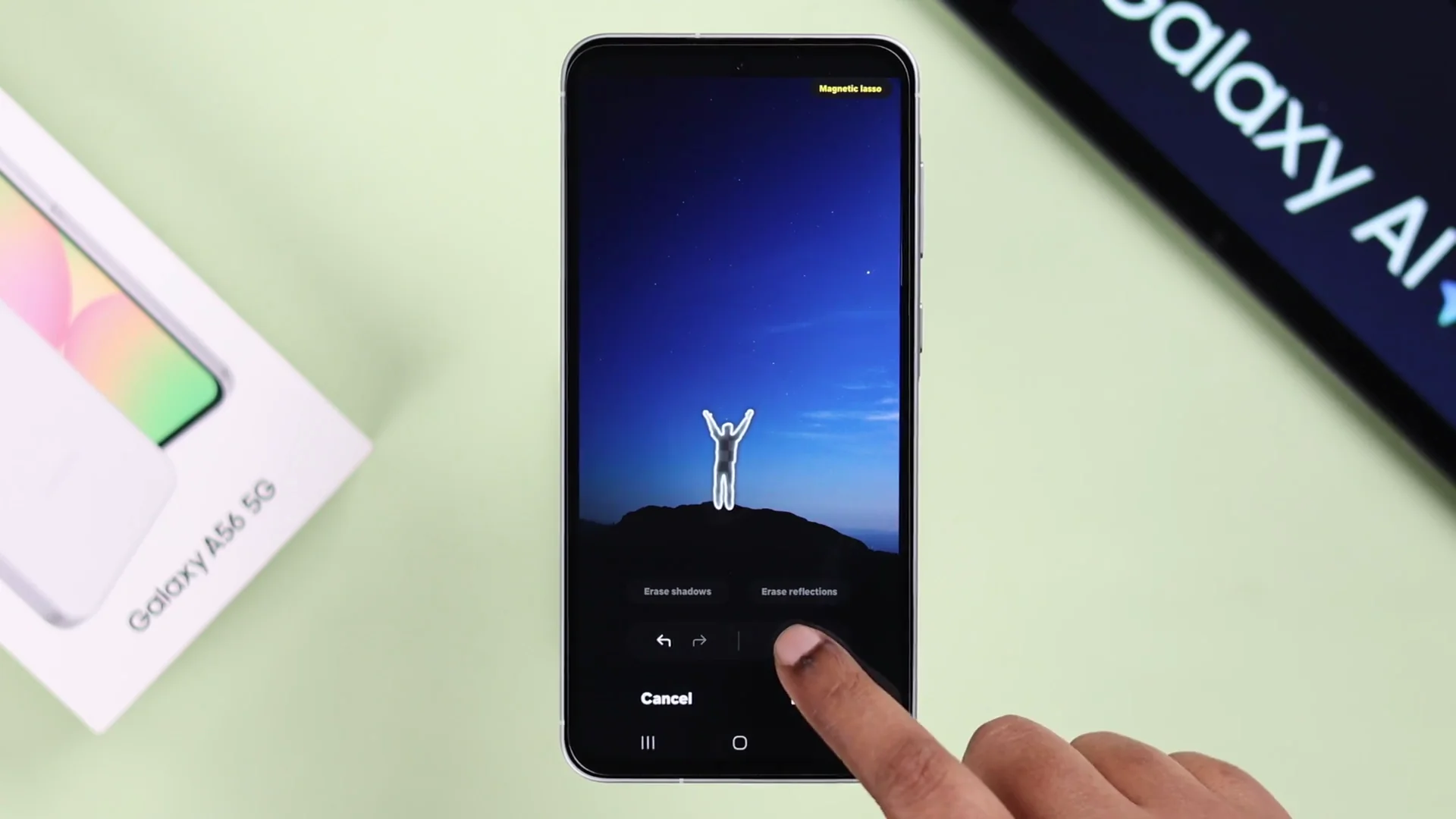
- Tap the pen icon, tap the four-dot icon, then tap Object eraser.
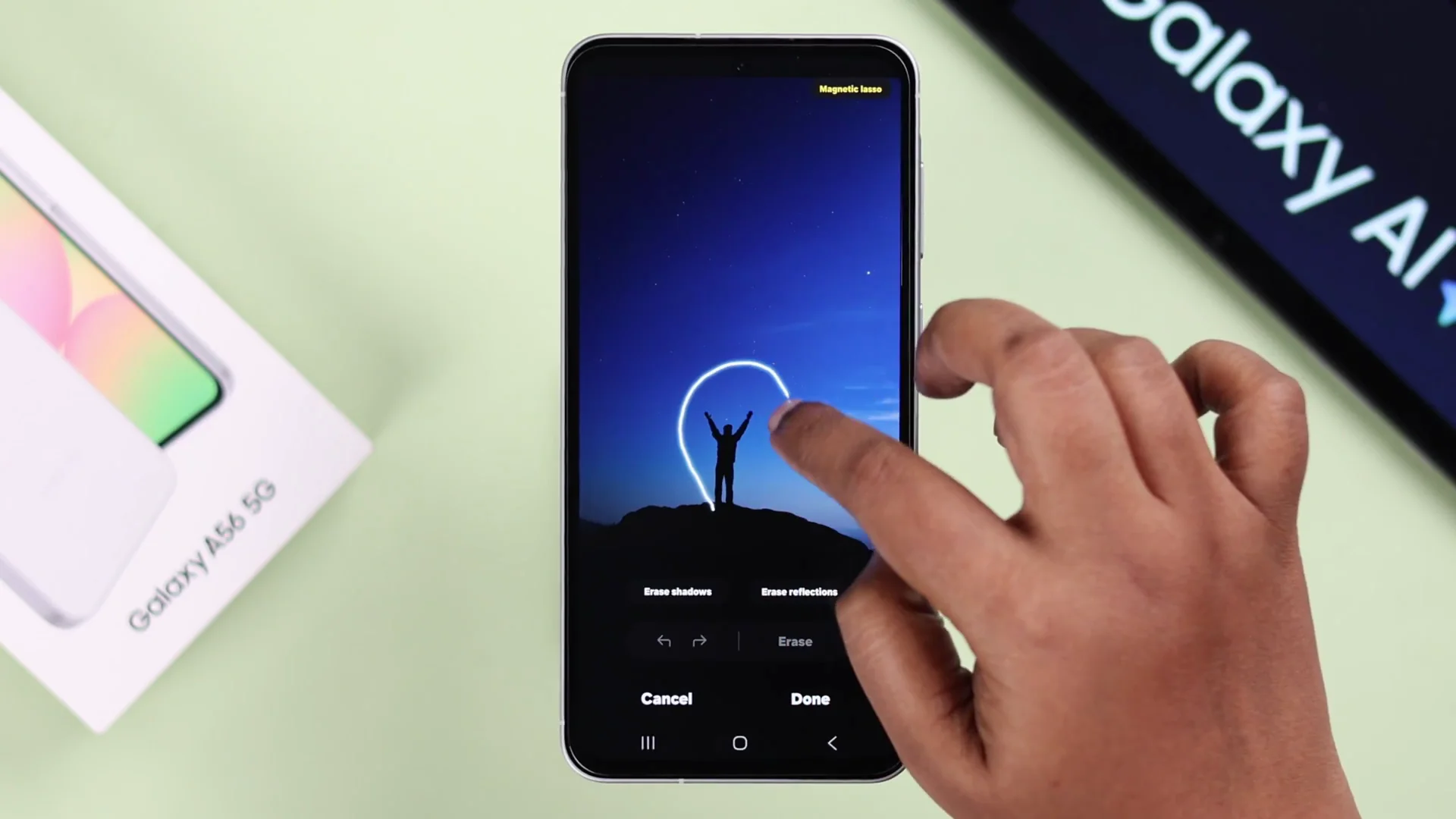
- Draw a circle around the figure or object you want to remove. It will select by itself.
- Press Erase.
- Press Done.
- Tap the three dots and save a copy along with the original one.
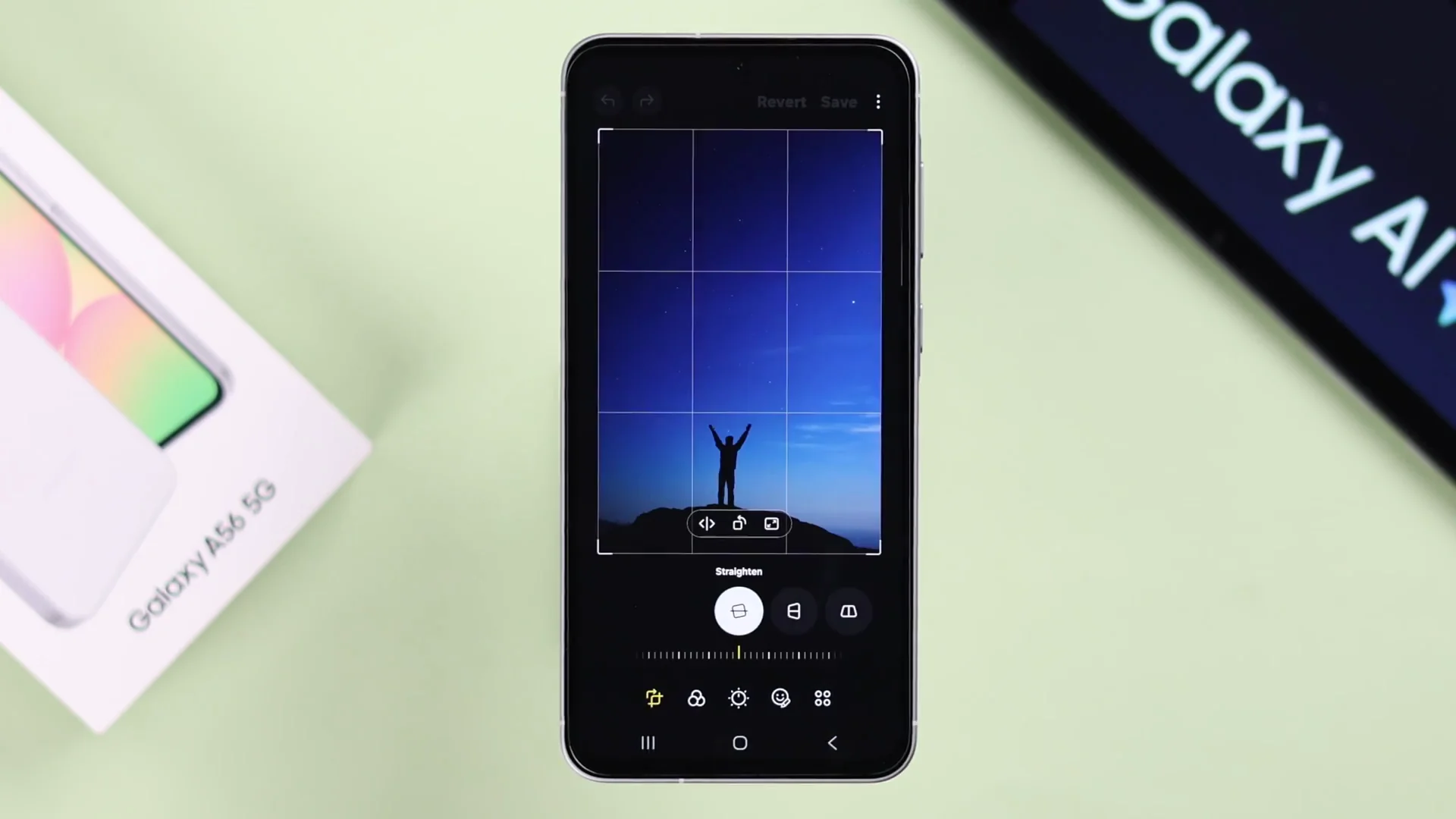
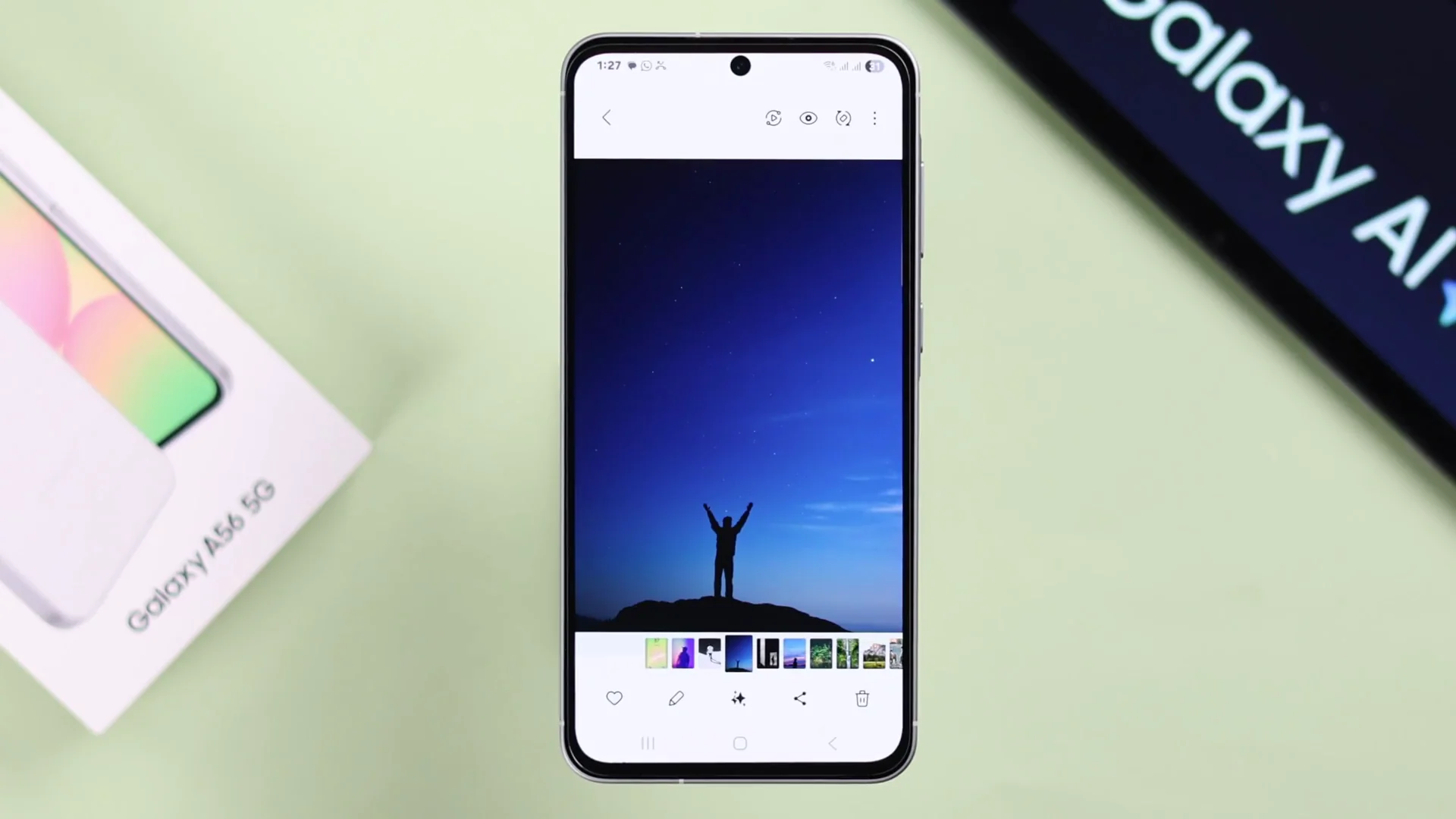
Paste a subject from another photo
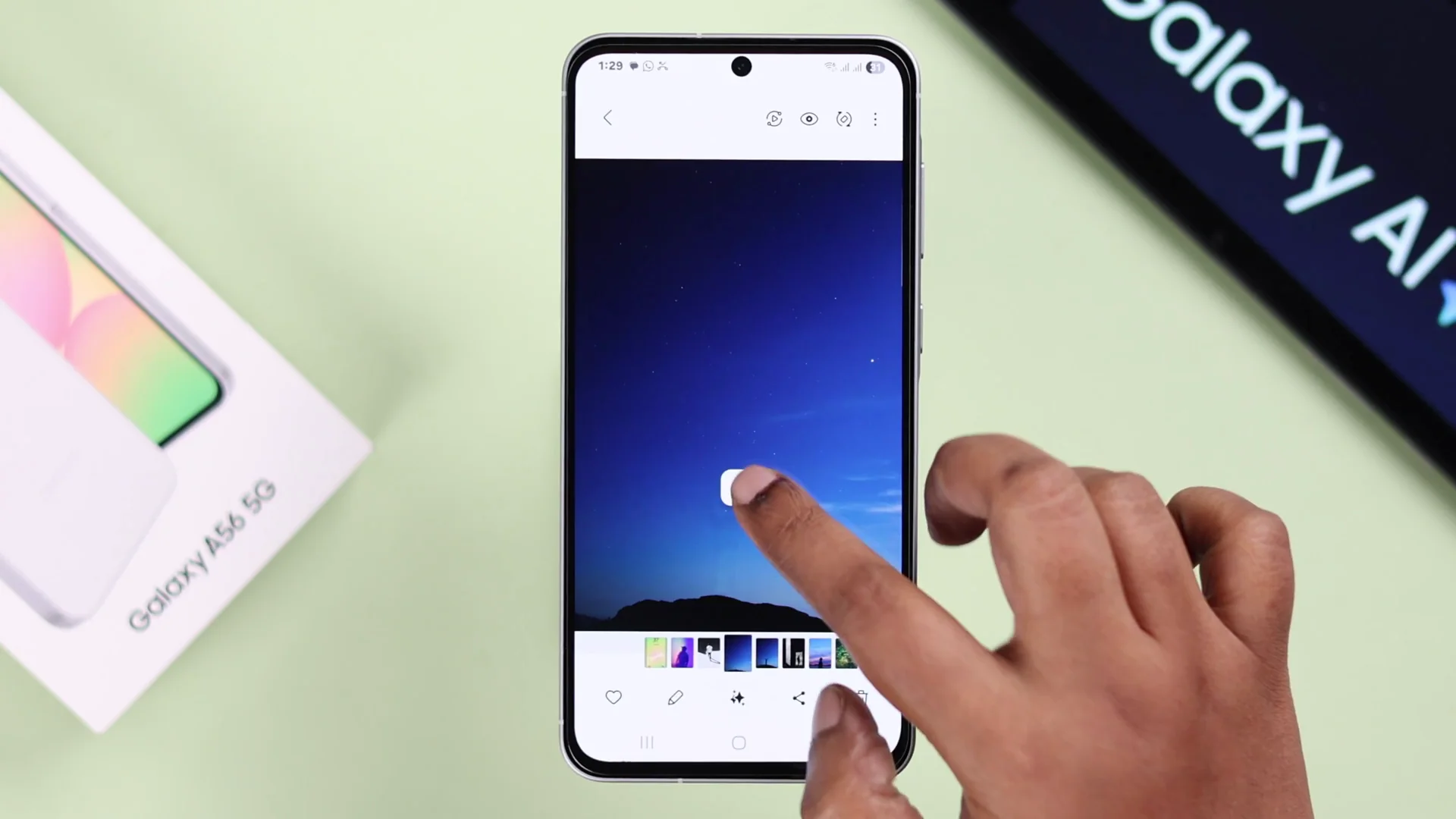
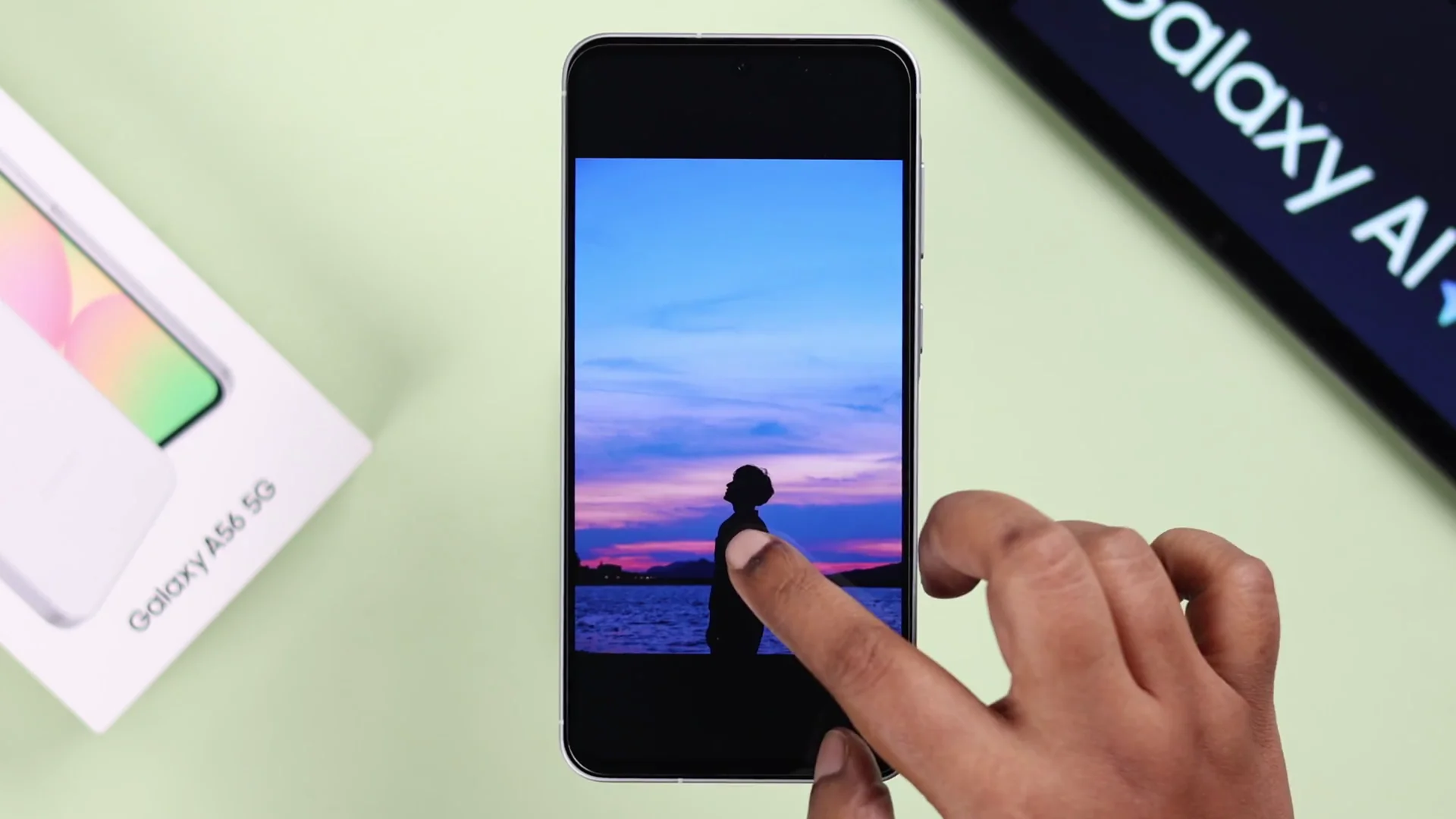
- Open another photo that has the subject you want to paste.
- Press and hold on the subject, then press Copy.
- Go back to your original photo.
- Press and hold over the photo and tap Paste.
- Resize and reposition it according to the photo.
- Save it like before.
Samsung Galaxy AI Photo Editing - AI Selection
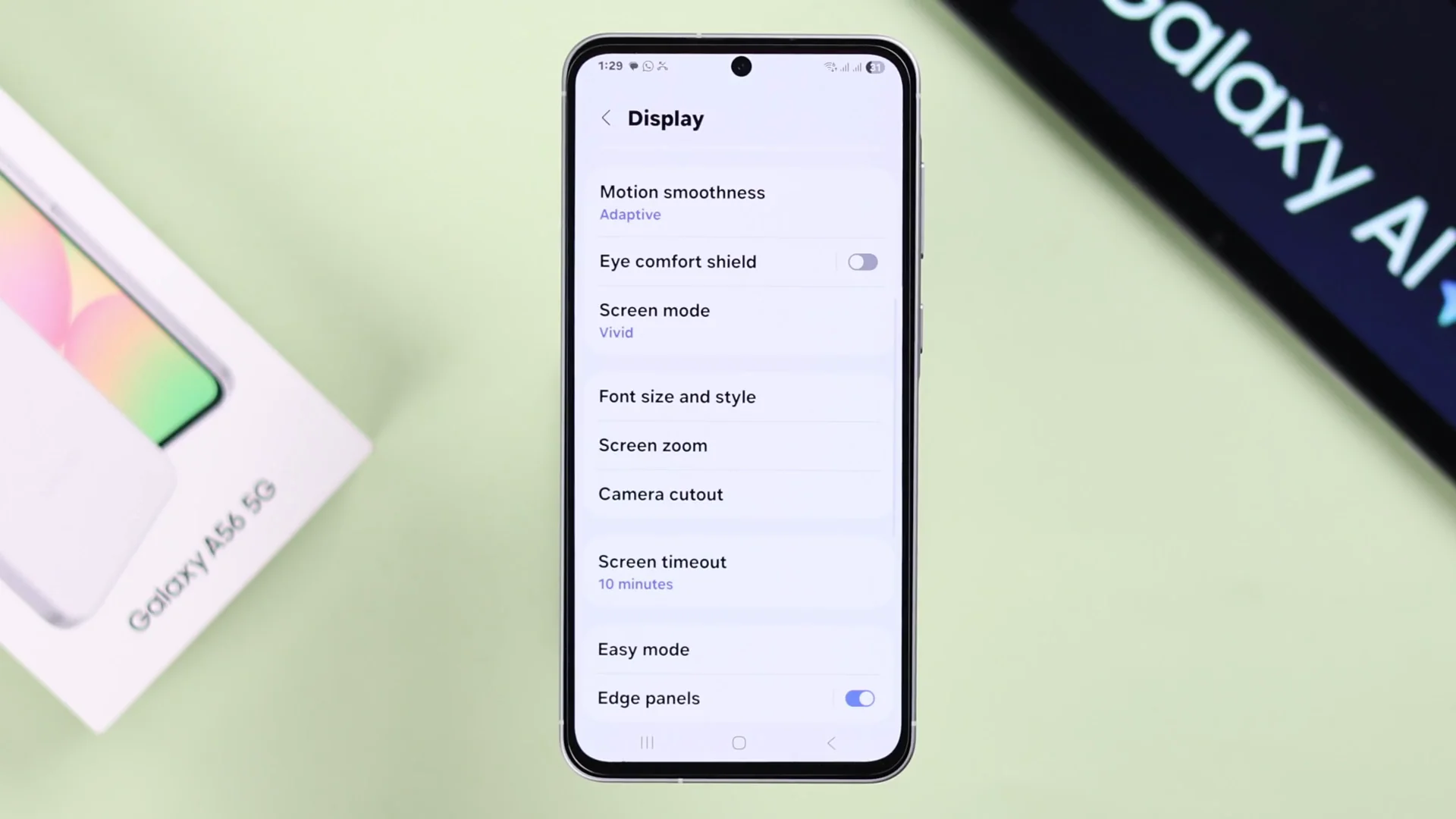
Turn on Edge panels
- Open Settings.
- Search for Edge panel.
- Make sure the Edge panels option is turned on.
Create a GIF from a video
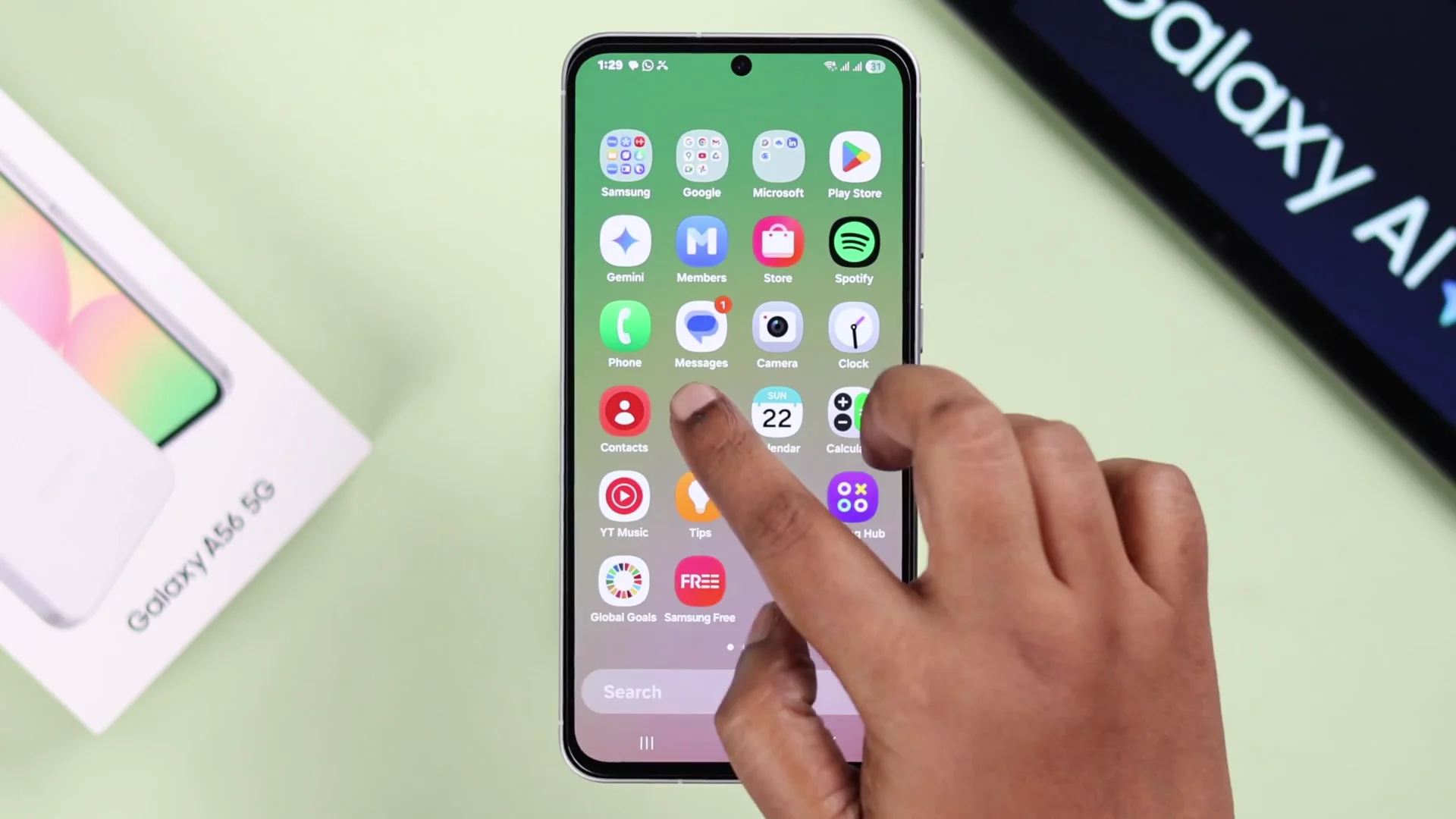
- Open any video and go to the exact point you want to turn into a GIF.
- Swipe left on your screen and tap AI select.
- Draw a circle or tap on the screen to select the frame.
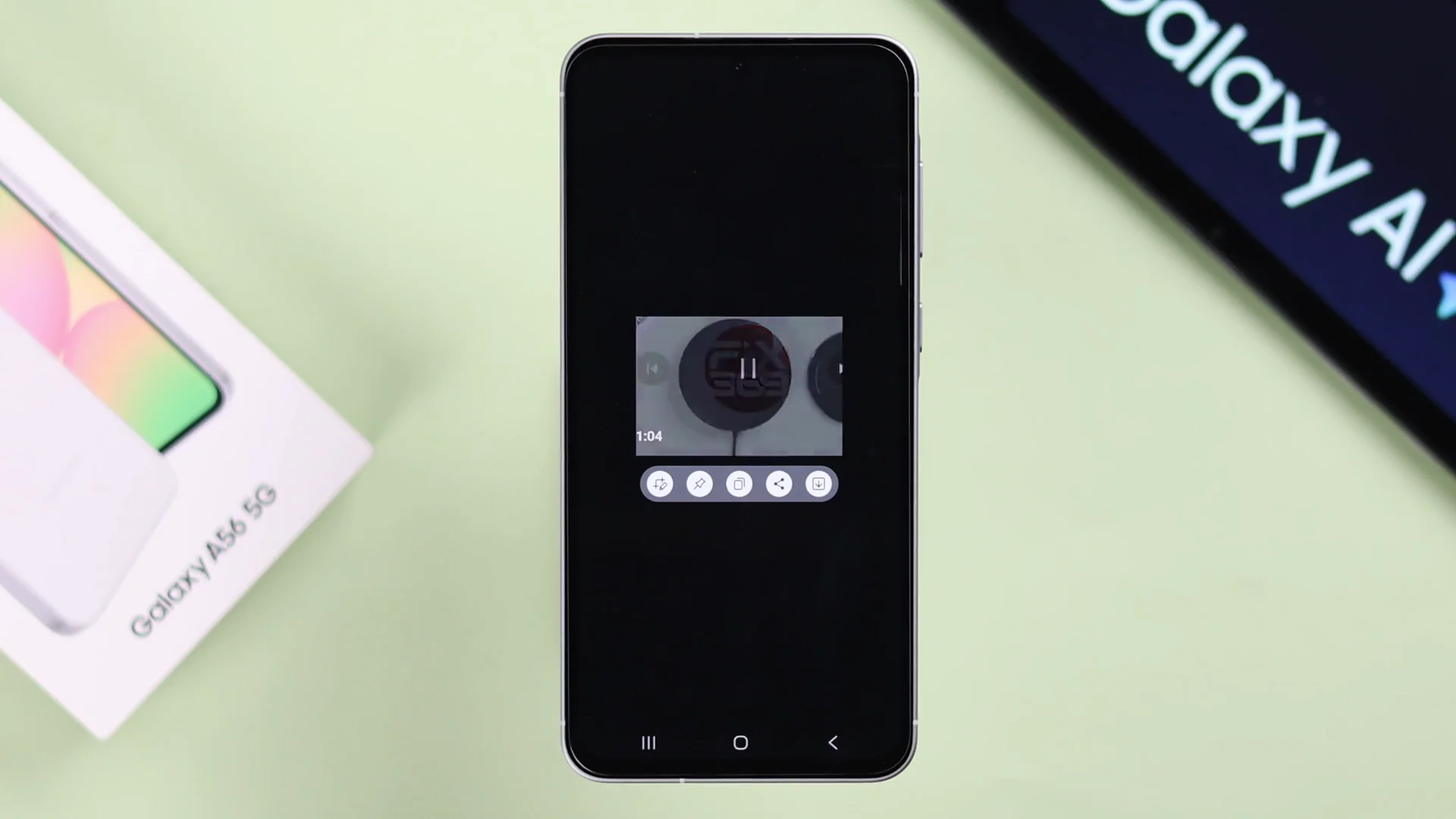
- Tap the three dots to Create GIF, or tap the Create GIF option if it shows up.
- Play the video, start recording, and when you're done, press Stop.
- Tap the downward arrow to save it to your gallery.
Use Maps with AI selection
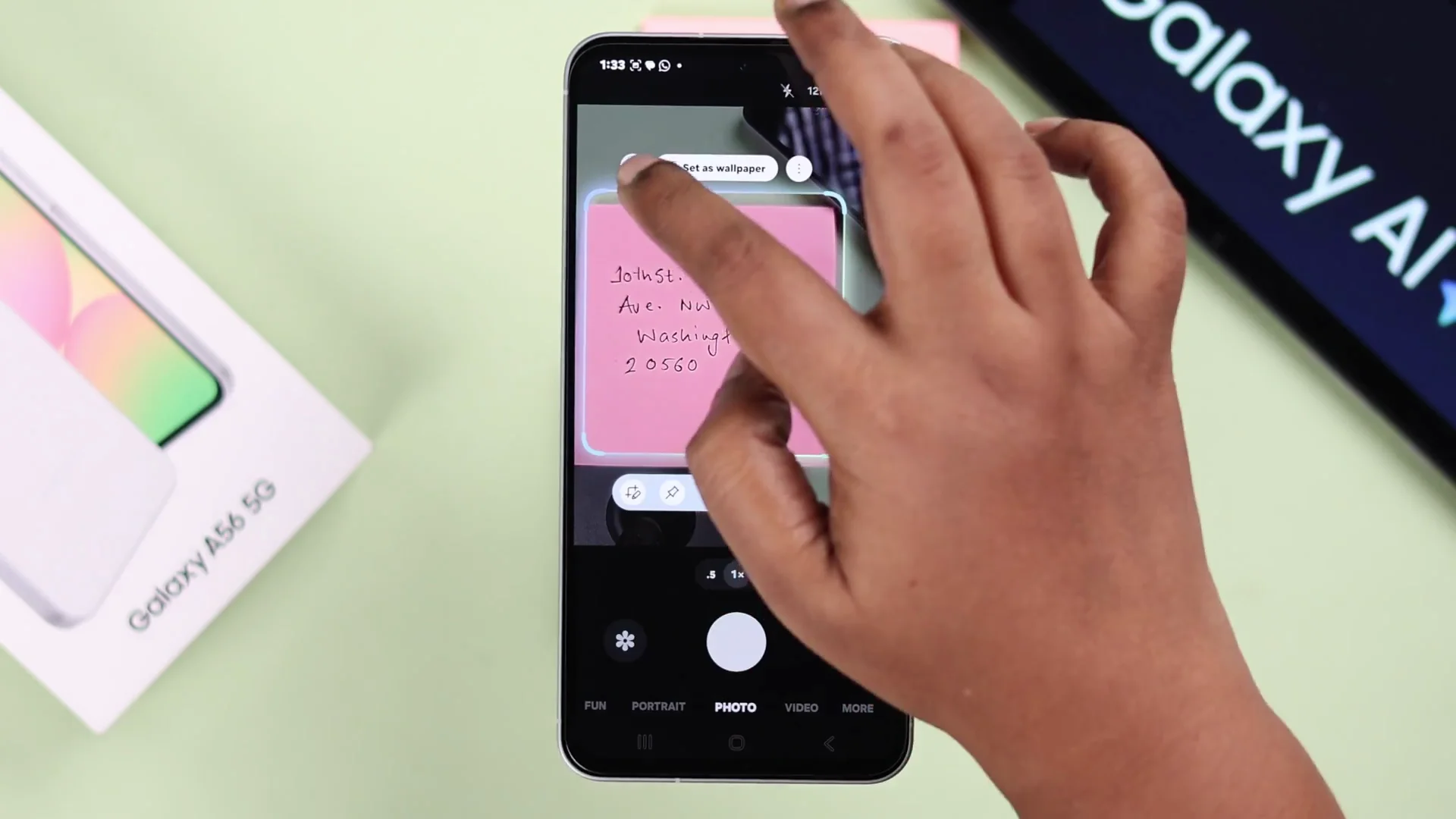
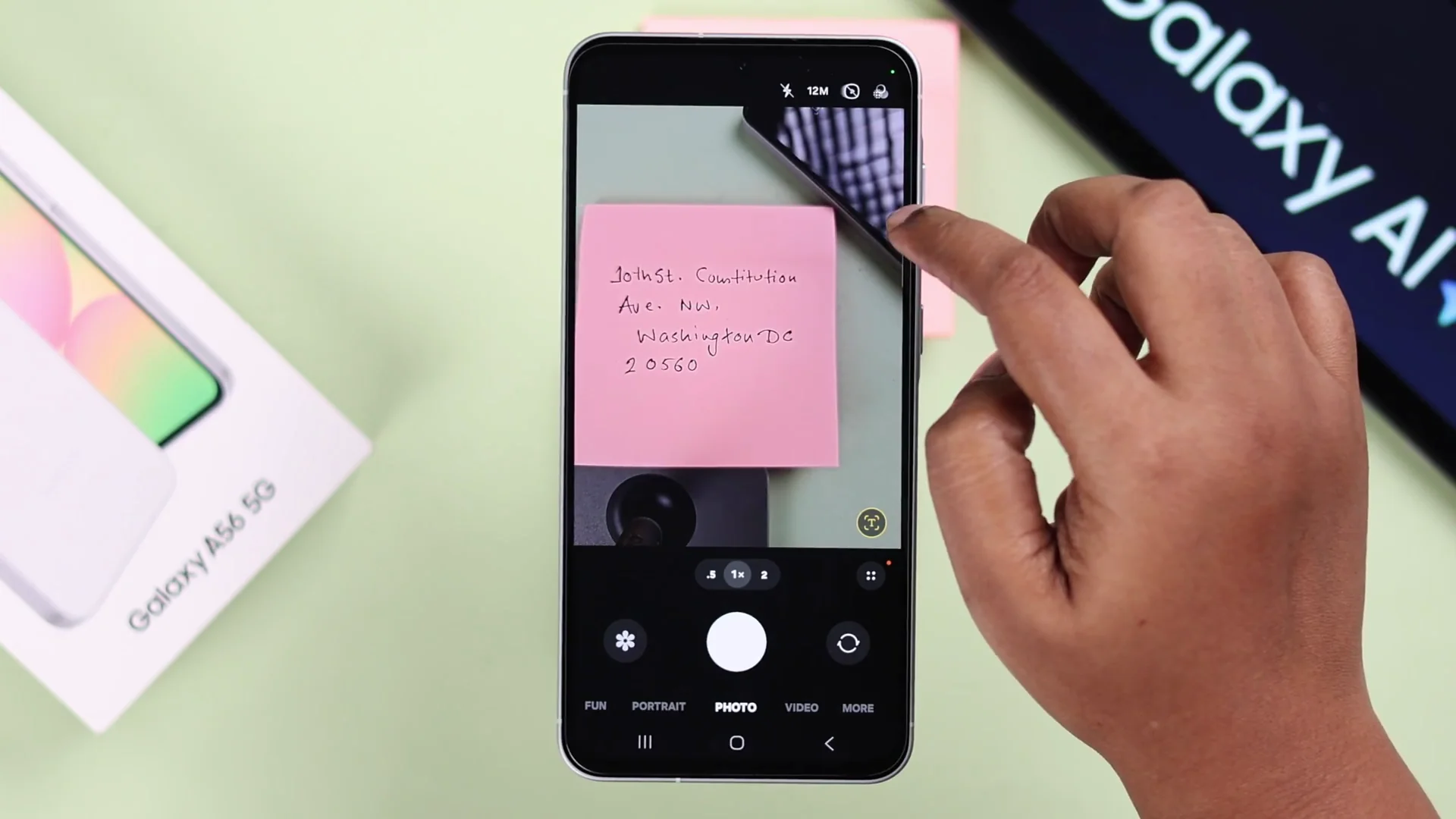
- If you have an address - handwritten or printed - and you have a photo of it in your gallery, open it. If it is on paper, open Camera and put it right under your phone.
- Swipe left to AI select and draw a circle around the address.
- Tap the T button.
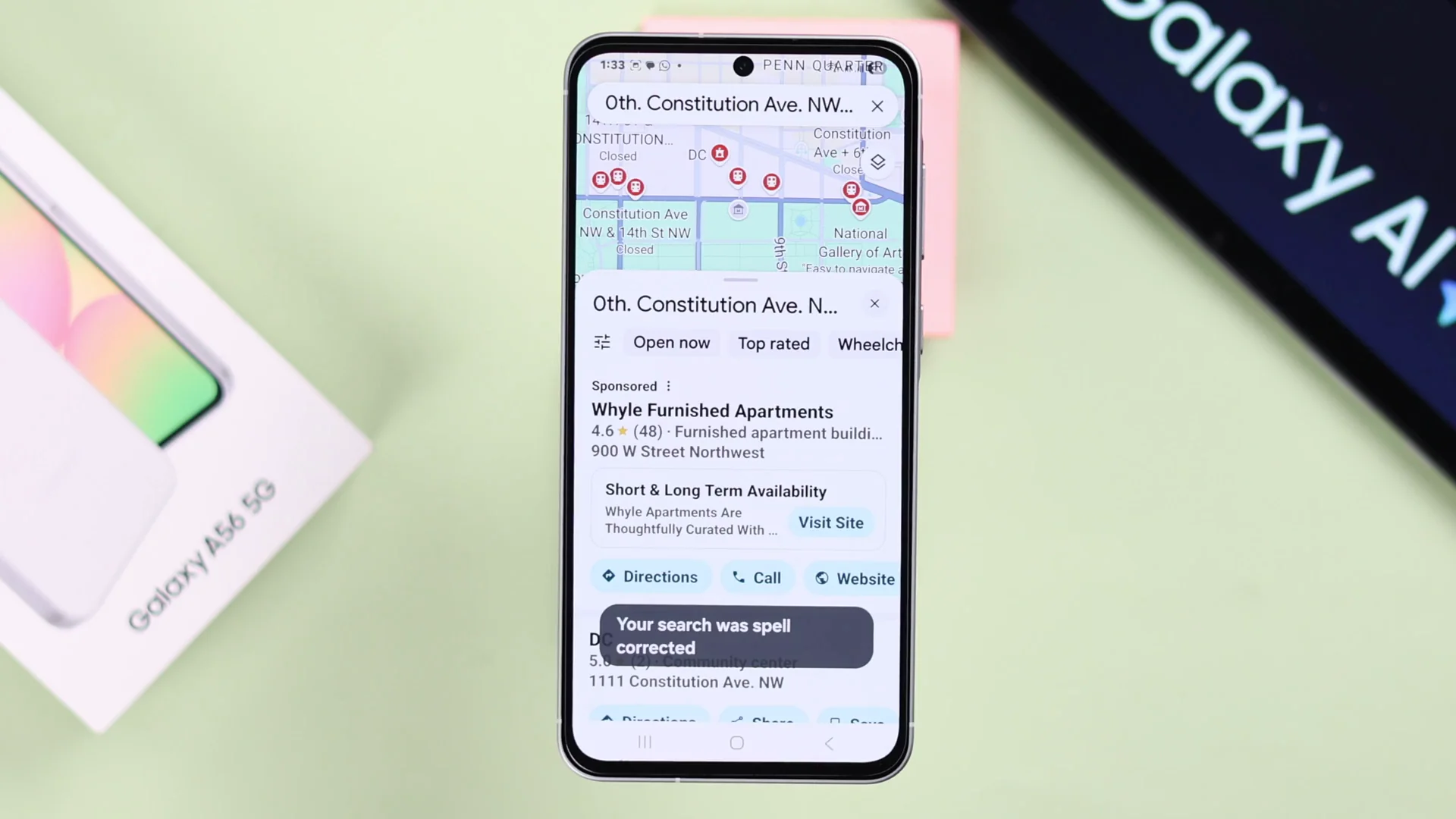
- Tap Maps. The map opens up the exact same address.
Final Thoughts on Samsung Galaxy AI Photo Editing
These tools let you remove objects, paste subjects between photos, create GIFs, and send addresses straight to Maps with AI selection. There are plenty of other things you can do with it, but that's all for today.
Recent Posts

How to use Grok 2.0 Image Generator?
Learn how to access Grok 2.0’s AI image generator (Premium required), write better prompts, and avoid pitfalls like real people and brands. Step-by-step tips.
How to use Instagram AI Image Generator?
Use Meta AI in Instagram DMs to turn text into images—and even animate them. It’s free, fast, and built in. No external apps needed; create art right in chat.
Leonardo AI 2026 Beginner’s Guide: Create Stunning Images Fast
Learn Leonardo AI step by step—sign up, explore Home, and generate or enhance photos with free, powerful tools. A quick, clear starter for beginners.