How to use Meta AI on WhatsApp to Generate Images
I showed how to get this activated on WhatsApp. Head to WhatsApp and update it from your Play Store. You’ll be able to find Meta AI in your WhatsApp. If you don’t see it, it’s probably not available in your country yet. Be patient and you’ll get it soon.
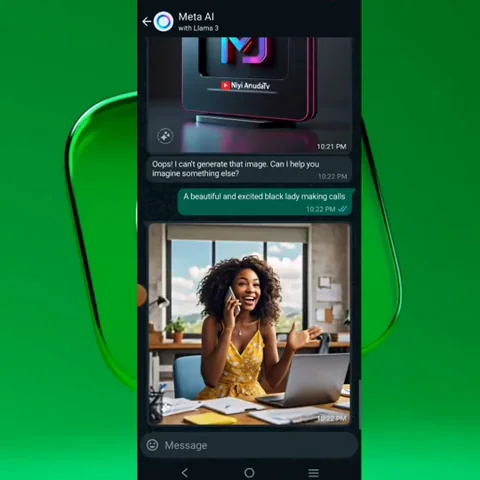
These are some designs I generated using Meta AI. I’ll show practical ways to get designs using Meta AI. It works like any other AI with prompts. If it’s Bing AI, for example, you get four options to choose from.
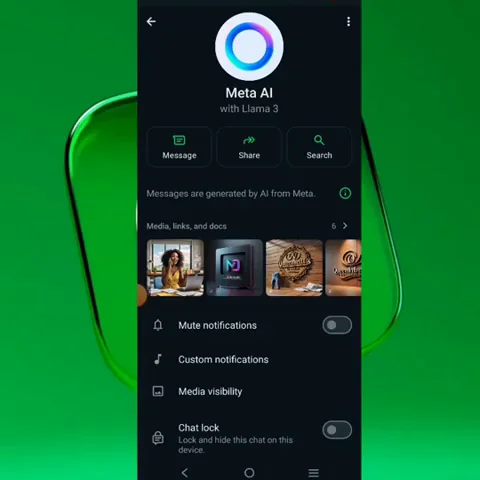
Generate Images in WhatsApp Meta AI Image Generator
Follow this simple flow to get results:
- Copy a prompt you want to use.
- Paste it in the Meta AI chat in WhatsApp.
- Send it and wait a few seconds.
- The result arrives as an image.
- Tap to download and save it to your phone.
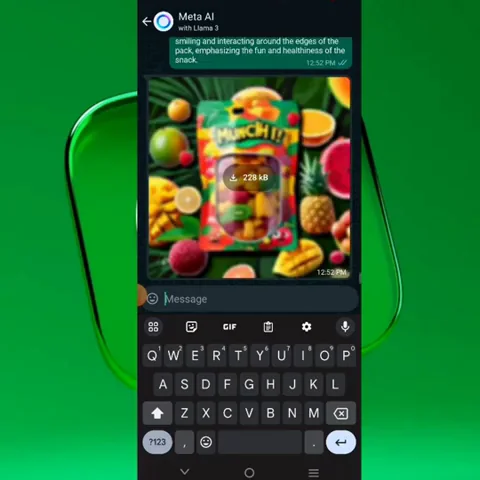
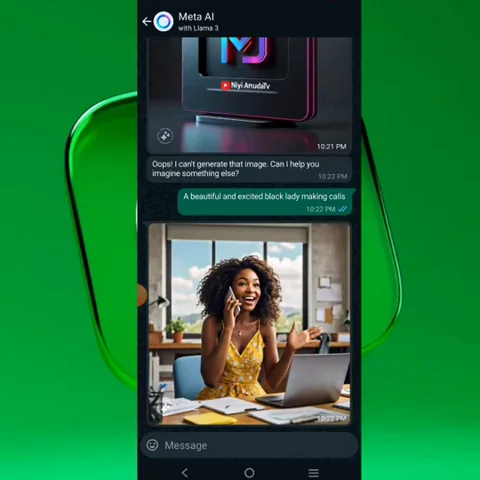
Get More Options in WhatsApp Meta AI Image Generator
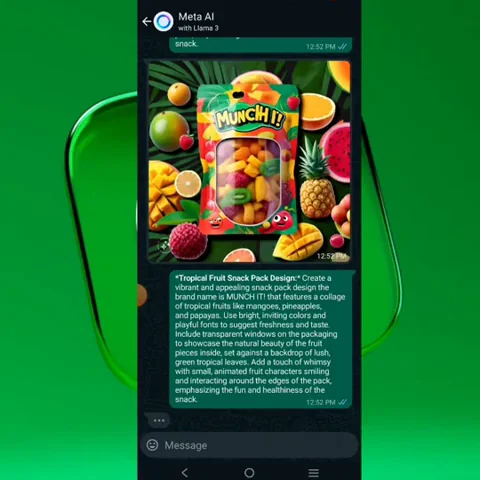
If you want more options, paste that same prompt again. Keep pasting it and you’ll get different options. You can go on and on, repeating the same prompt or changing one or two things. That’s how I get more variations.
Practical Prompt Examples for WhatsApp Meta AI Image Generator
Logo generation
I asked Meta AI to generate a website logo:
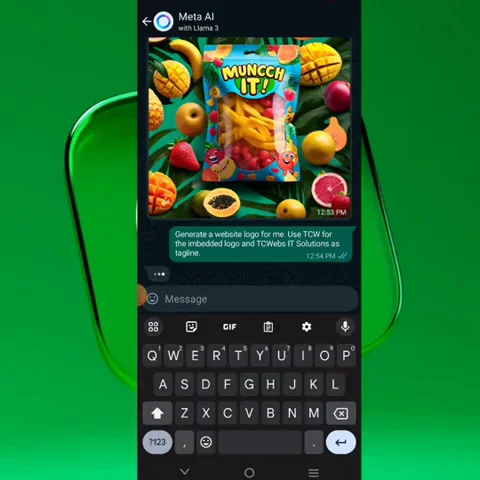
- “Generate a website logo for me. Use TCW.”
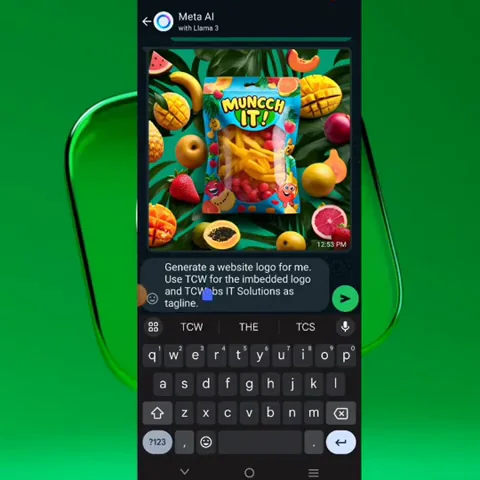
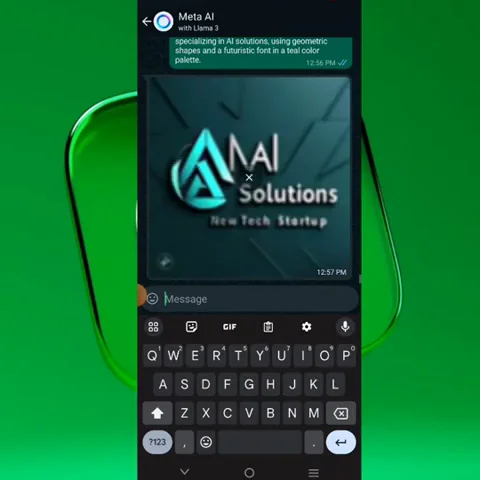
I sent it, waited a few seconds, and it generated a logo. I pasted the same prompt again and got another one. I pasted it a third time and got a different result.
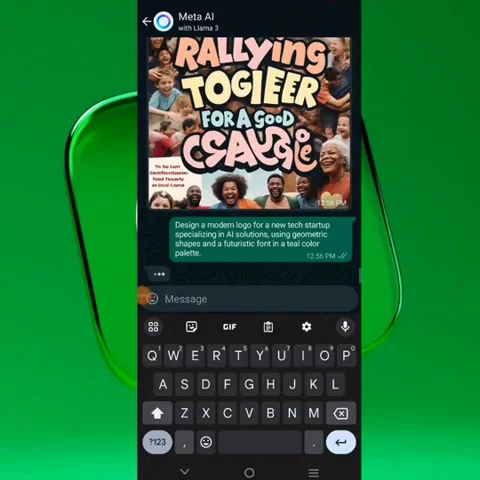
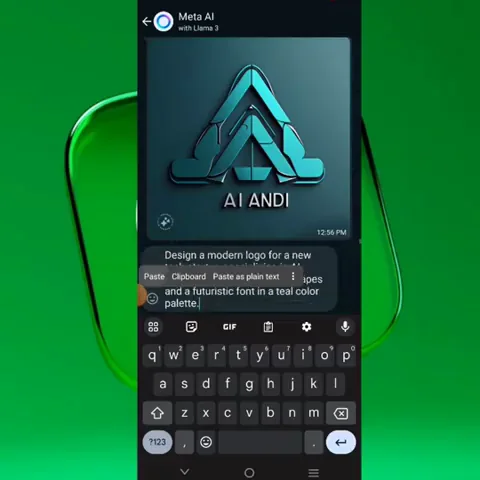
I also tried a more descriptive prompt:
- “Logo design for a new tech startup specializing in AI solutions using geometric shapes and a font.”
Flyer design
I was able to generate flyers using a prompt. I tried a flyer prompt and checked how it came out. You can repeat the prompt to get more options and more results.
Stock-style images and mockups
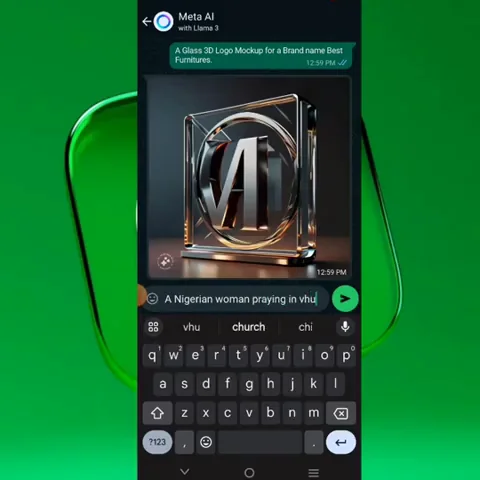
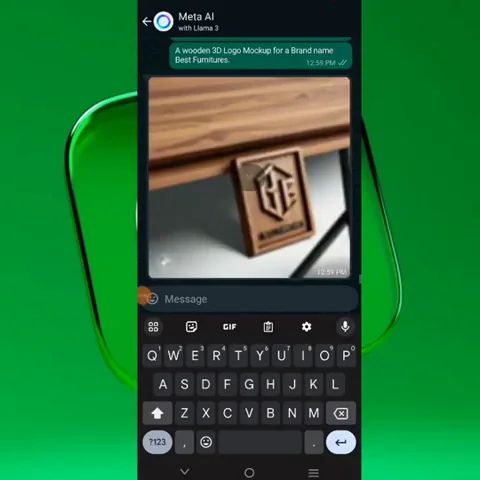
If you’re looking for an image to use in your design, write a clear prompt and repeat it for variations. Examples I tested:
- “A wooden 3D logo mockup for a brand named Best Fish.”
- “A glass 3D logo mockup for a brand named Best Fish.”
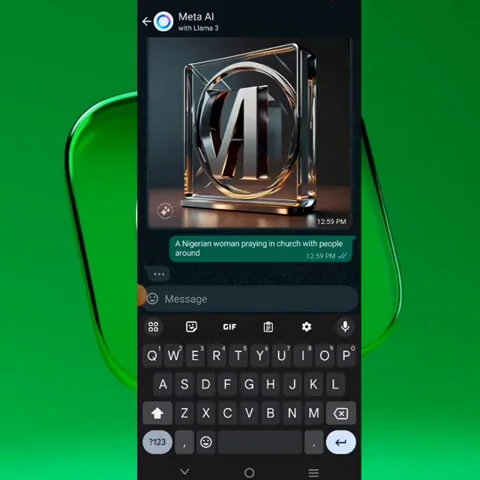
- “A Nigerian woman praying in church with people around.”
- “A child running with a stolen chicken.”
- “A mountain with an open Bible.”
Write the right prompt and you’ll get what you want. You can save the results directly to your phone.
Tips and Limits for WhatsApp Meta AI Image Generator
- There’s a daily limit. In a day you’re limited to about 25 images to generate.
- Repeat the same prompt to get more options.
- Tweak a few words in your prompt to shift the style or output.
- Instead of rushing over to Bing, you can do this right inside WhatsApp.
Final Thoughts
Meta AI inside WhatsApp makes it easy to generate logos, flyers, stock-style images, and mockups with simple prompts. Update WhatsApp, open Meta AI, paste your prompt, and download your results. If you need more variations, repeat or tweak the prompt. Keep an eye on the daily limit, and create right inside WhatsApp.
Recent Posts

How to use Grok 2.0 Image Generator?
Learn how to access Grok 2.0’s AI image generator (Premium required), write better prompts, and avoid pitfalls like real people and brands. Step-by-step tips.
How to use Instagram AI Image Generator?
Use Meta AI in Instagram DMs to turn text into images—and even animate them. It’s free, fast, and built in. No external apps needed; create art right in chat.
Leonardo AI 2026 Beginner’s Guide: Create Stunning Images Fast
Learn Leonardo AI step by step—sign up, explore Home, and generate or enhance photos with free, powerful tools. A quick, clear starter for beginners.