How to Generate Images with Grok AI (Quick Guide)
I’m going to show you how you can generate images using Grok AI and a few things that you can do when you are creating or even editing a picture using Grok AI.
Getting Started with Grok AI Image Generation
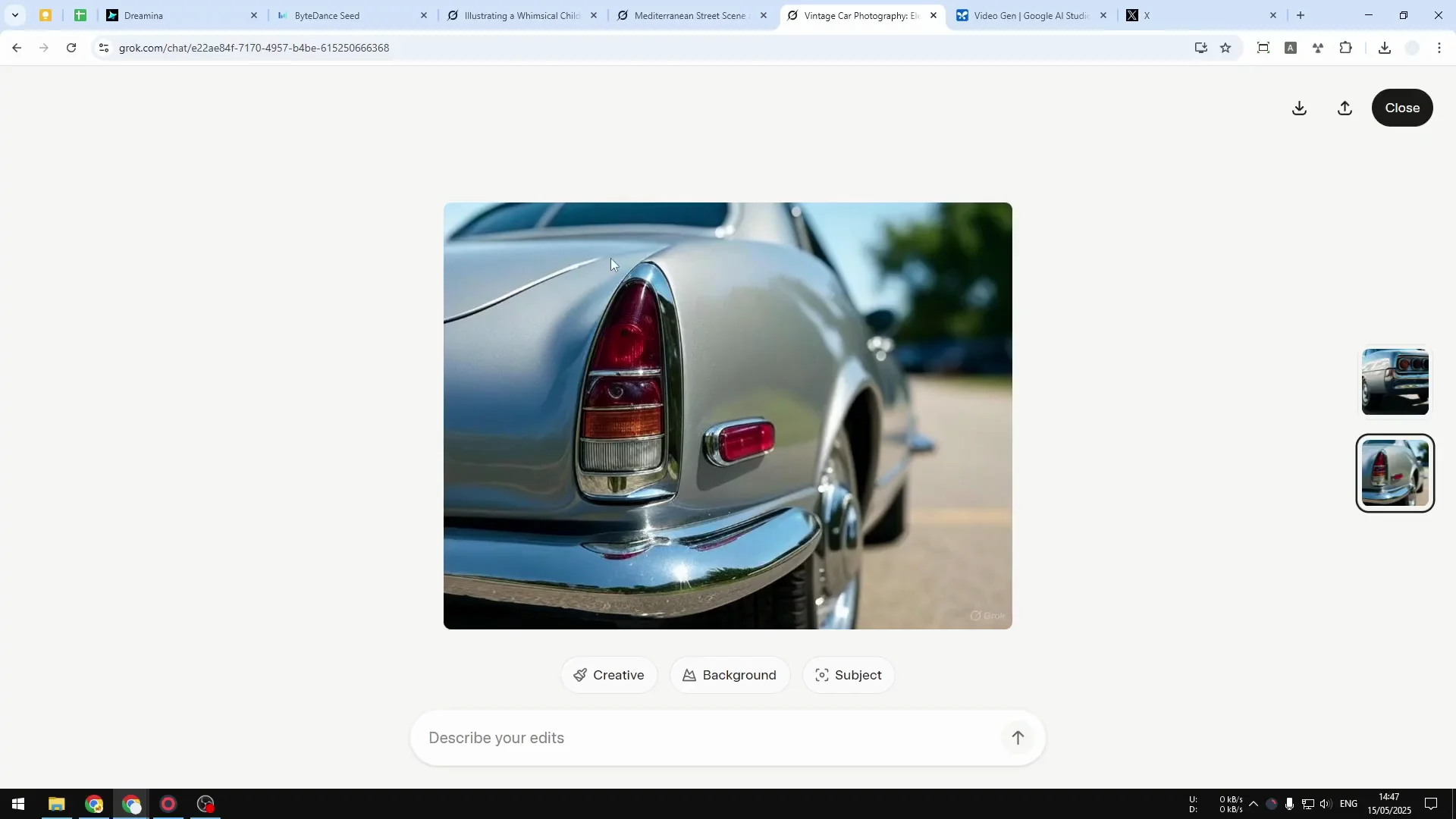
Open grok.com and then you can log to your account. It is possible to use Grok AI on the x.com website, but I personally recommend the dedicated grok.com because you will see more features and it is a lot better experience than using Grok on xAI. You can keep using your X account or you can log in using your X account on grok.com.
Create Images with Grok AI
- Click Create images.
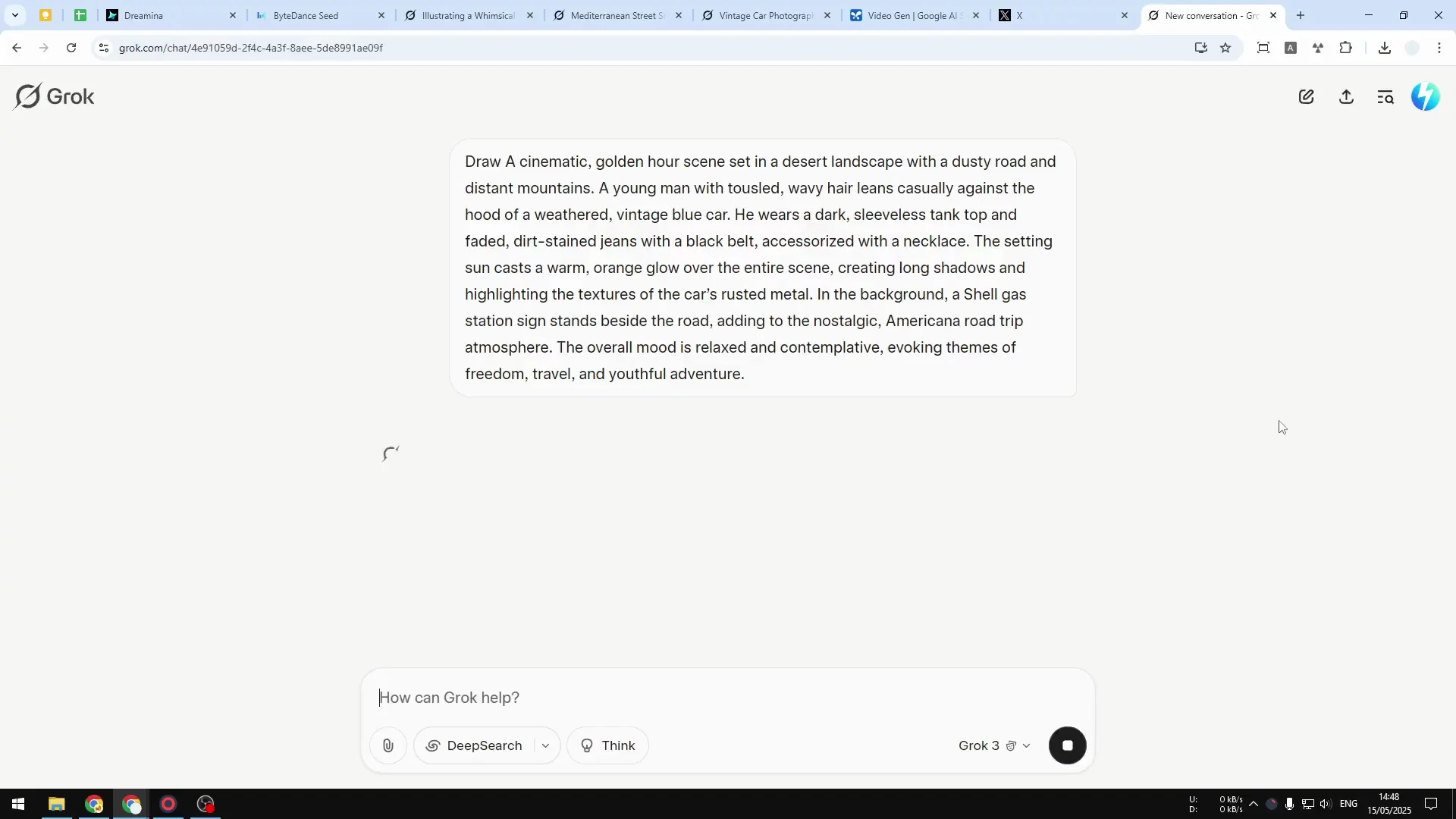
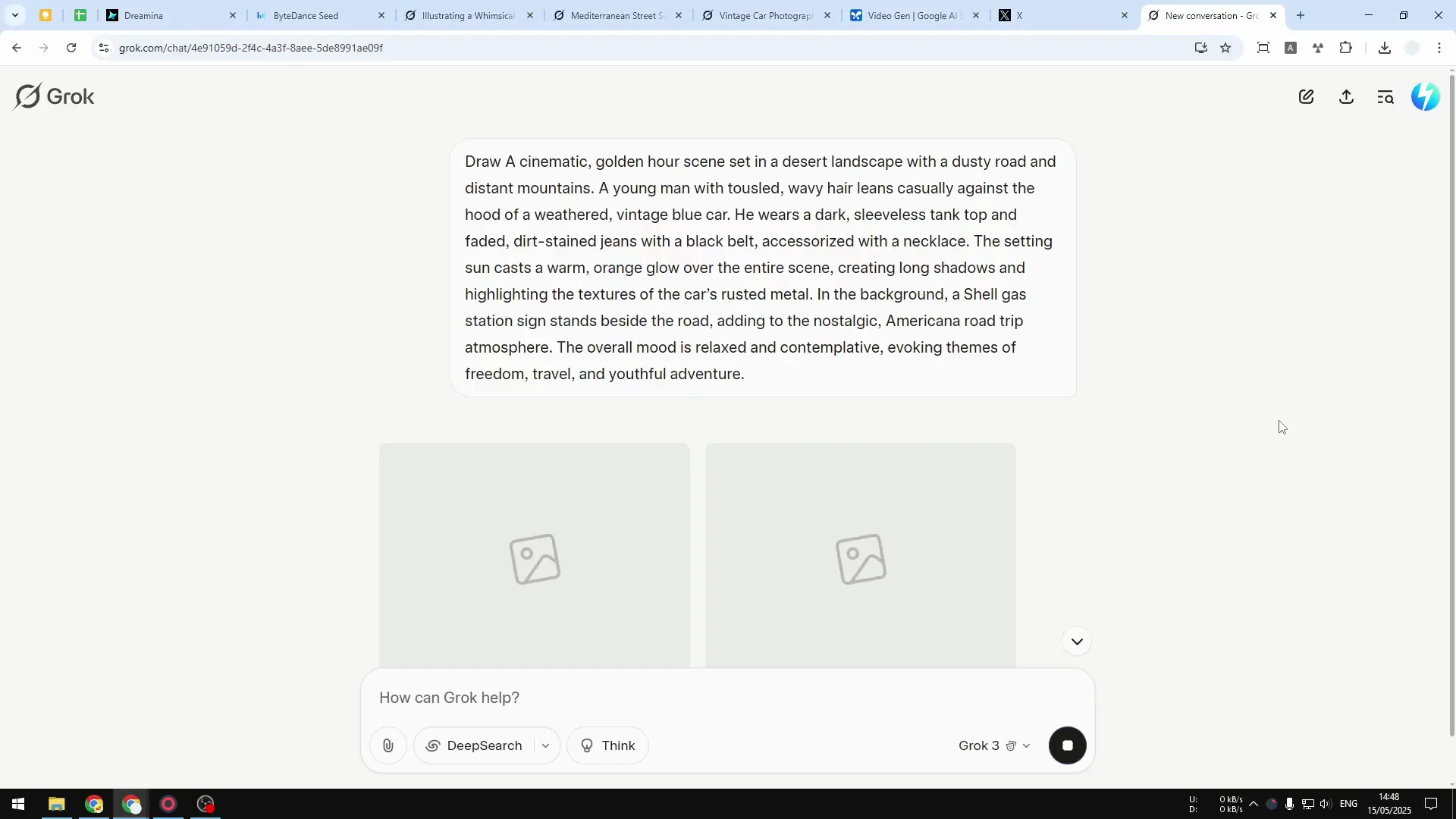
- Describe the thing that you want AI to generate. For this example, I’ll try to use this AI prompt.
- You don’t have to do anything else. You don’t have to set up any setting.
- Send the message to Grok and it will understand that you’re trying to create a picture.
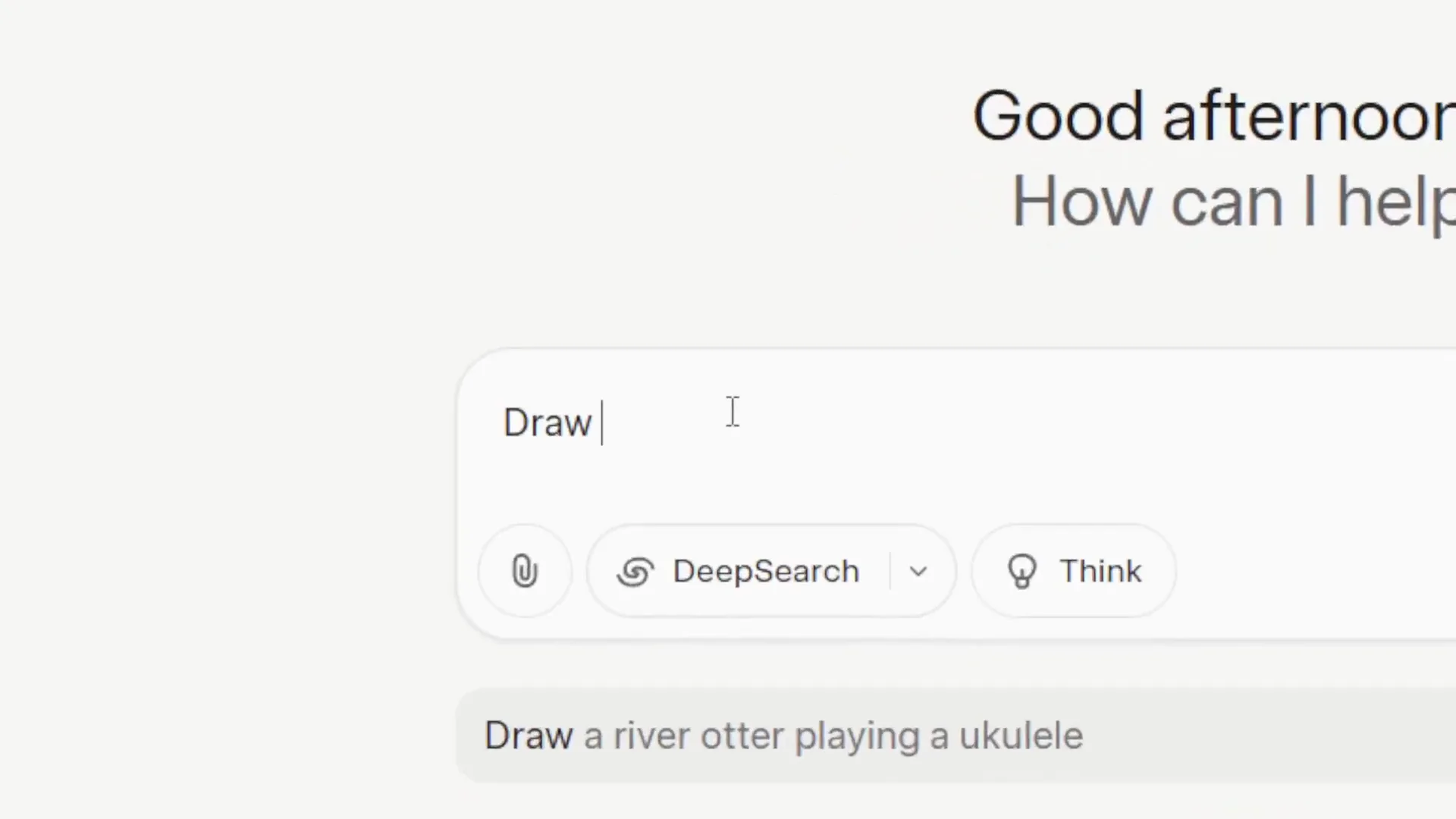
What’s unique about it is that it will create two images at the same time and you can see which one looks the best.
Results and Quick Review
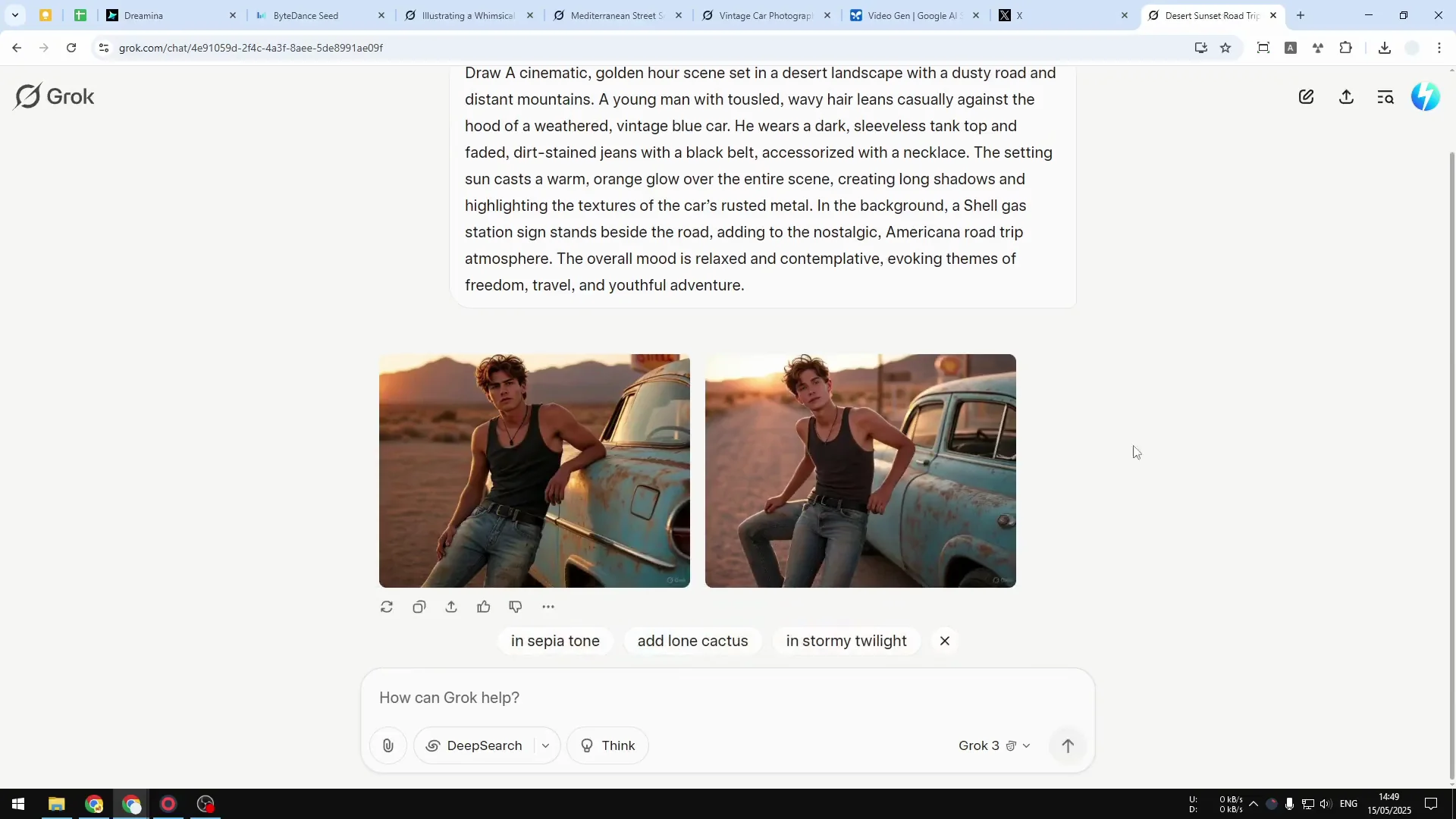
This is the result. They do look pretty interesting. I do notice that there is this problem with this picture. This guy seems to have three legs for some reason. But this one looks really a mess. It looks cinematic.
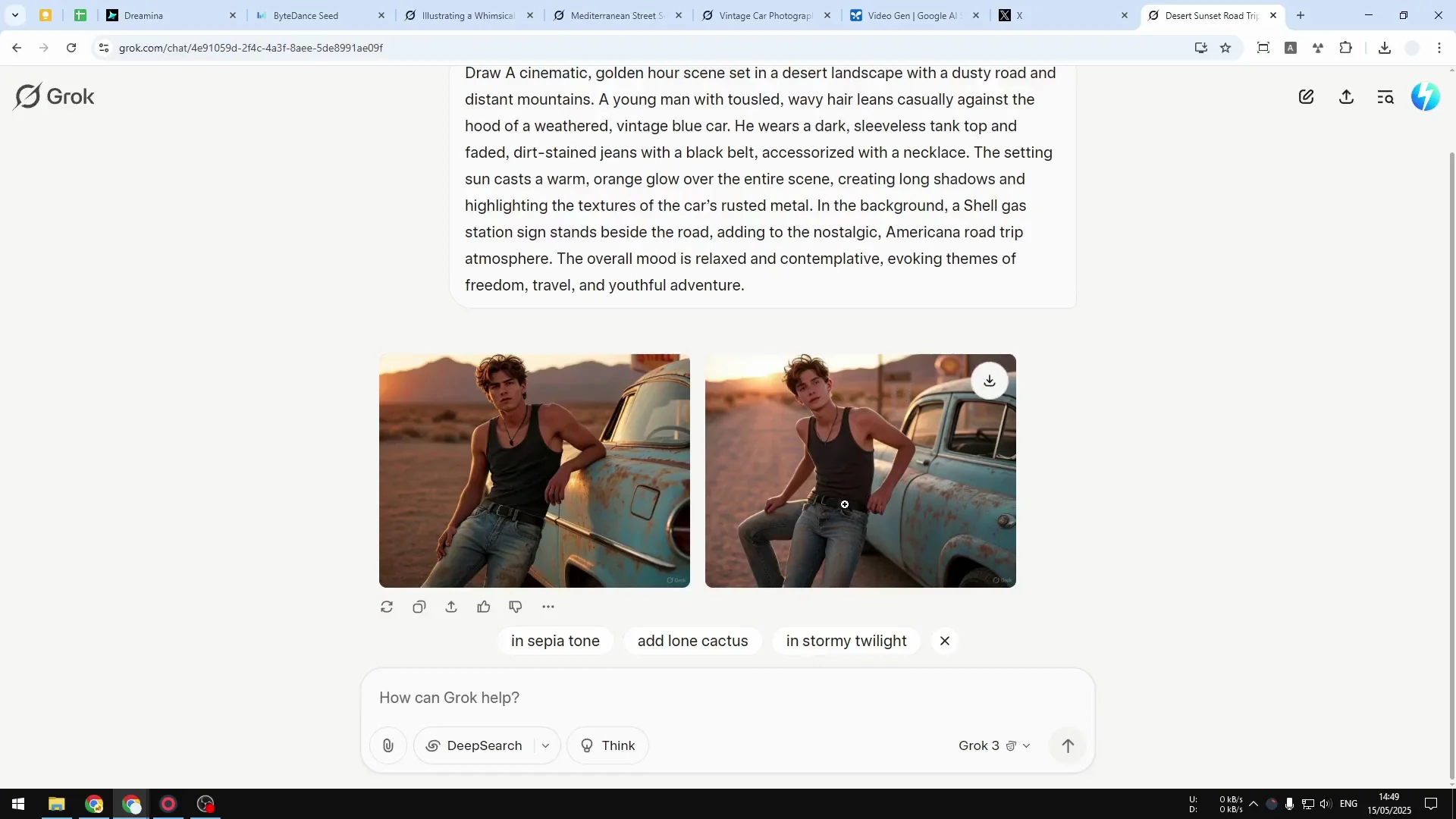
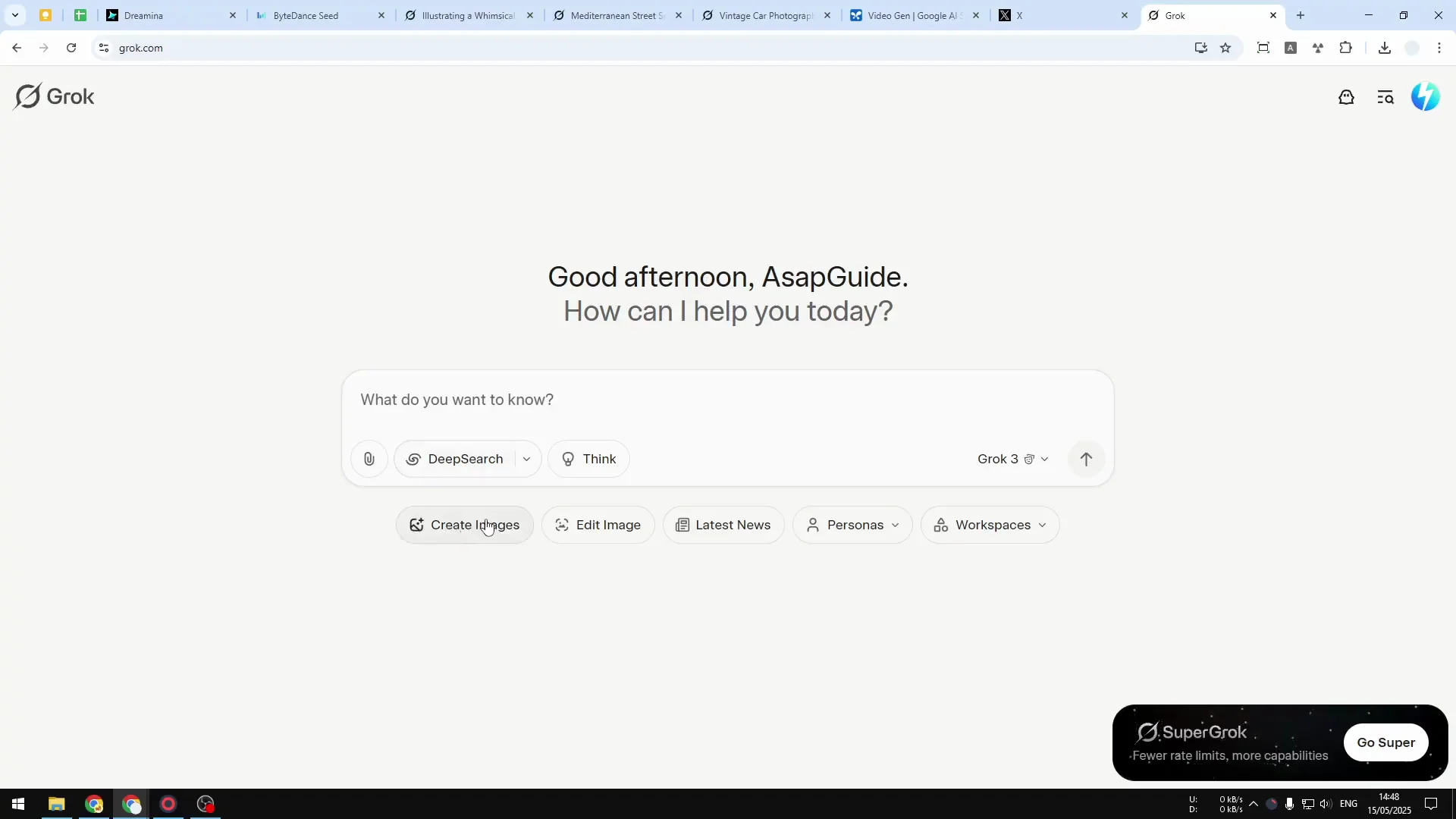
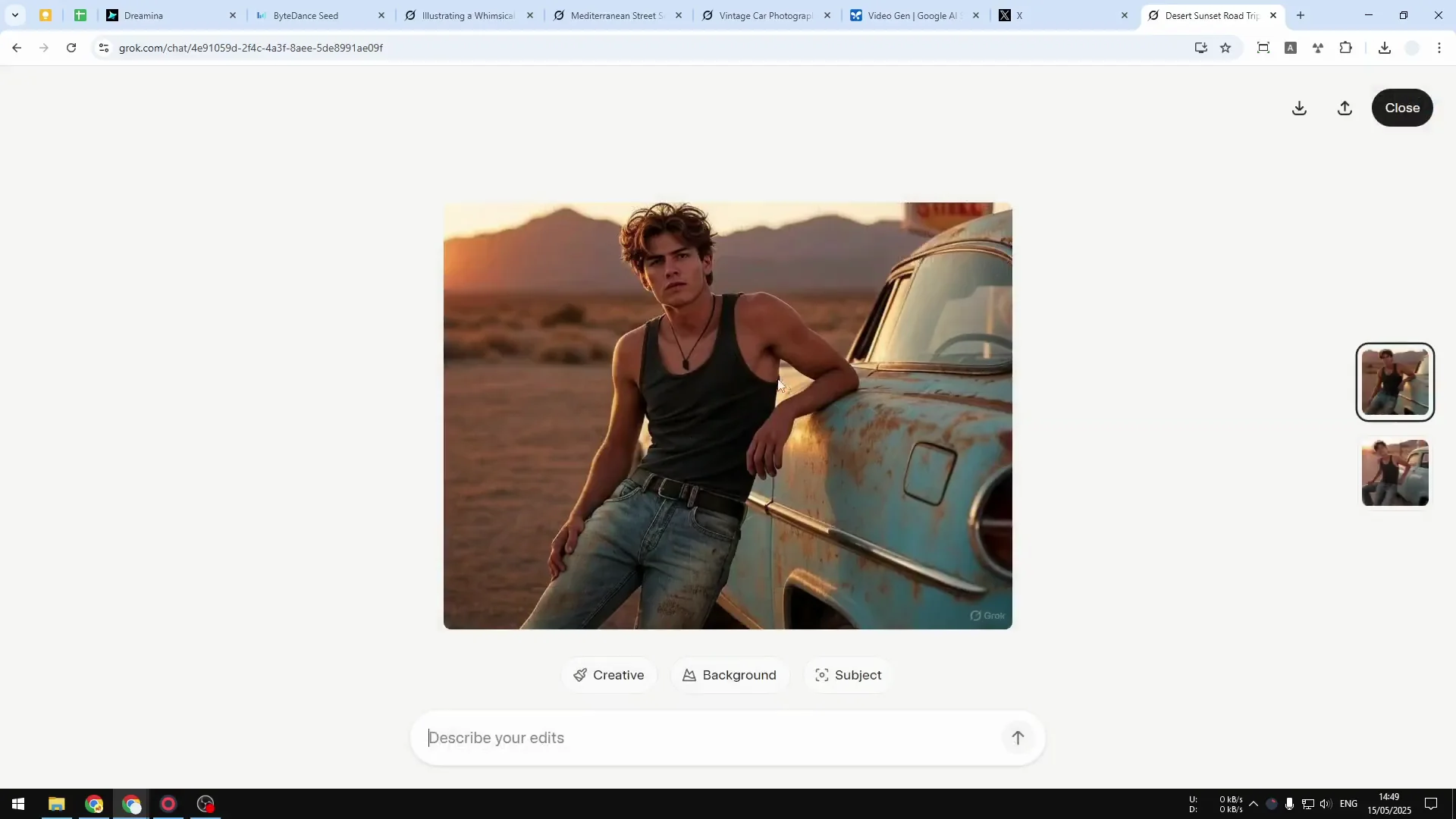
You can click an image to preview it in a bigger picture, and you can download the picture to your computer.
Quick Edits in Grok AI Image Generation
At the bottom there are some buttons that you can click. These buttons reveal some basic editings that you could apply to the picture.
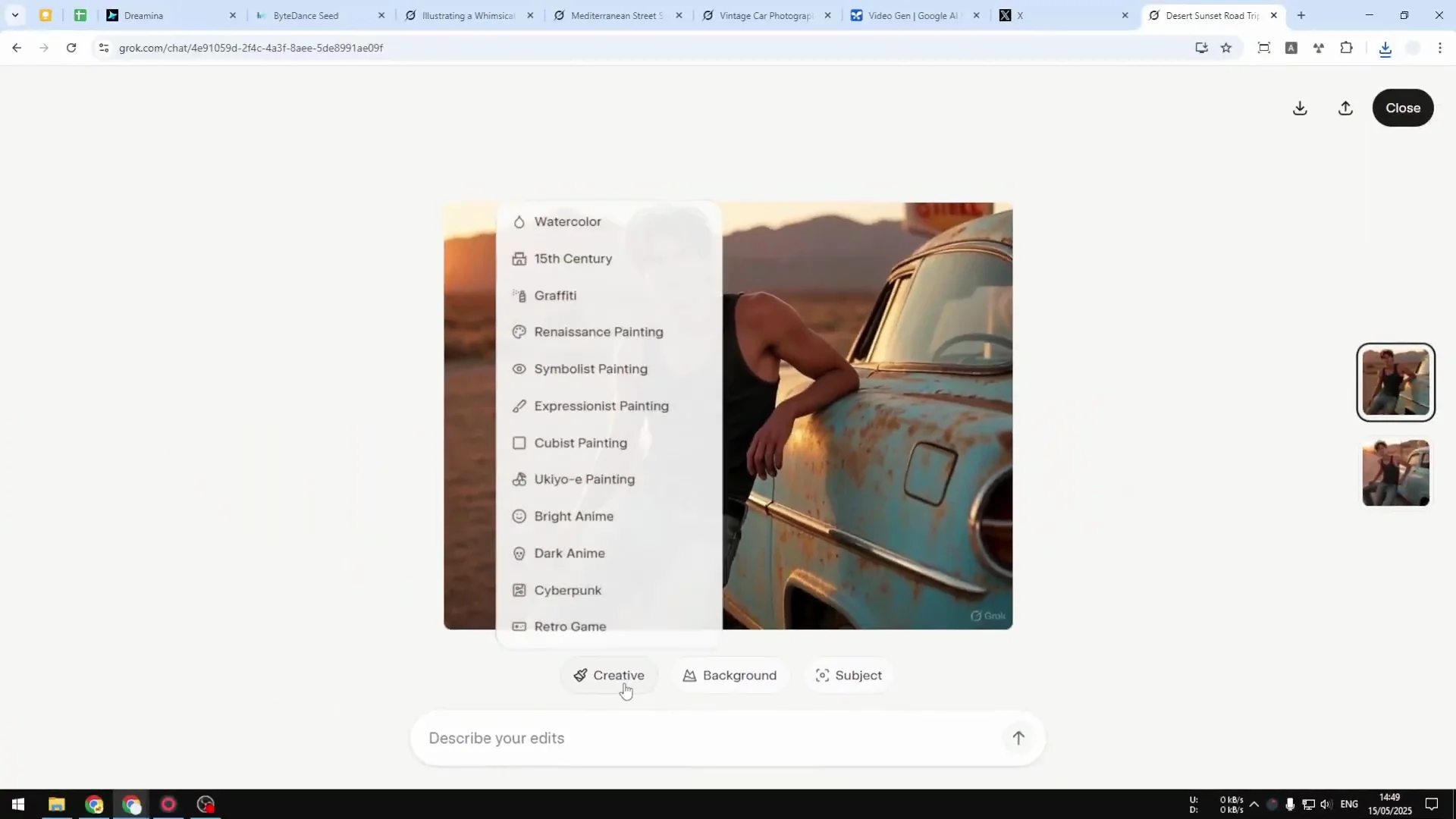
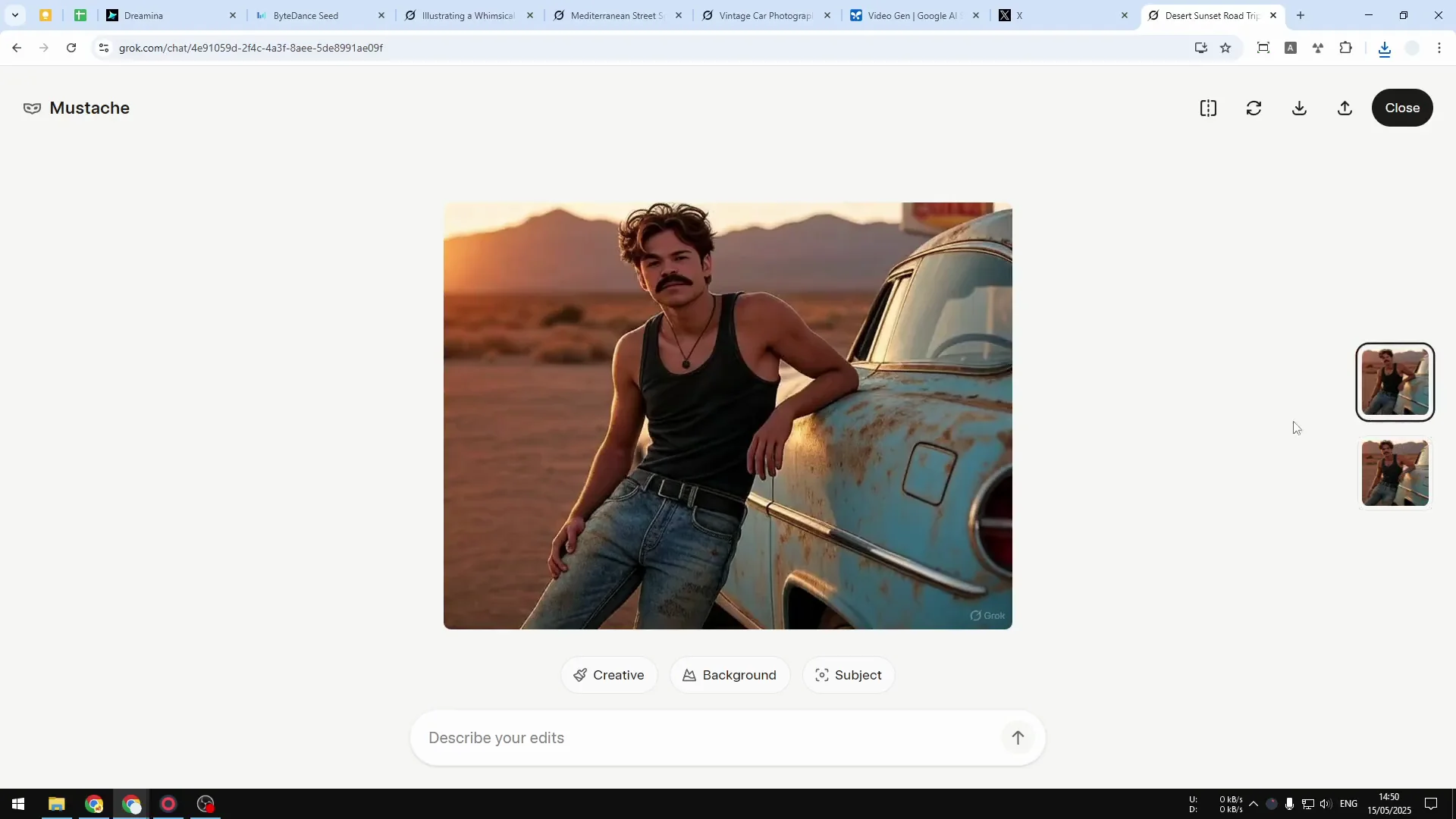
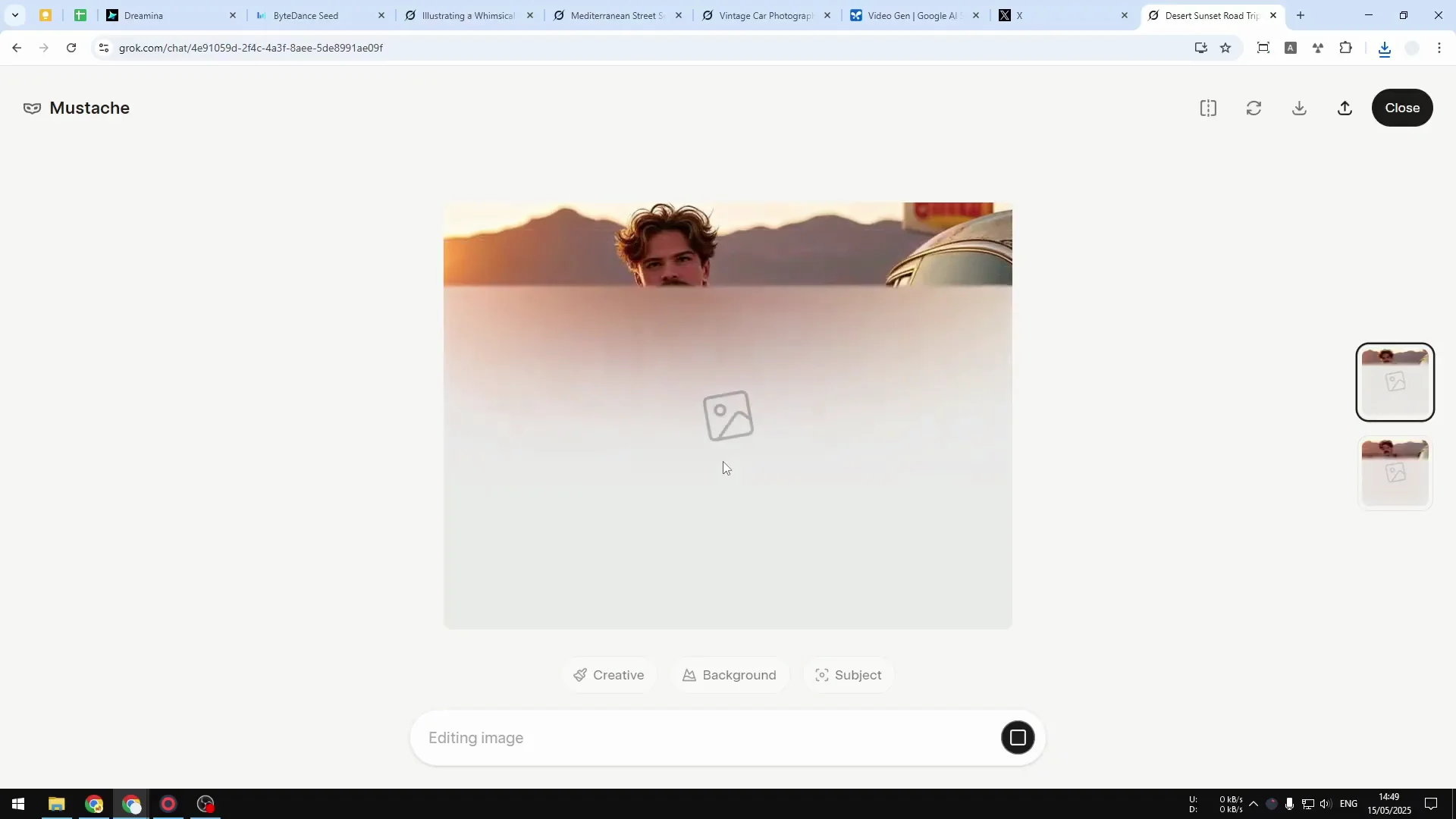
- For example, I want to apply some mustache to the person. Click the button and it will edit the picture that was created by Grok and will add that object, which is mustache, into the person.
- It actually will modify two pictures. It seems to be recreating the previously mistaken picture with three legs, and now that person only has two legs, which is amazing.
Edit by Prompt in Grok AI Image Generation
You can also just edit the picture by prompting.
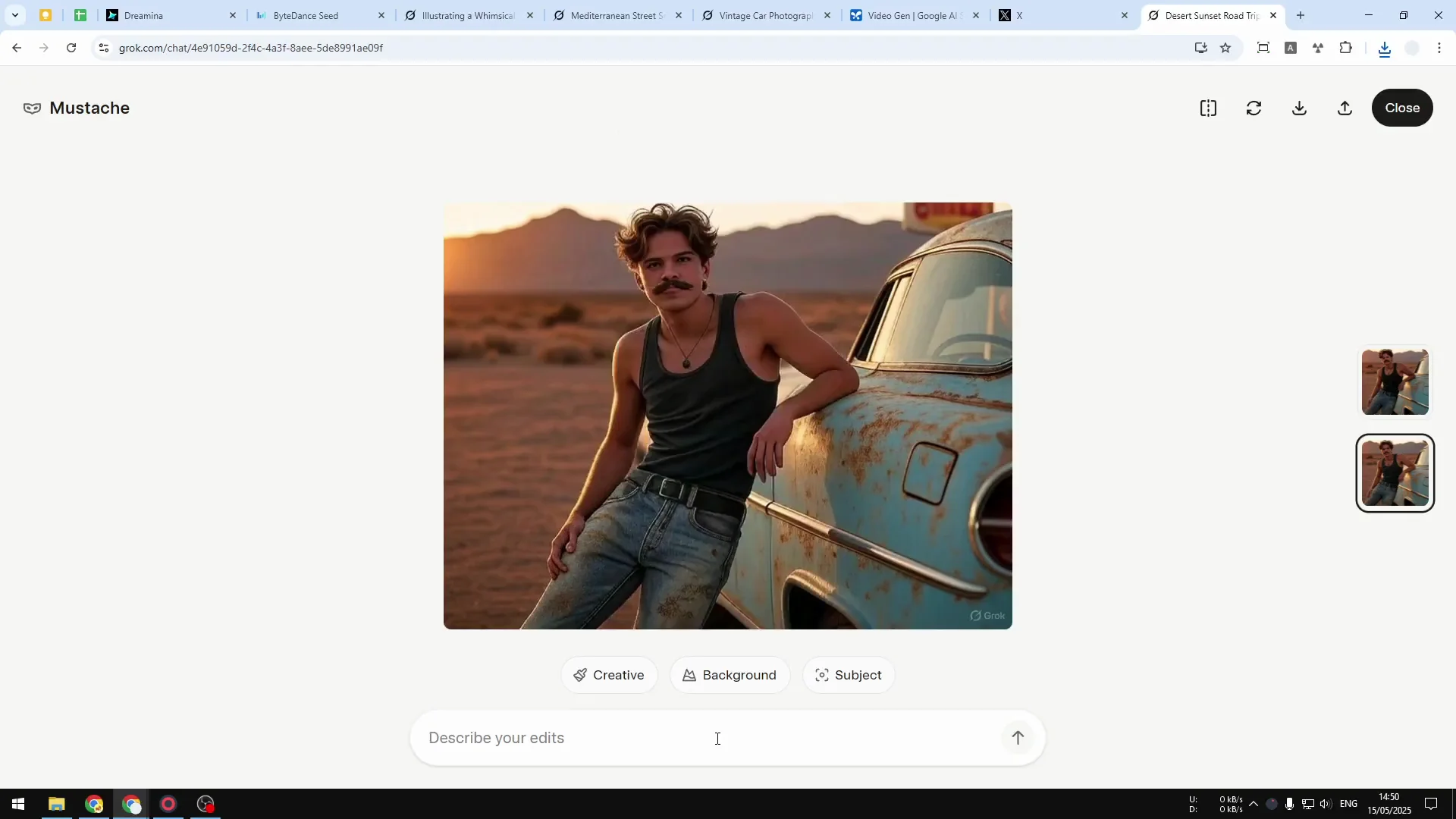
- I’m going to ask Grok to please make the car color red.
- Send a message and it will edit the picture once again.
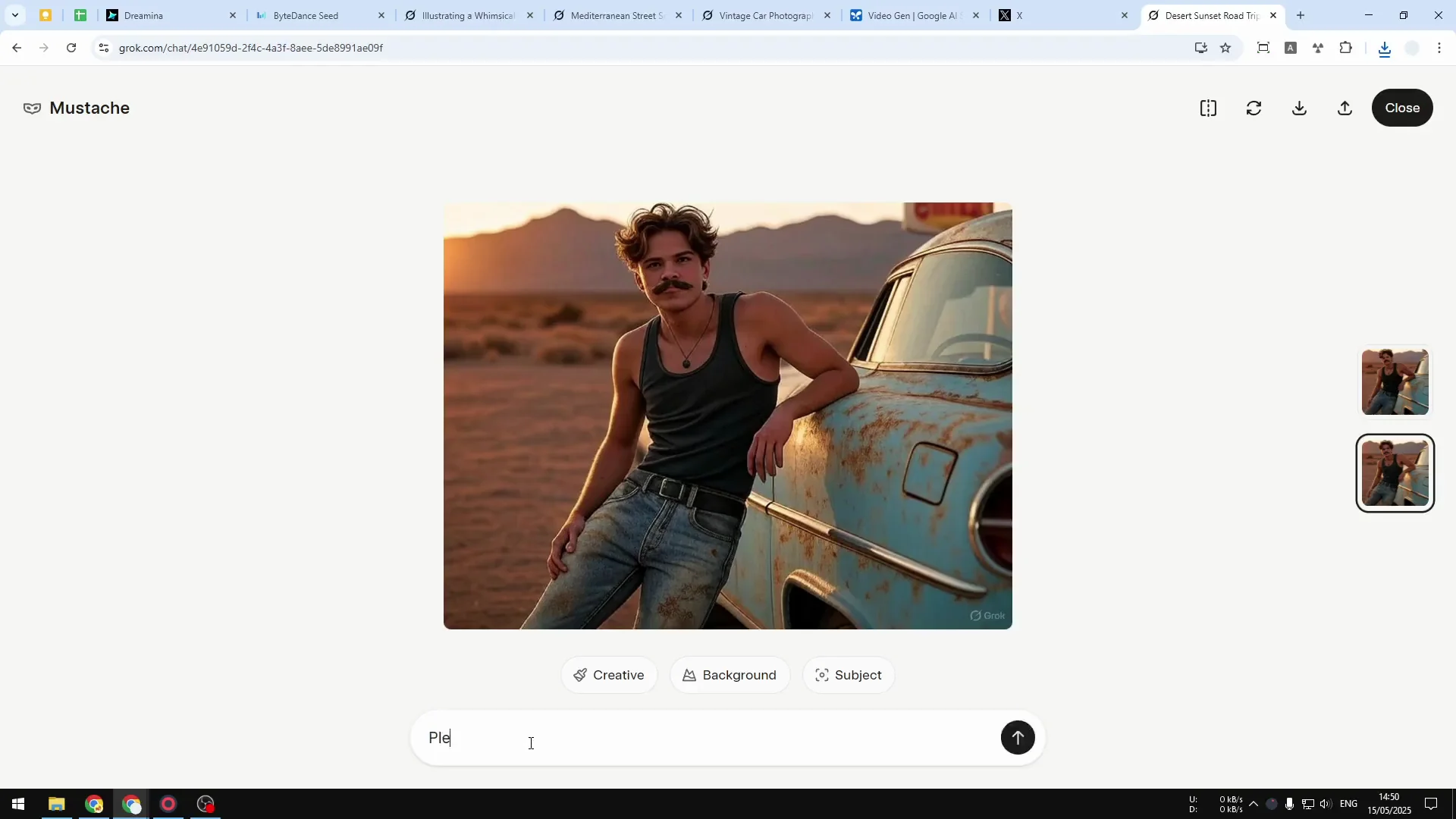
One thing that I like about editing an image on Grok is that it is very quick. I would say it’s a lot faster than GPT-4 and many times faster, and also it is creating two pictures. Although it’s not the best image model at the moment.
Final Thoughts
That’s basically how you can create images on grok.com and some editings that you can do using this AI tool. Grok creates two options each time, gives you quick preview and download, offers one-click style edits, and supports prompt-based changes that apply fast.
Recent Posts

How to use Grok 2.0 Image Generator?
Learn how to access Grok 2.0’s AI image generator (Premium required), write better prompts, and avoid pitfalls like real people and brands. Step-by-step tips.
How to use Instagram AI Image Generator?
Use Meta AI in Instagram DMs to turn text into images—and even animate them. It’s free, fast, and built in. No external apps needed; create art right in chat.
Leonardo AI 2026 Beginner’s Guide: Create Stunning Images Fast
Learn Leonardo AI step by step—sign up, explore Home, and generate or enhance photos with free, powerful tools. A quick, clear starter for beginners.