How to use Apple Image Playground: Quick Start on macOS 15.2
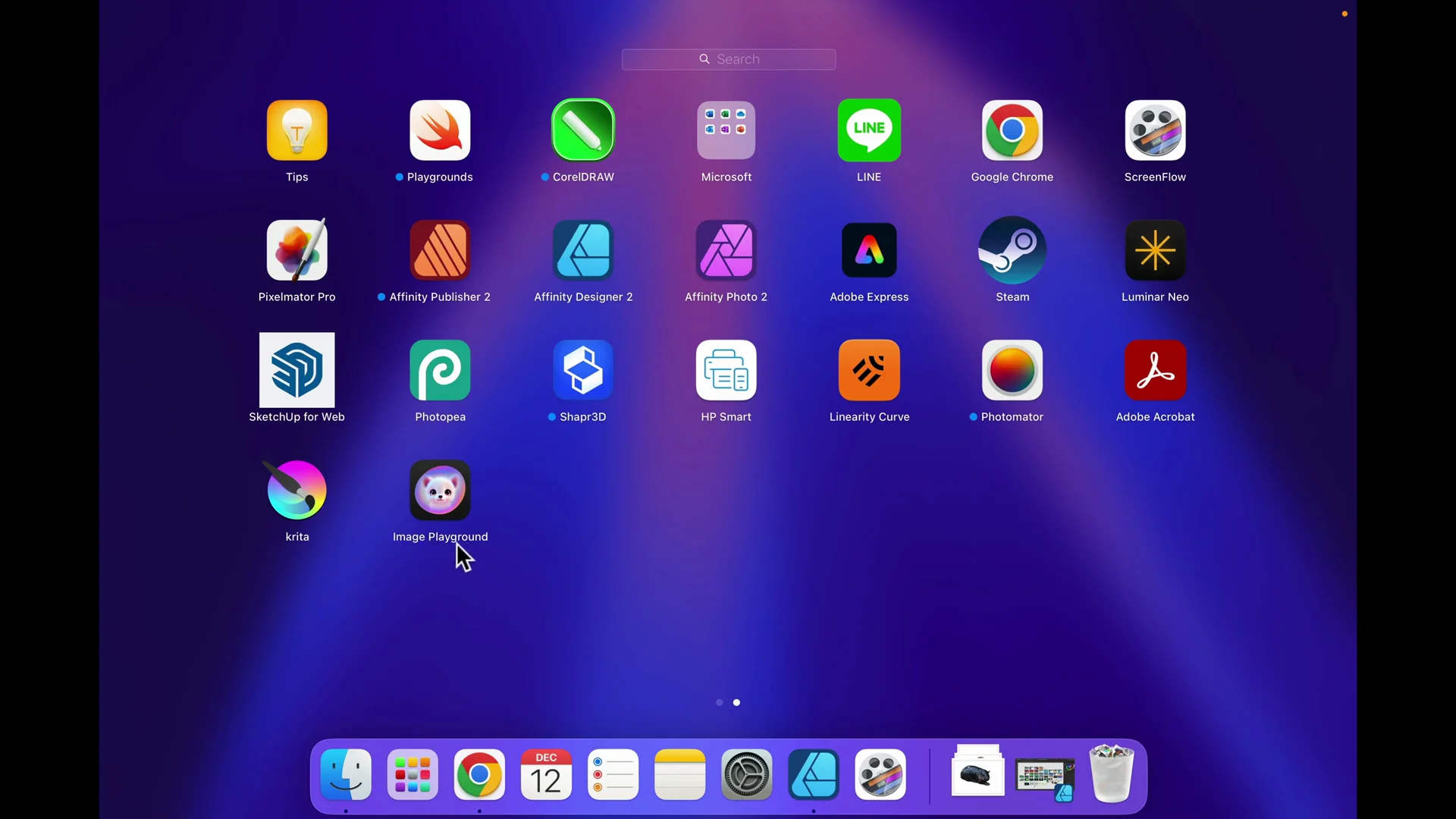
With the brand new update 15.2 we finally get an image generator for Apple Intelligence. After you update your system, head to Launchpad where you can see all of your apps. You will see a brand new app at the end of the list, Image Playground. That’s an app by Apple that will use Apple Intelligence to make images.
Apple Intelligence Image Generation: First-Time Setup
You will need to set it up. It is not ready to use straight away. They recommend staying connected to Wi-Fi. I waited for a notification that the program is ready to roll, and after a few minutes I got a notification that the program is ready to use. Keep in mind this setup is only for the very first time.
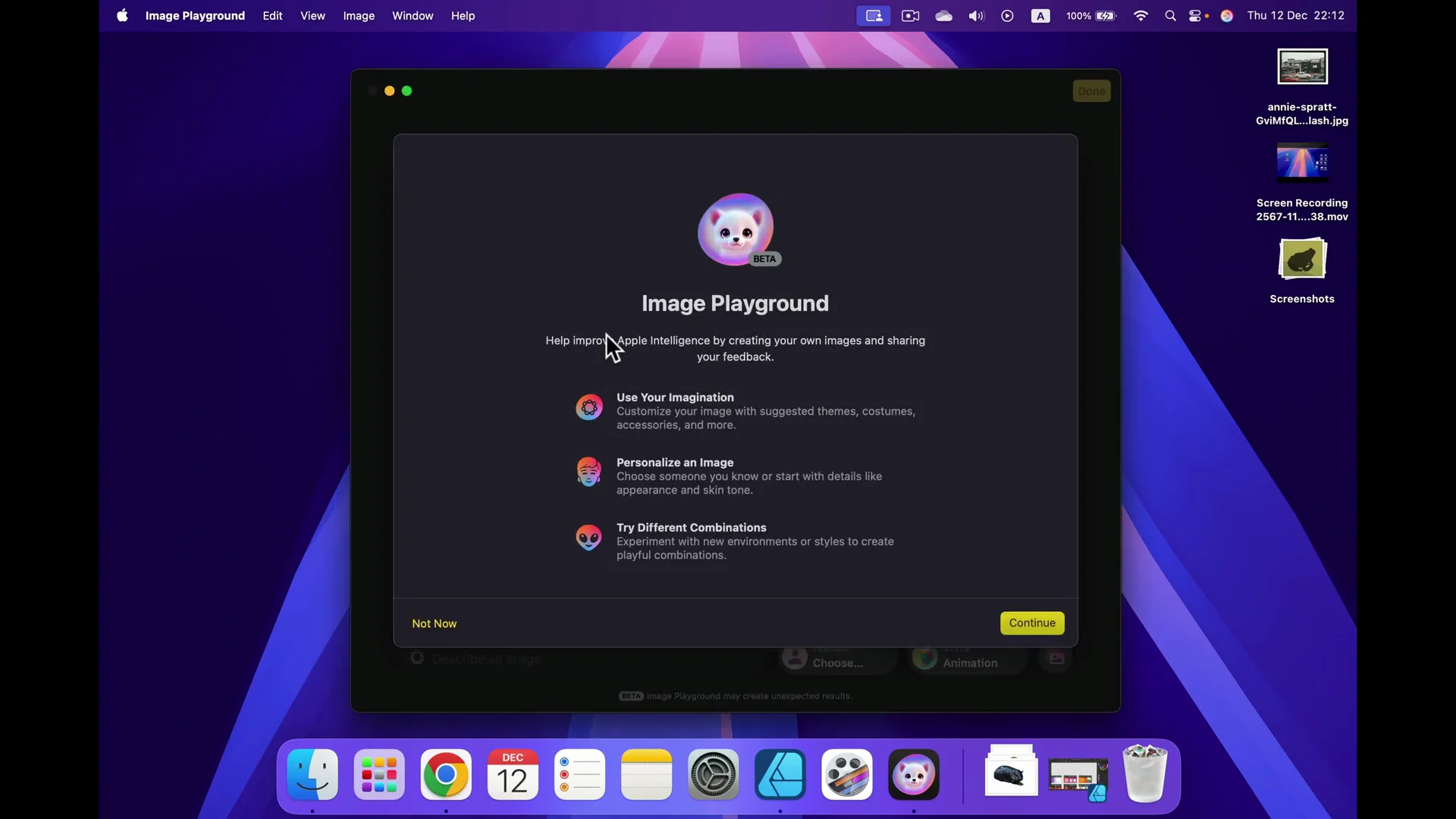
Quick setup steps
- Update your system to version 15.2.
- Open Launchpad and find Image Playground.
- Open it and stay on Wi-Fi during setup.
- Wait for the notification that it is ready.
Apple Intelligence Image Generation: Creating Images From Text
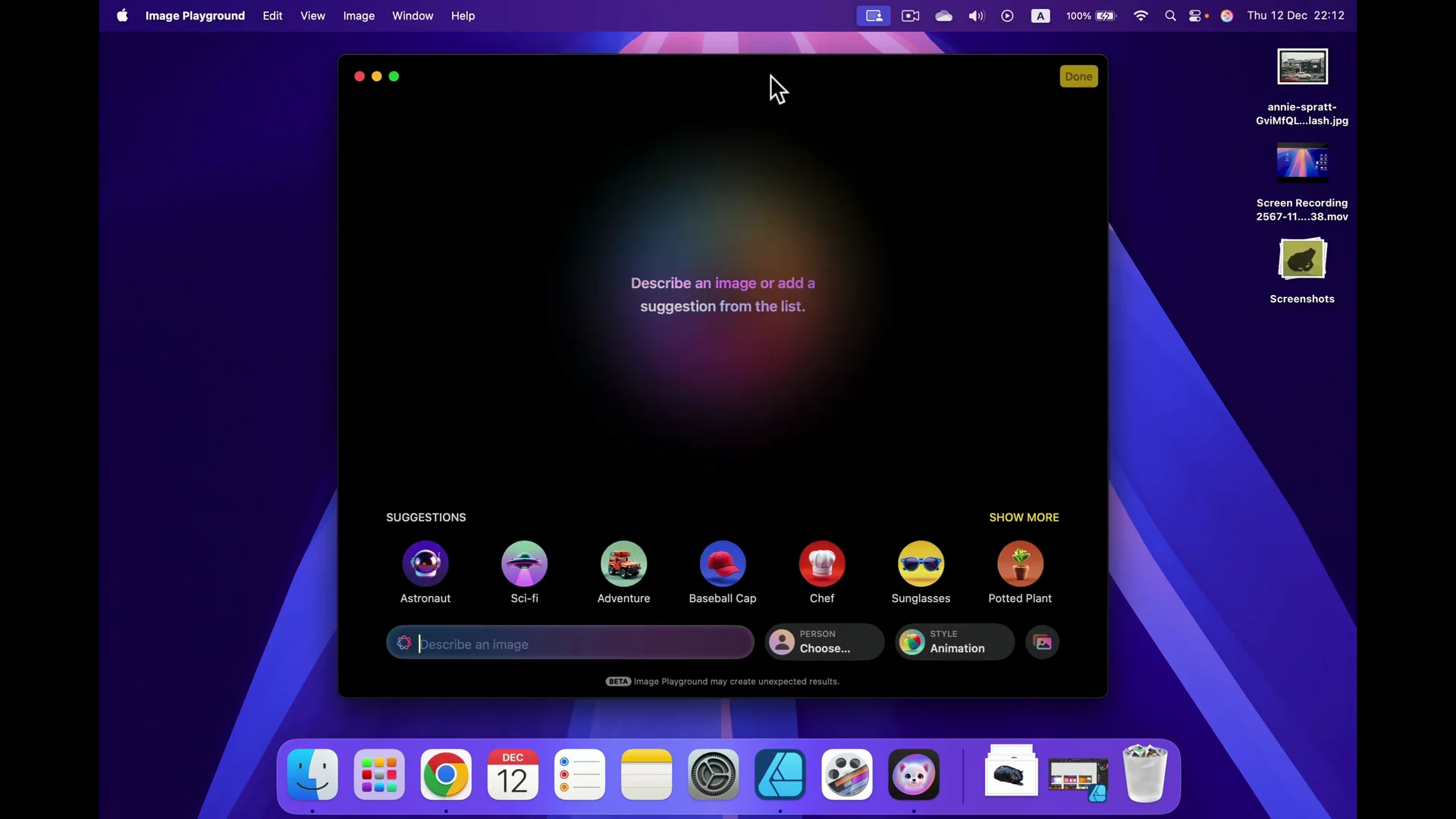
Like with any other AI generator, you need to describe the image you need. The more detailed the description, the better result you will get. You do not need to settle down with the very first option they show you. You can keep changing the description and choosing whatever you like.
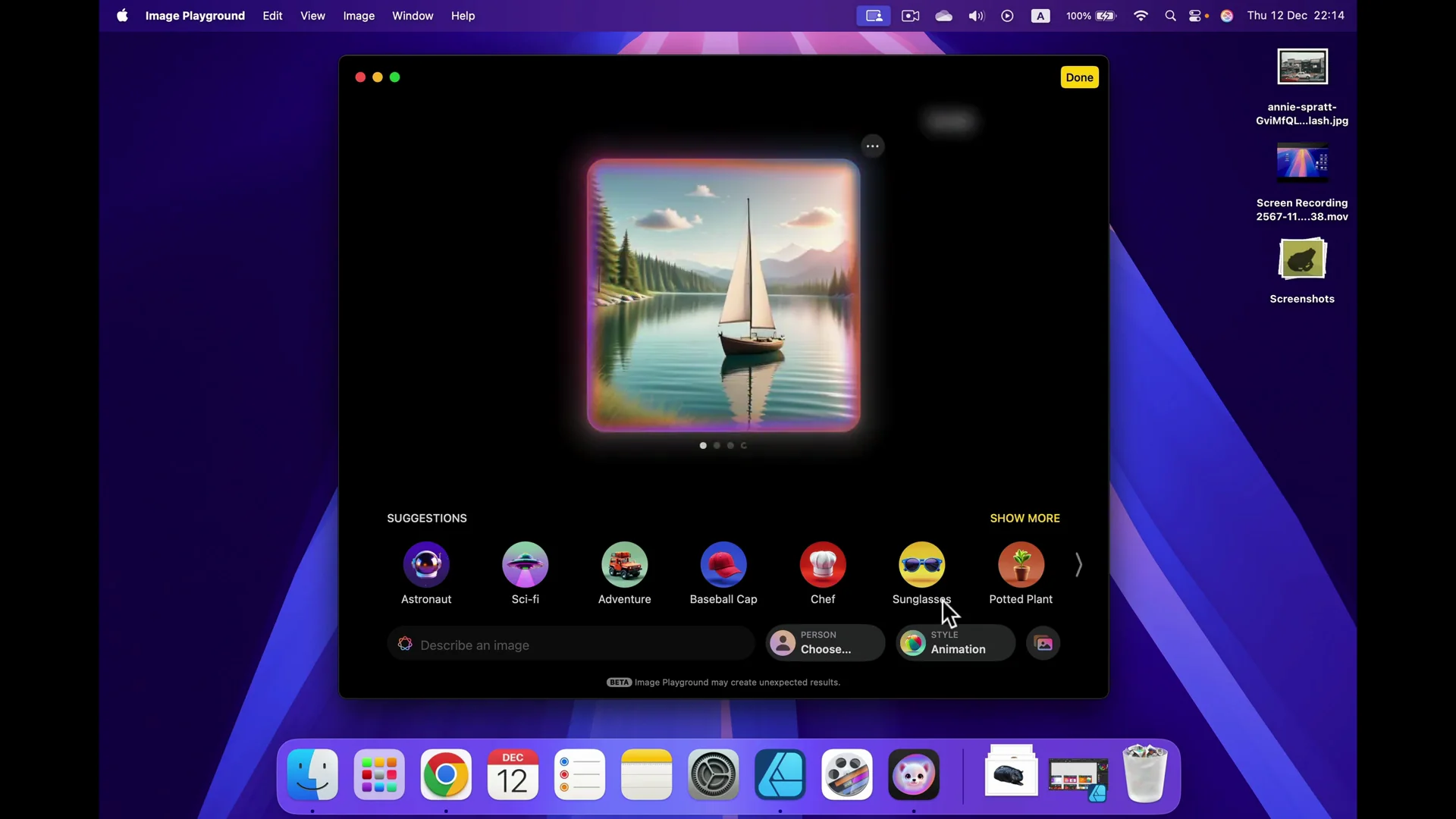
I prepared one description. I asked for a scene showing a lake and a sailboat and hit Enter. I can see my prompt floating around, and I got the first version of the image.
Picking a visual style
You can choose the style. There are two right now:
- Animation: more kind of realistic
- Illustration: more flat
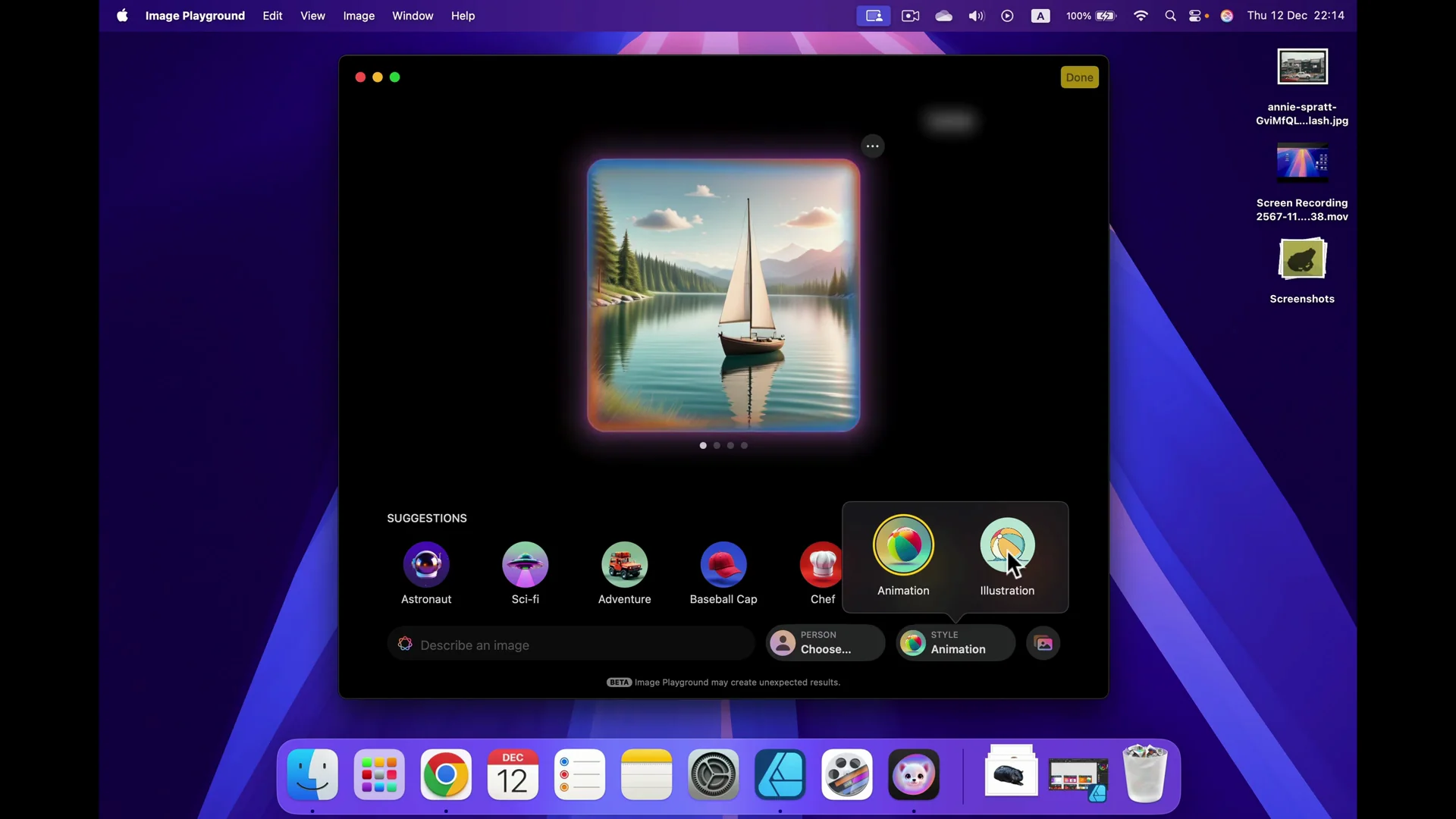
I stuck with this one. They give several suggestions, not just one but several, and it is currently way faster than some of those cloud versions.
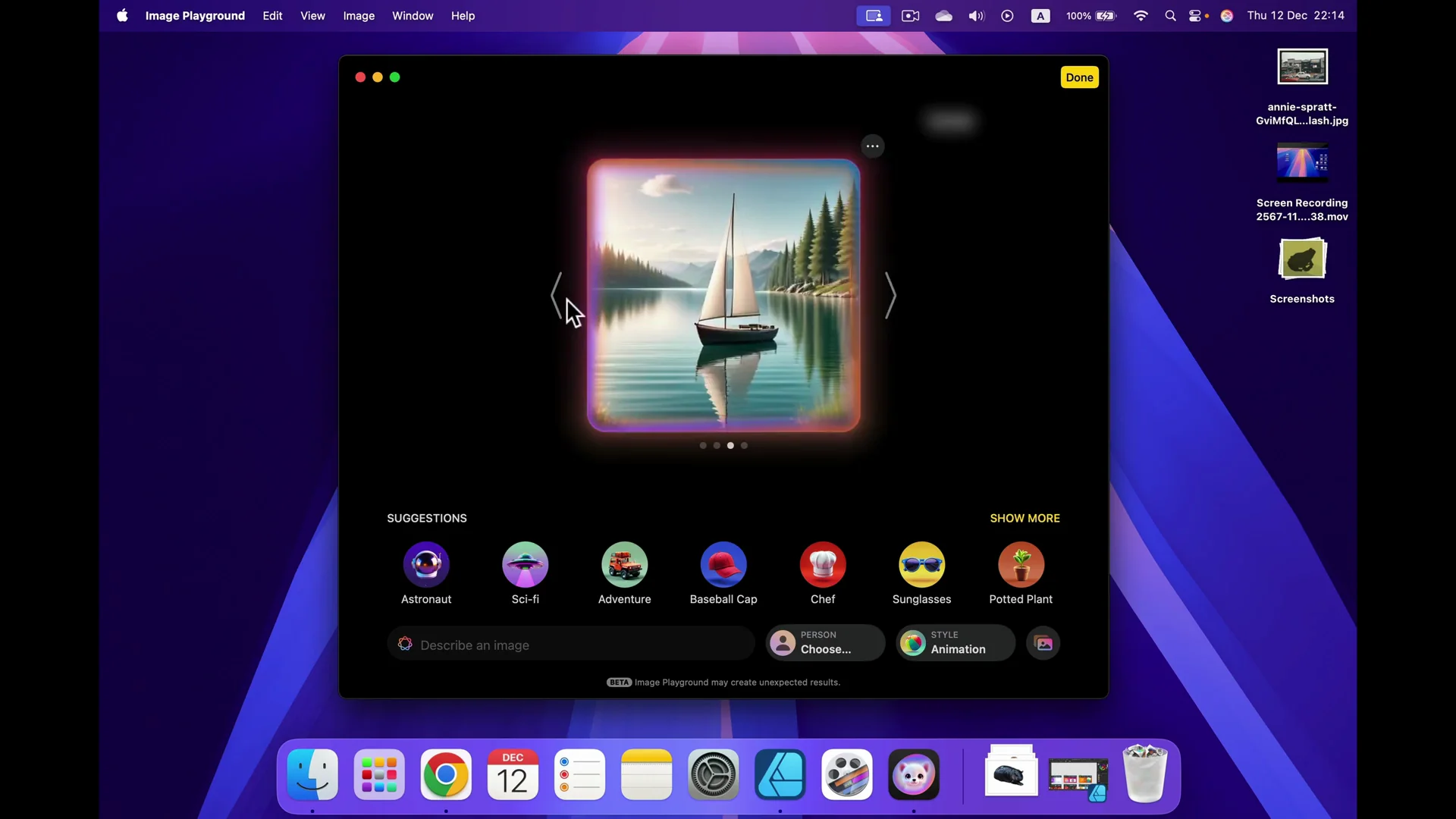
Continuous variations as you scroll
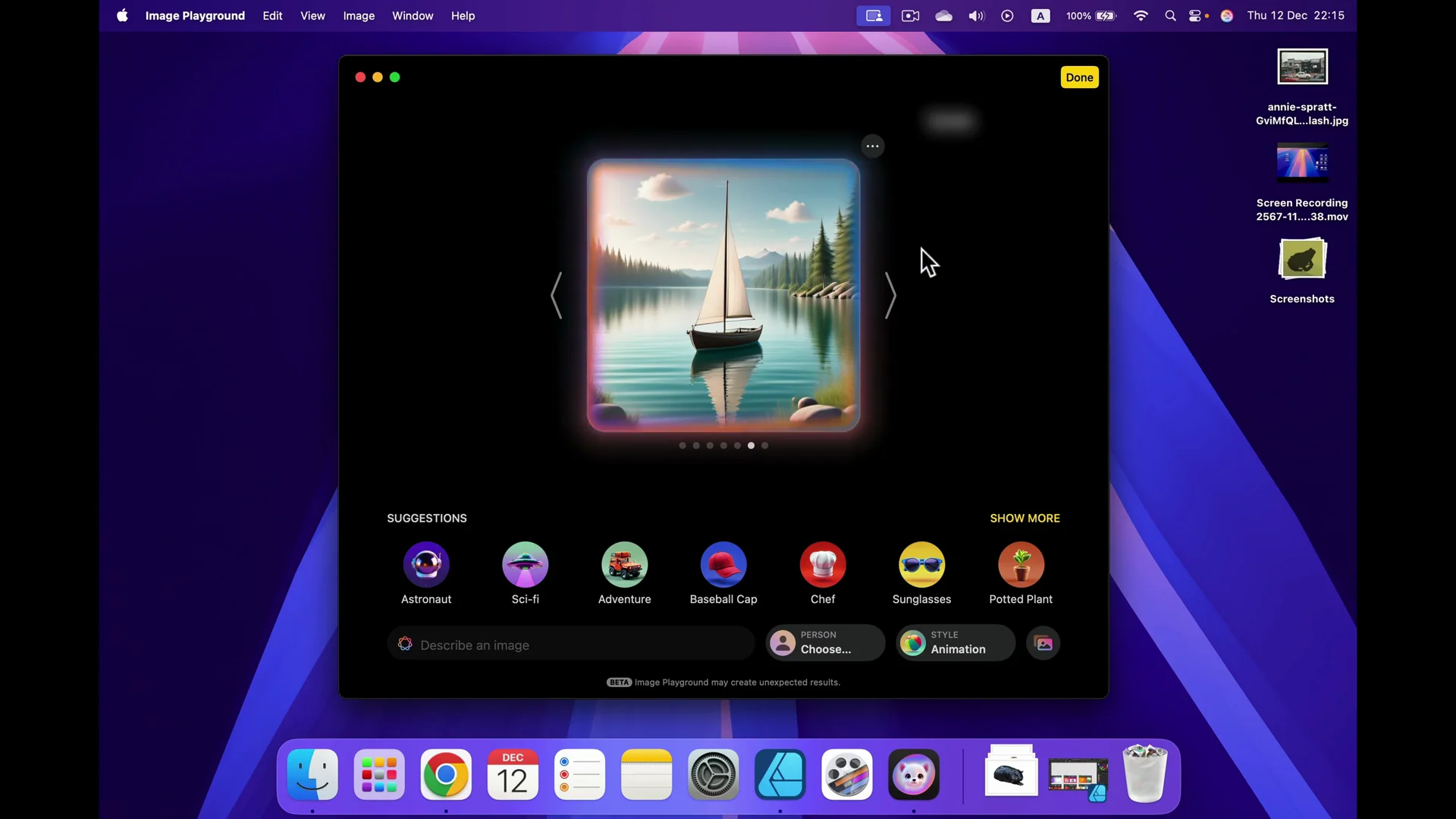
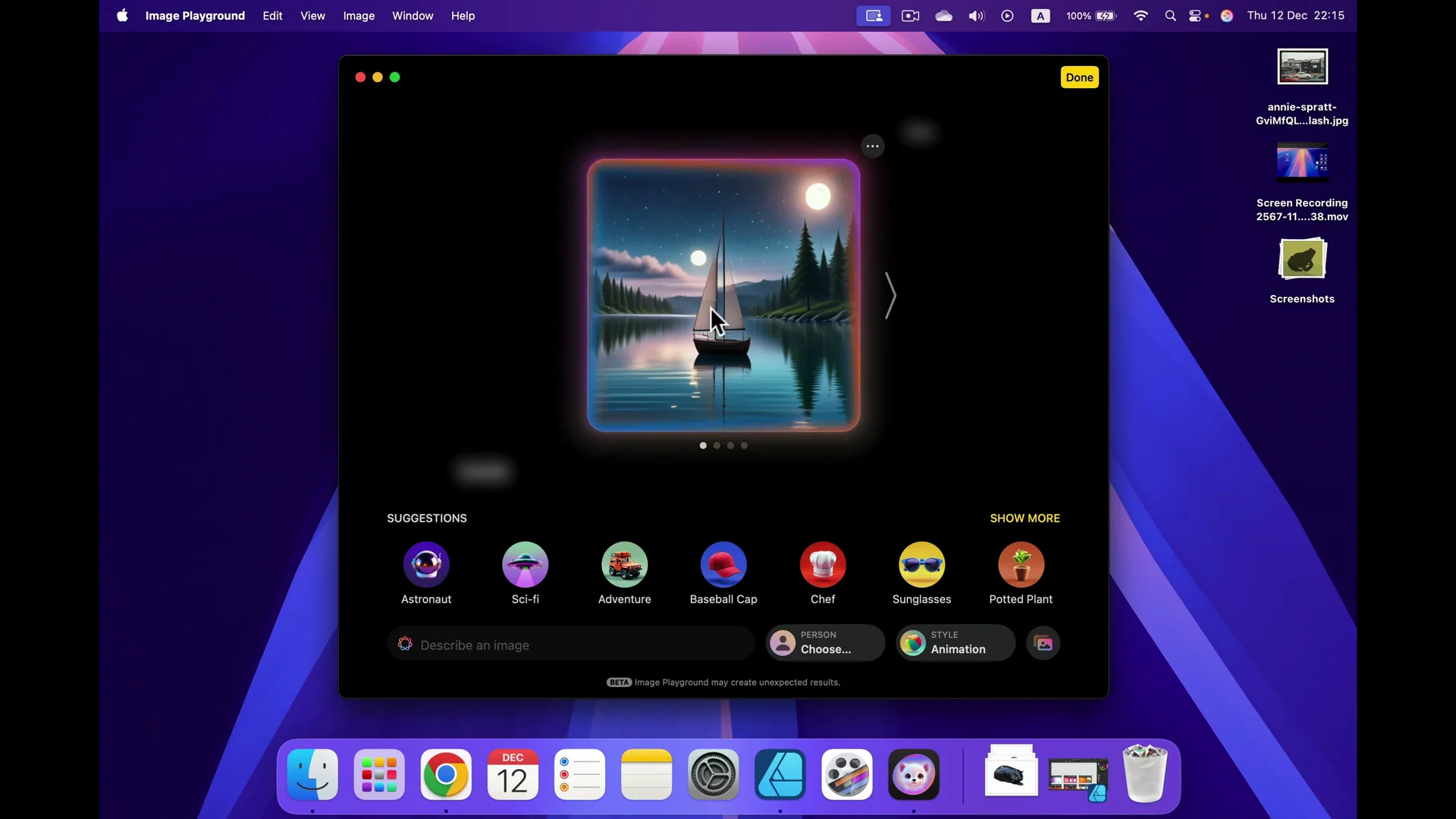
As you may notice, when I scroll right, it generates new versions on the fly. I do not need to click Generate again after I see four options and wait. It keeps doing that all the time. They are similar, so you need to make more descriptive prompts if you want a different result.
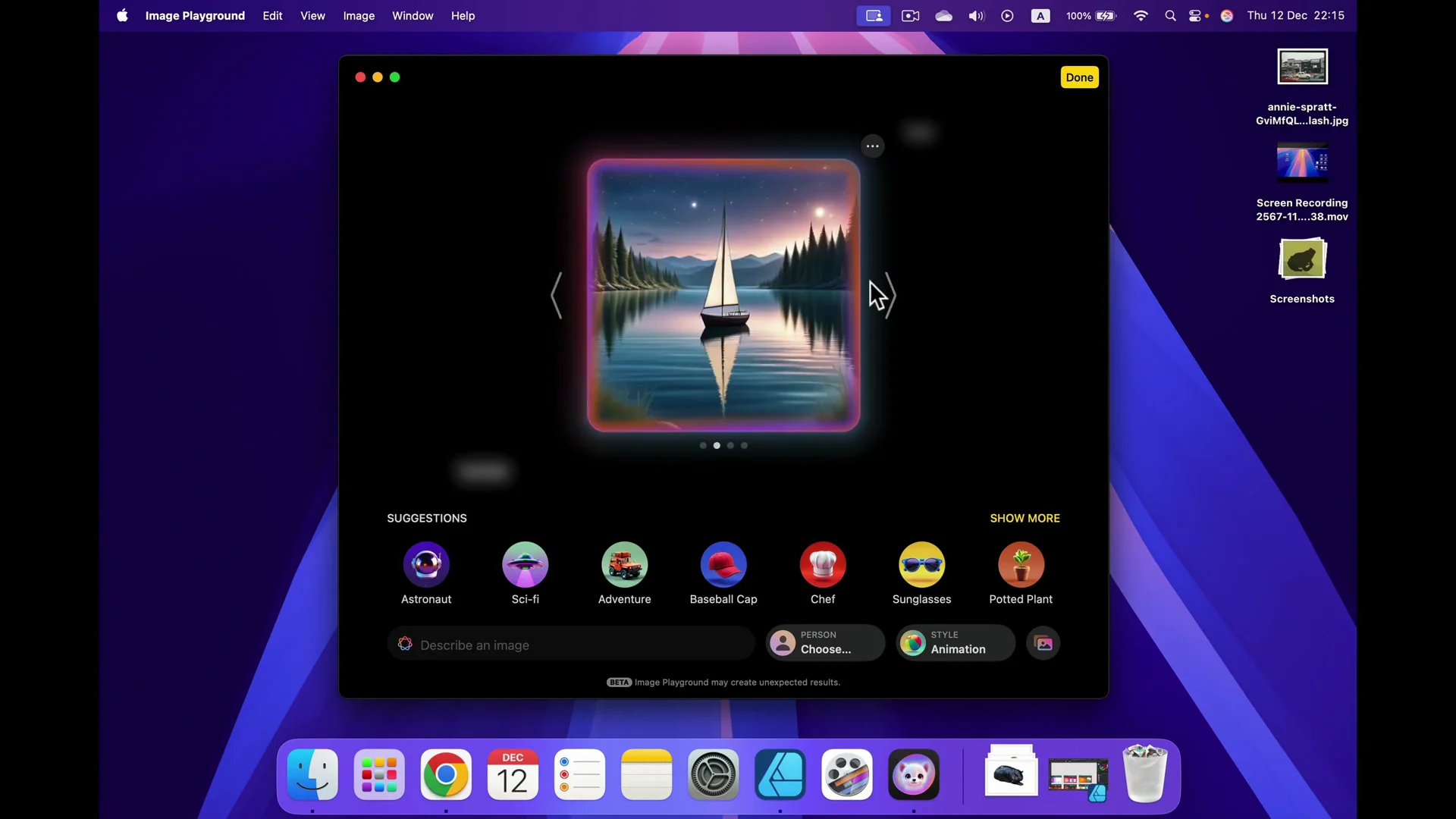
I typed “nighttime,” and those two prompts are floating around the image, so the computer is using both of them to generate this image. I got the classic problem with generated images: two moons. Let’s continue scrolling. This one is a bit more natural. We got stars and one moon. That is better.
Save, share, report, or keep refining
If you like an image, click the three dots for options:
- Copy
- Share
- Save Image
- Report to Apple if it is terrible, to give feedback on this new feature
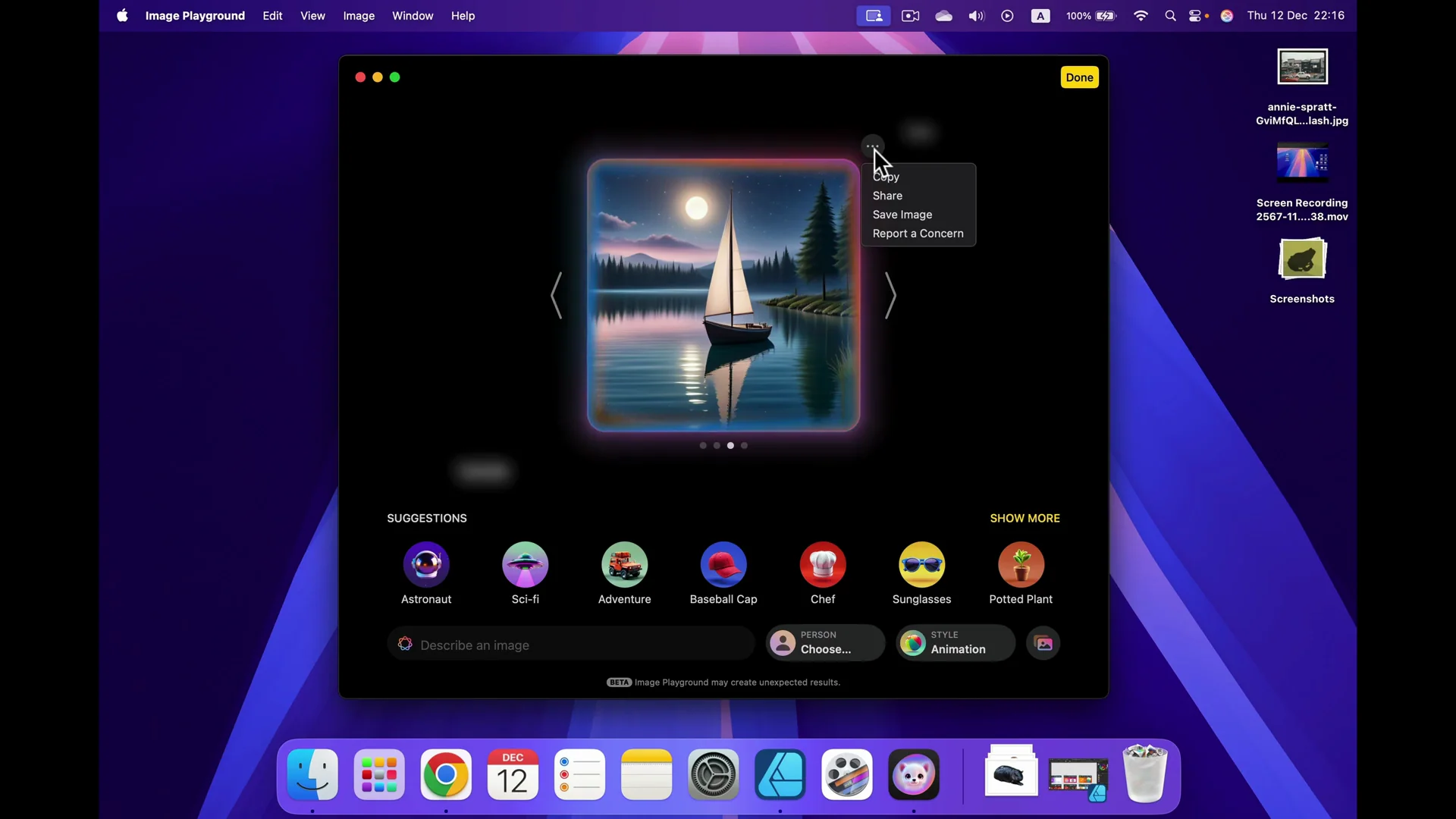
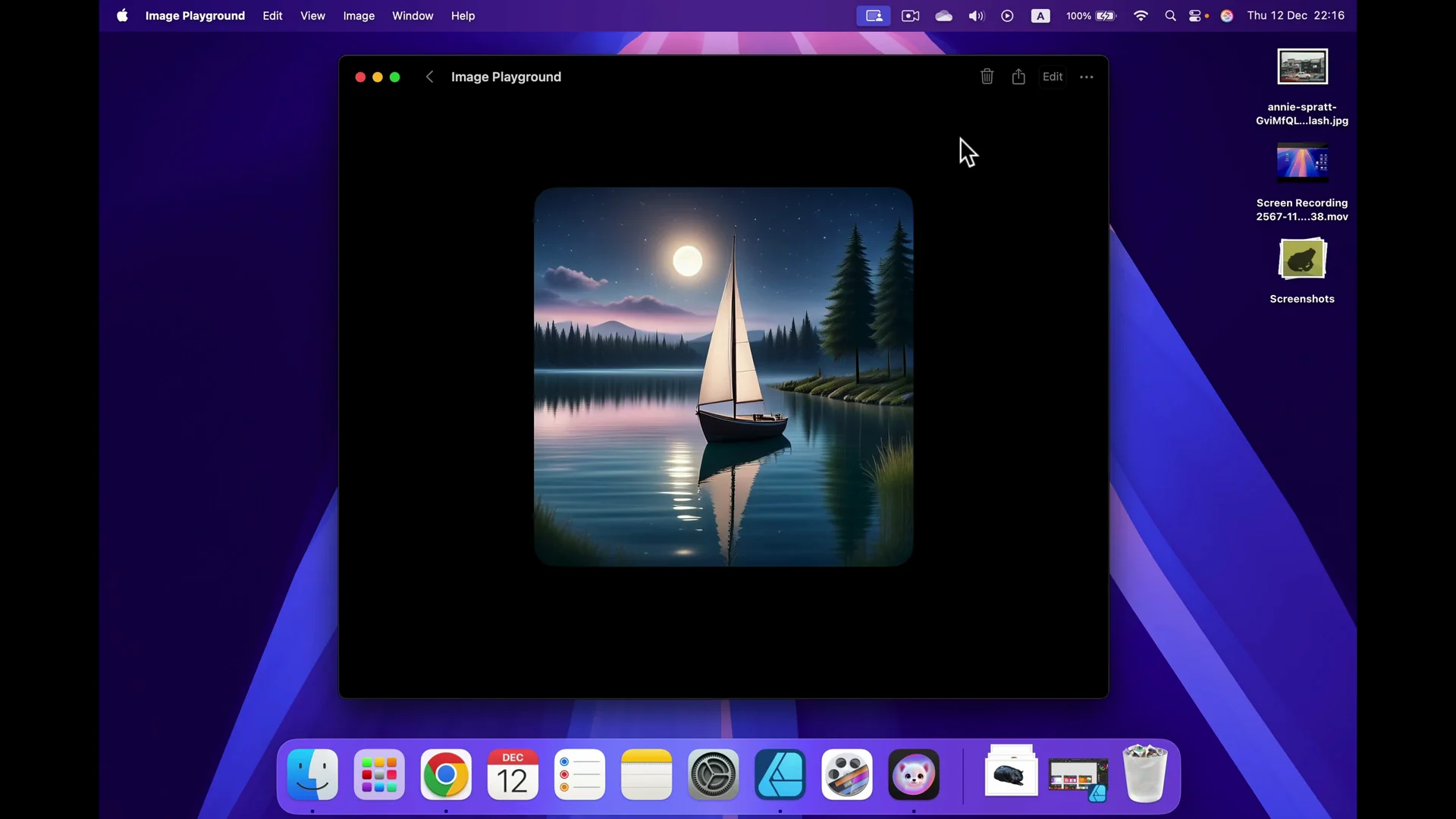
I saved it and clicked Done.
Apple Intelligence Image Generation: Editing and Versioning
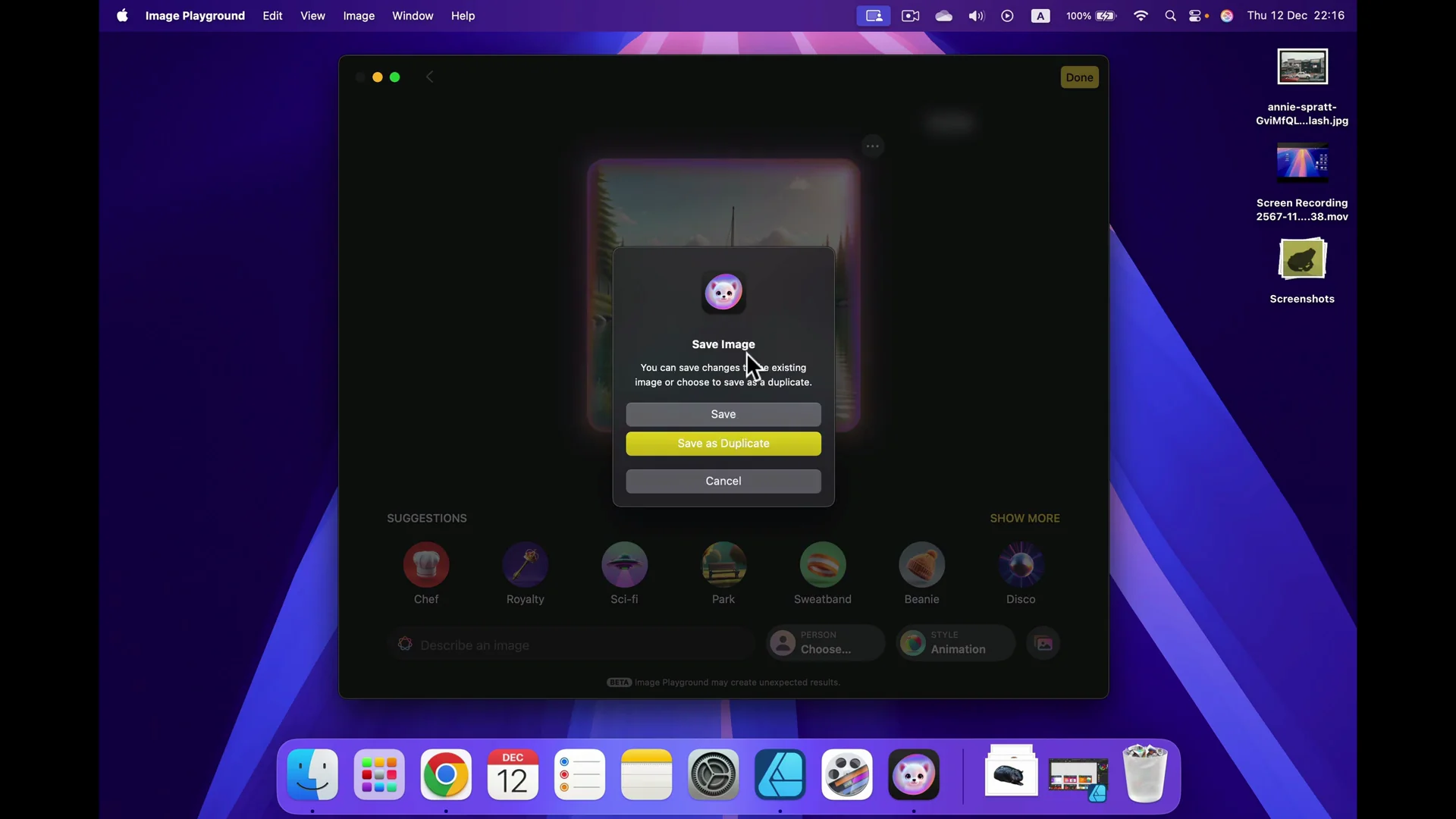
I can still show it from here and edit it. I can go back to the view with floating prompts, delete “nighttime,” and we are back to daytime. It is still editable, which is cool.
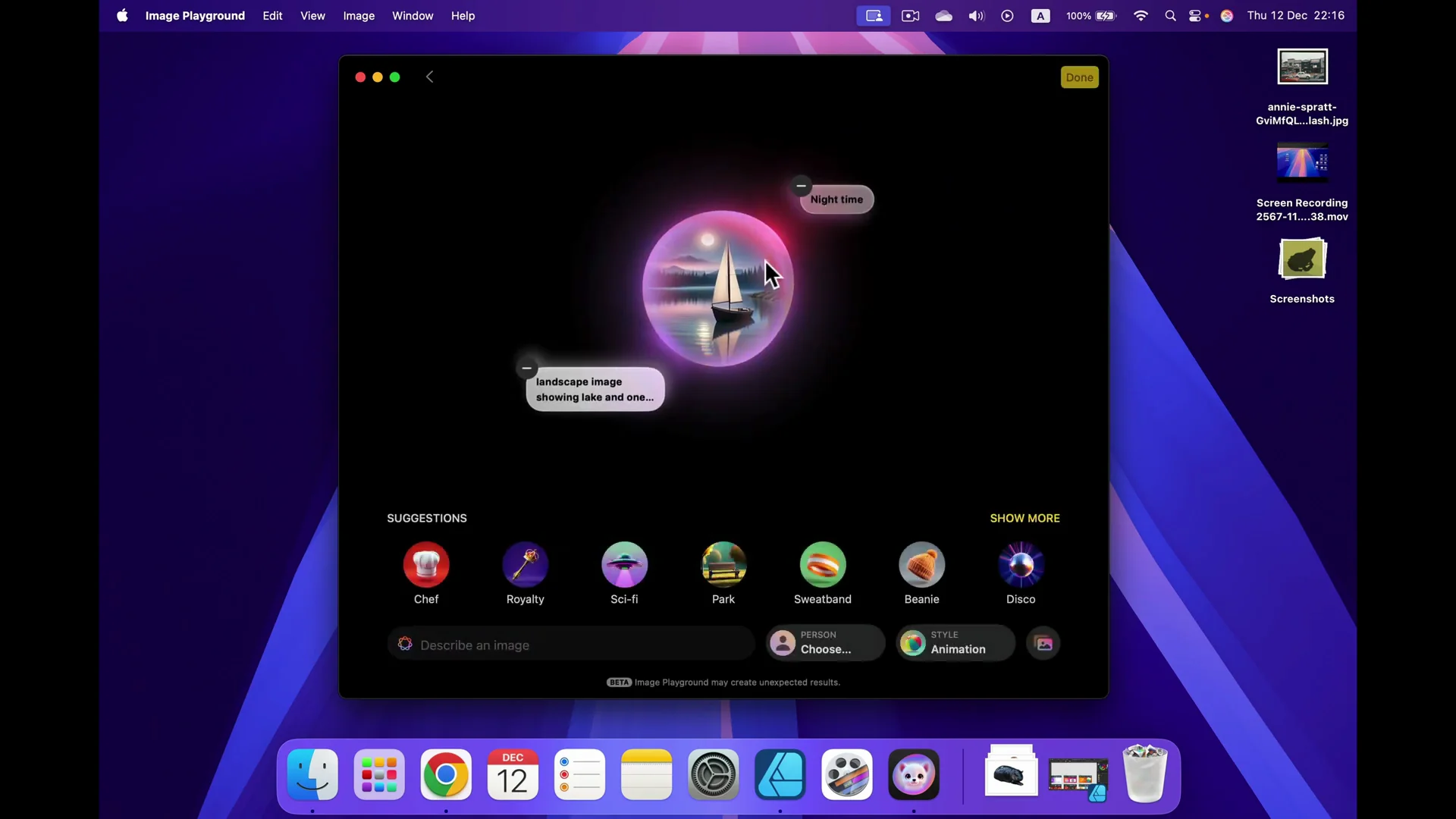
You can:
- Save this image, because now we got a new version
- Save a duplicate if you do not want to ruin the previous one
- Or simply cancel
Apple Intelligence Image Generation: Starting From an Existing Image
A cool feature is dragging an existing image in. I dragged in my image showing a cow in a field. It generated an emoji-style illustrated version of that cow. That is really cool.
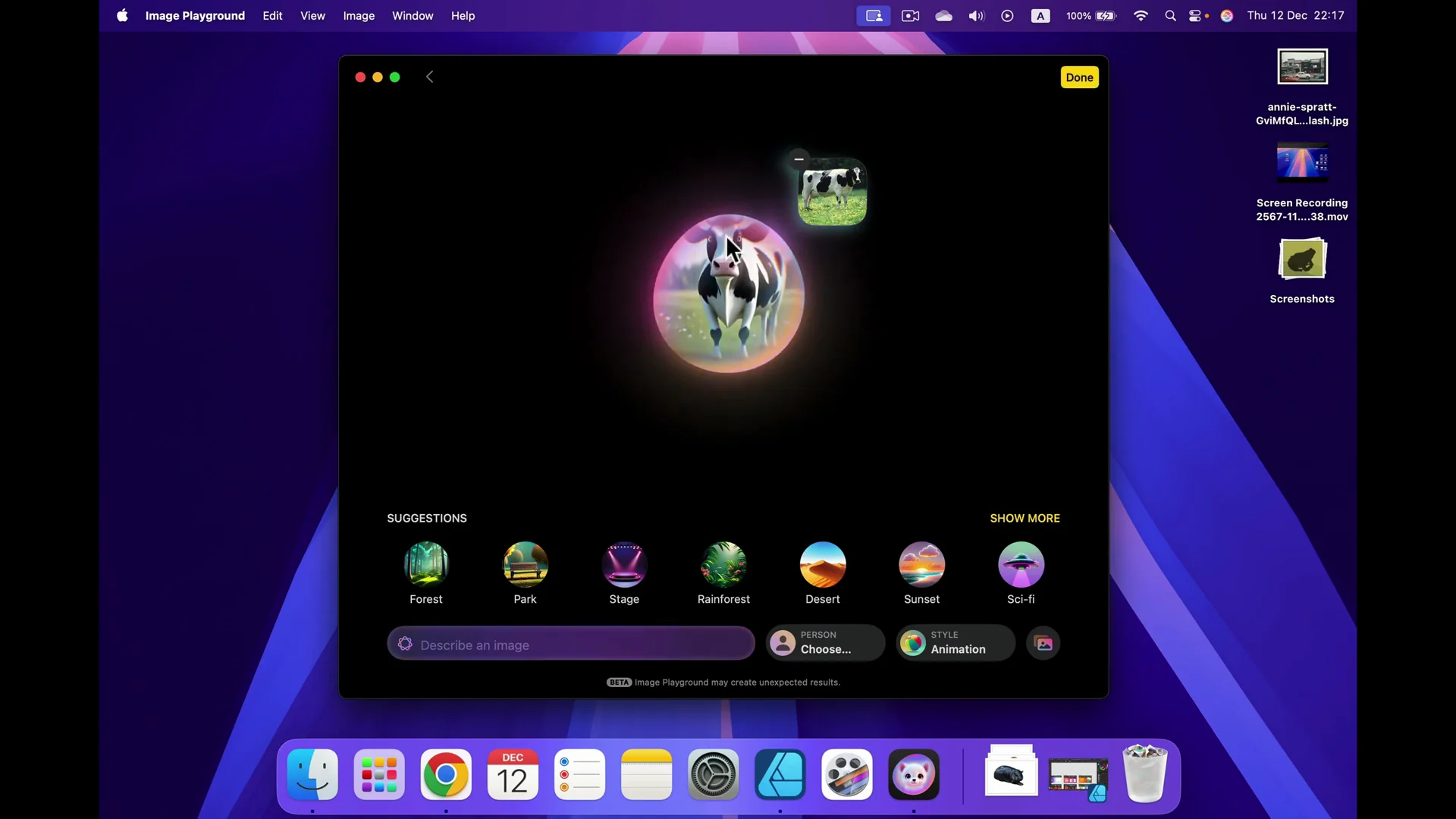
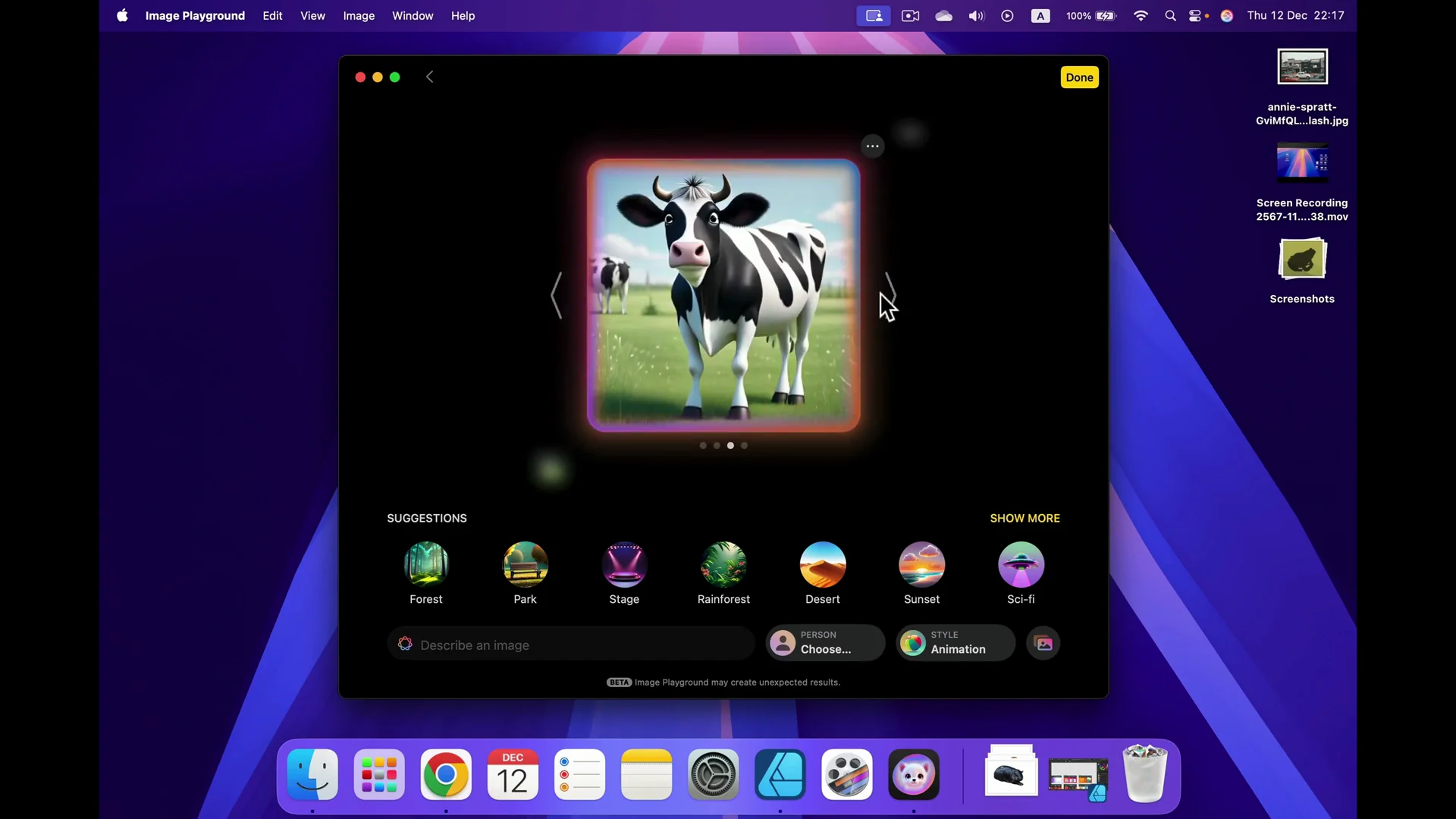
Then I kept going with prompts. I asked for two cows, not just one. I got three. I kept scrolling until I was happy. I got another cow in the background, so that is exactly what I wanted here: two cows. I started with a real picture of the cow, then added the prompt to tell the program I need an additional cow in the image. Finally, in the fourth iteration, I got what I needed. I saved it and done.
Apple Intelligence Image Generation: Requirements and Where to Find It
This feature is called Image Playground. It is an extension of Apple Intelligence. To use it, update your system to version 15.2. You will find it as a new app in your Launchpad.
Final Thoughts
Image Playground makes it easy to create and refine images with Apple Intelligence:
- Write detailed prompts and add modifiers like “nighttime” for different moods.
- Scroll to see fresh variations generated on the fly.
- Switch styles between Animation and Illustration.
- Edit prompts after the fact, and save or duplicate versions.
- Drag in your own photos to get illustrated versions and build on them with prompts.
Recent Posts

How to use Grok 2.0 Image Generator?
Learn how to access Grok 2.0’s AI image generator (Premium required), write better prompts, and avoid pitfalls like real people and brands. Step-by-step tips.
How to use Instagram AI Image Generator?
Use Meta AI in Instagram DMs to turn text into images—and even animate them. It’s free, fast, and built in. No external apps needed; create art right in chat.
Leonardo AI 2026 Beginner’s Guide: Create Stunning Images Fast
Learn Leonardo AI step by step—sign up, explore Home, and generate or enhance photos with free, powerful tools. A quick, clear starter for beginners.