How to Use Adobe Firefly: Beginner-Friendly AI Image Tutorial
Adobe Firefly is Adobe's flagship AI tool. You'll find aspects or elements of Firefly in many other Adobe products. If you go directly to firefly.adobe.com and sign in with your Adobe account, there are several powerful things you can do right inside Adobe Firefly. They have paid accounts and they also have free options. Get signed in and you can start using this AI tool.
Let's focus specifically on how to generate AI images. I will also look at other aspects of Firefly, including creative boards.
Adobe Firefly Basics: Getting Started With Image Generation
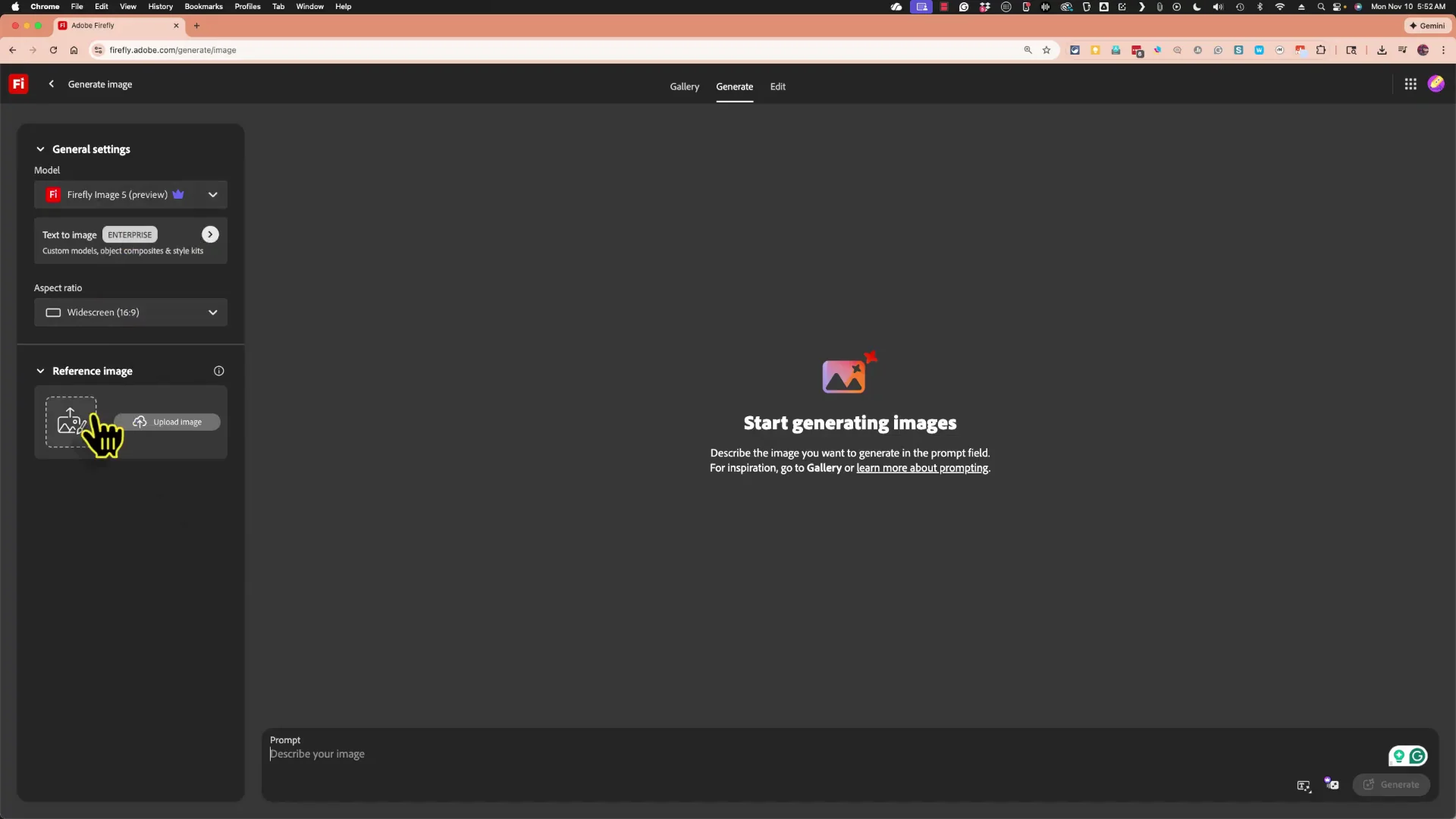
You can generate images in a couple of different ways. You could go to Create or you could go to Generate. In either case, you should see a dialog box that says choose a model and decide what you want to generate.

- Click Image. There is an option for Video, but this feature is currently not available for education and there are other limitations on it as well.
- In Firefly image 5 preview, you get a popup that shows all of the available Adobe models. The ones with the little purple crown are pretty much restricted to certain paid accounts. You may need to click and switch to a model that doesn't have that crown.

Next to the model selection area, there is an option to change the aspect ratio of the image you are about to produce. If you click there, you can change it to 16x9, which would be widescreen, or have it formatted for a cell phone. I love that you can choose the aspect ratio and the layout of the image before you generate it. I’m going to change to 16x9.

There is also a button for More. If you click that, Firefly takes you to a screen with the options you have already selected and the opportunity to upload a reference image. I’ll show an example of this in a minute.
Step-by-Step: Your First Image
- Go to Create or Generate.
- Choose Image and select an accessible model.
- Set the aspect ratio.
- Optionally click More to review options or upload a reference.
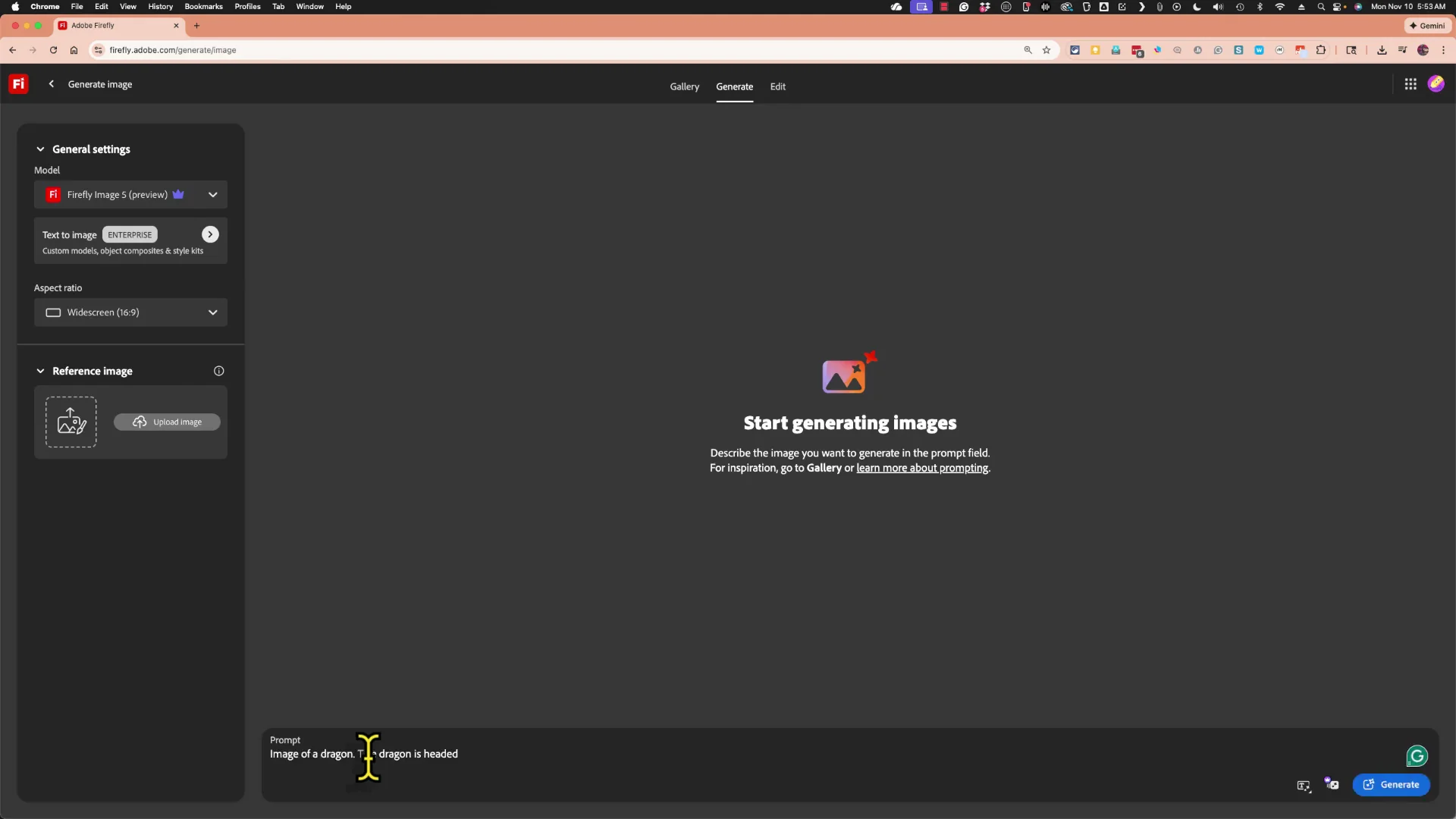
- Enter your prompt.
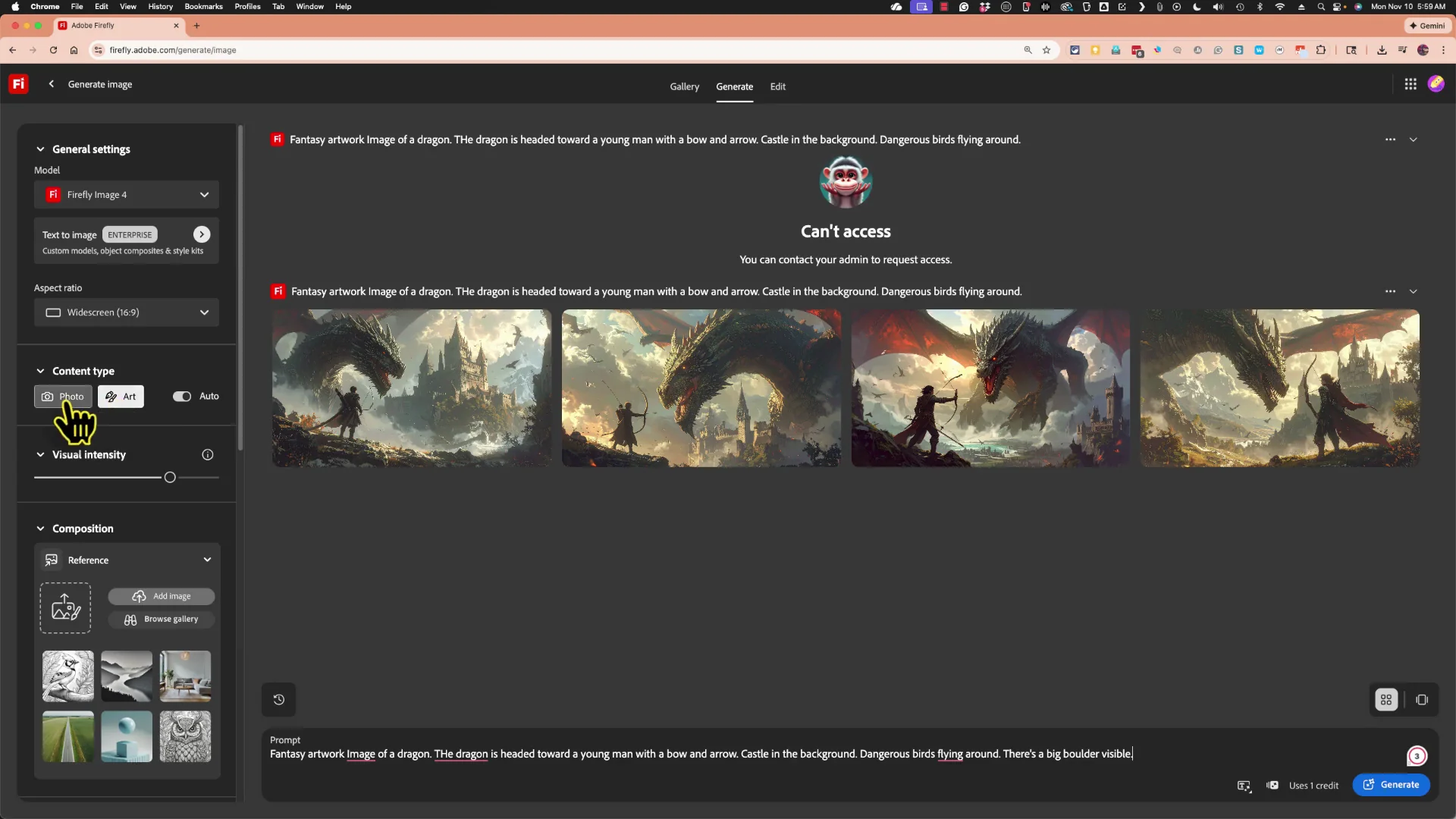
I want an image of a dragon headed toward a young man with a bow and arrow, with a castle in the background. In addition to describing what the image shows, I can describe the style. Is this artwork or a photograph? I want it to be fantasy artwork, so I’ll add that at the beginning of the prompt.
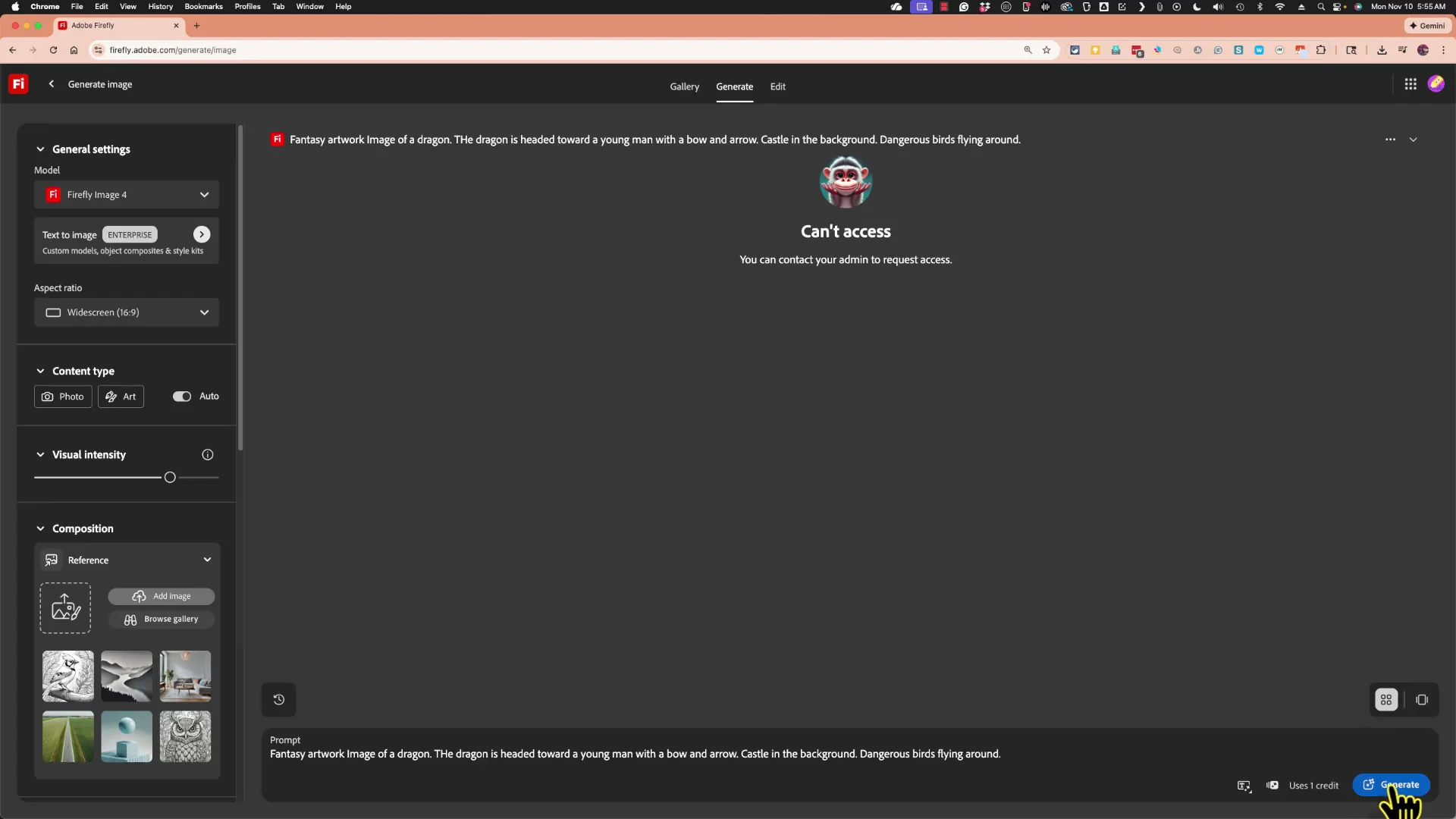
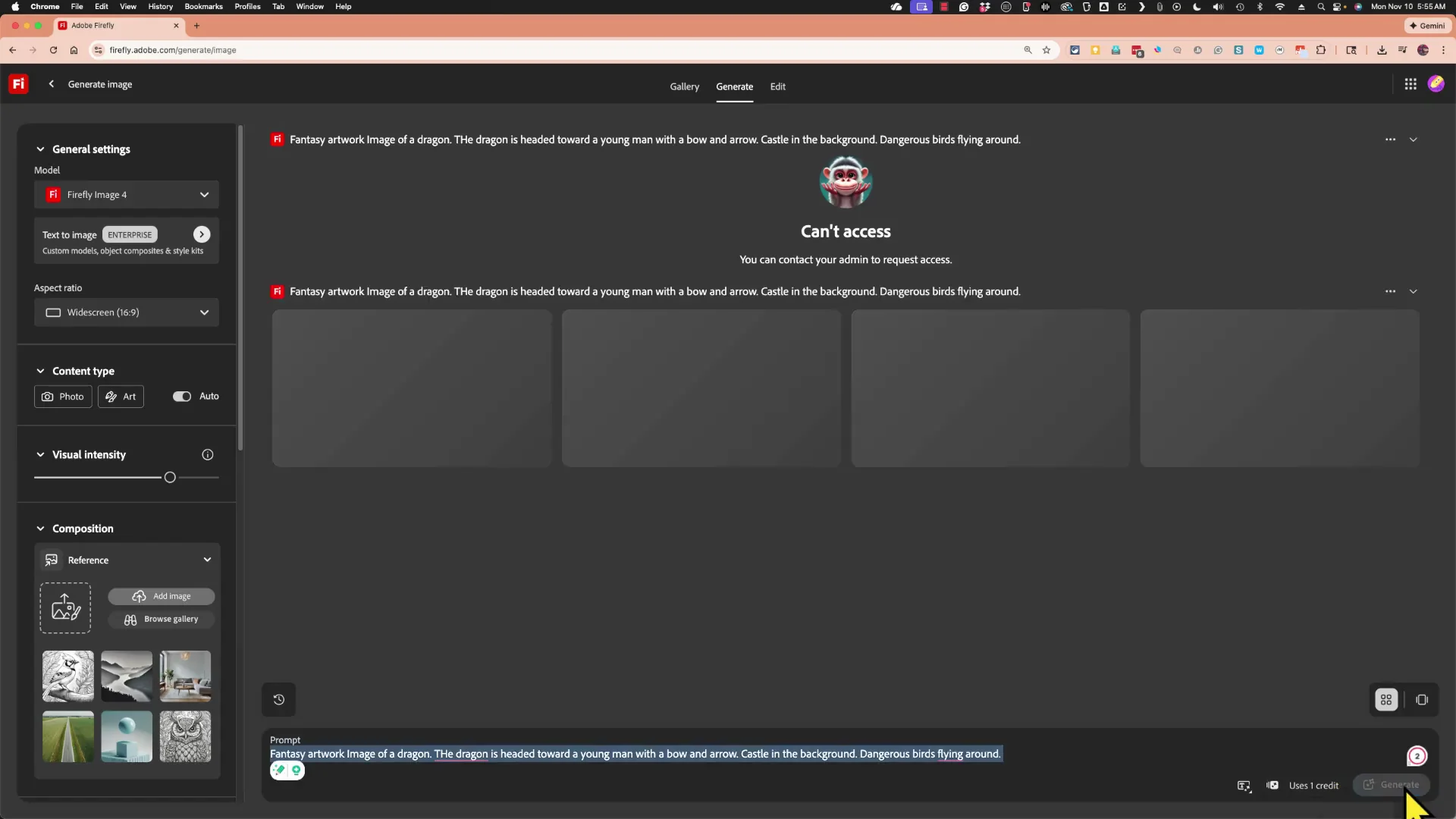
When I click Generate, if the latest model is selected and I don’t have access, I need to switch to a model I do have access to. It also uses one credit. I’ll show where to check the amount of credits you have left.
Firefly gives me four images to choose from. I can click any image to get a bigger view of it. A lot of this looks great. There can be strange little aspects of an image, like a bow that looks off. I can go back and choose a different option. In most cases, you are not going to get a perfect result. There will be some elements you wish were different. As time goes on, I’m sure Firefly will get better.
If I’m pretty happy with the results but want to try something a little different, I can adjust the prompt. I can also go to the left panel. Firefly understood me when I said fantasy art and decided that this is art and not a photo. If I change my mind, I can switch it to be a photo. I can adjust the visual intensity. It is already pretty intense, but I can make it even more intense or much less visually intense. I’ll make it slightly more intense.
Adobe Firefly Basics: Composition and Style References
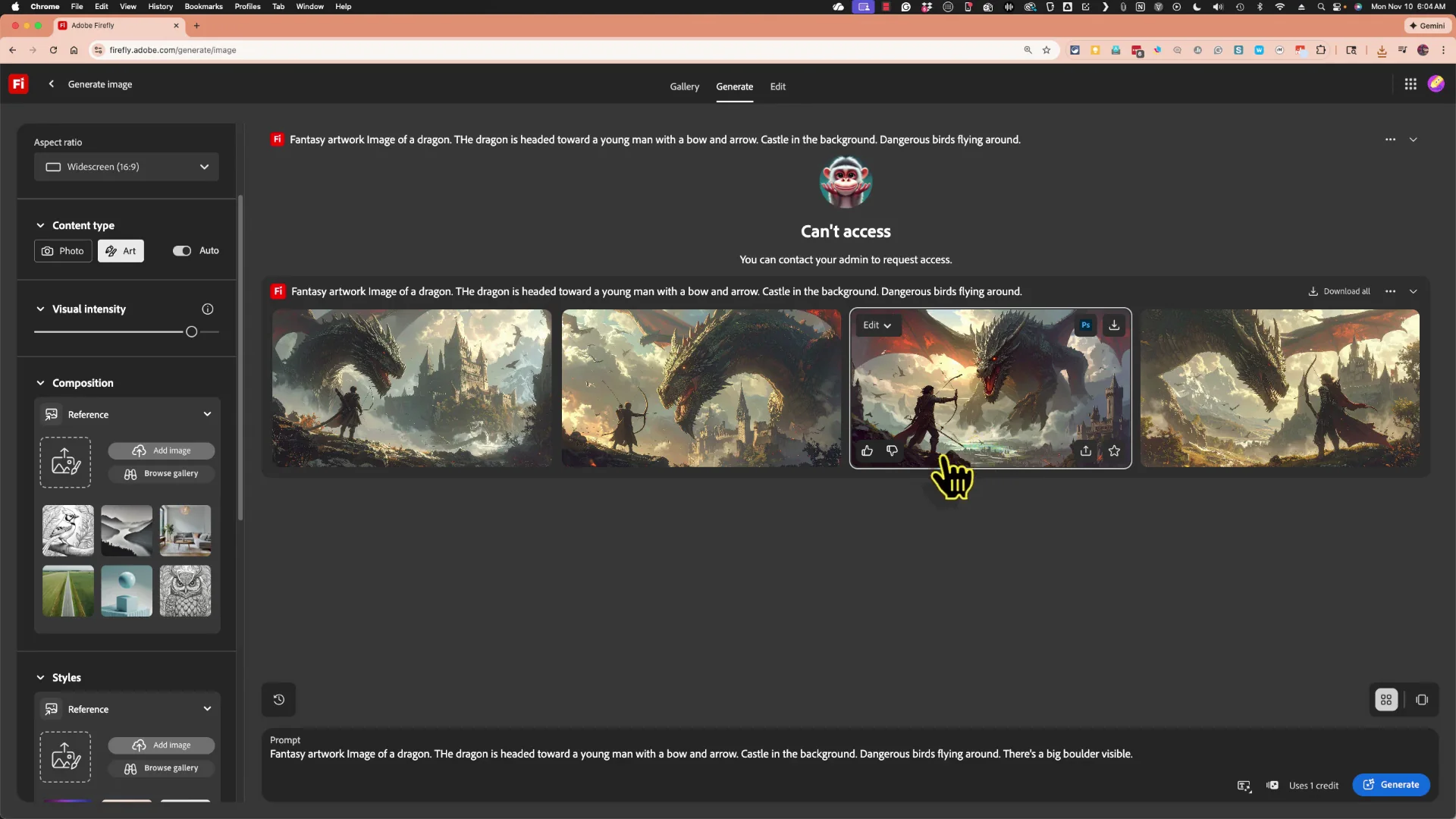
Another thing I can try is uploading a composition reference. This is about the composition of the image, not the style, but how it is composed.
Use a Composition Reference
- Click Add image.
- Upload from your device.
- Select an image that shows the layout you want.
I uploaded an image of a cute dragon in front of a house with its wings stretched out. That becomes the composition reference for the images that are generated. When I click Generate, it uses one credit. I can go to my account in the upper right and see how many credits I have remaining. This number resets each month.
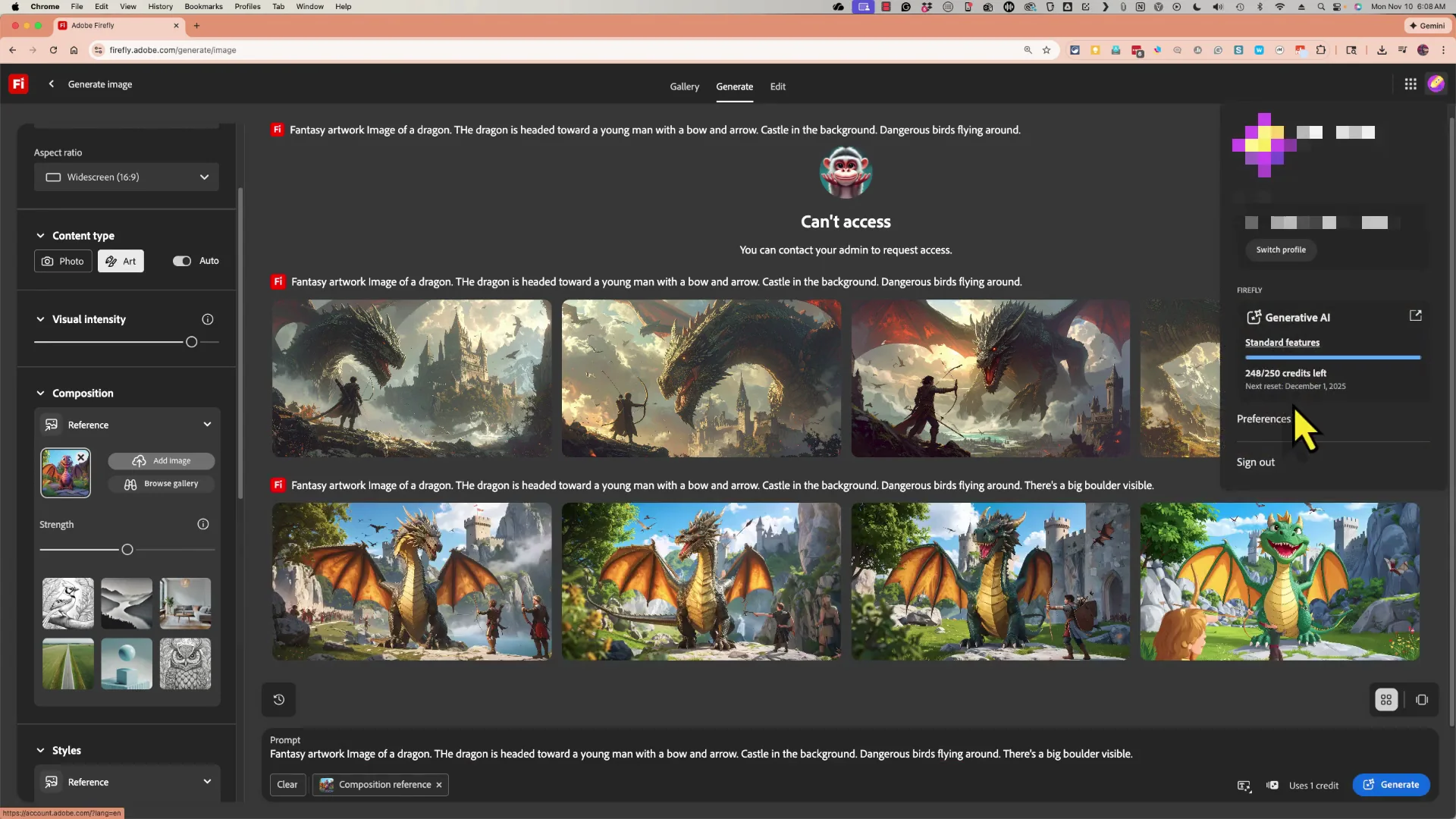
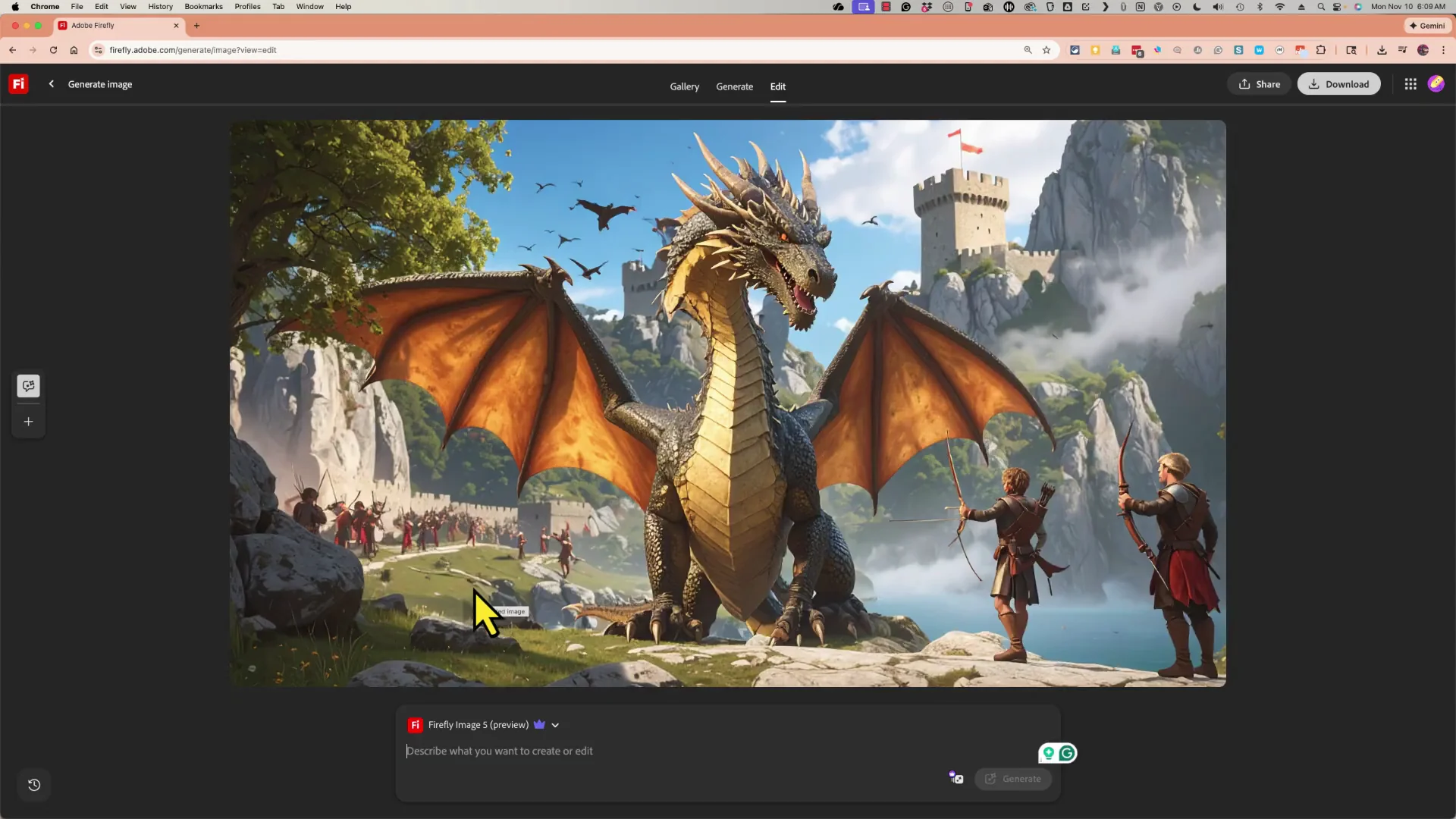
The results still include the dragon, the young man, the bow, the castle, but the dragon is now composed kind of similarly to the reference image. In one example, Firefly not only mimicked the composition, but a little bit of the style as well of the dragon.
Use a Style Reference
I’ll remove that as the composition reference and upload it as the style reference instead. I add from my device that same image of a cute dragon and click Generate.
Now the composition varies quite a bit from image to image, but the style in each case is kind of cute and cartoonish. Those are some examples of how composition reference images and style reference images can be useful.
Adobe Firefly Basics: Effects, Lighting, and Materials
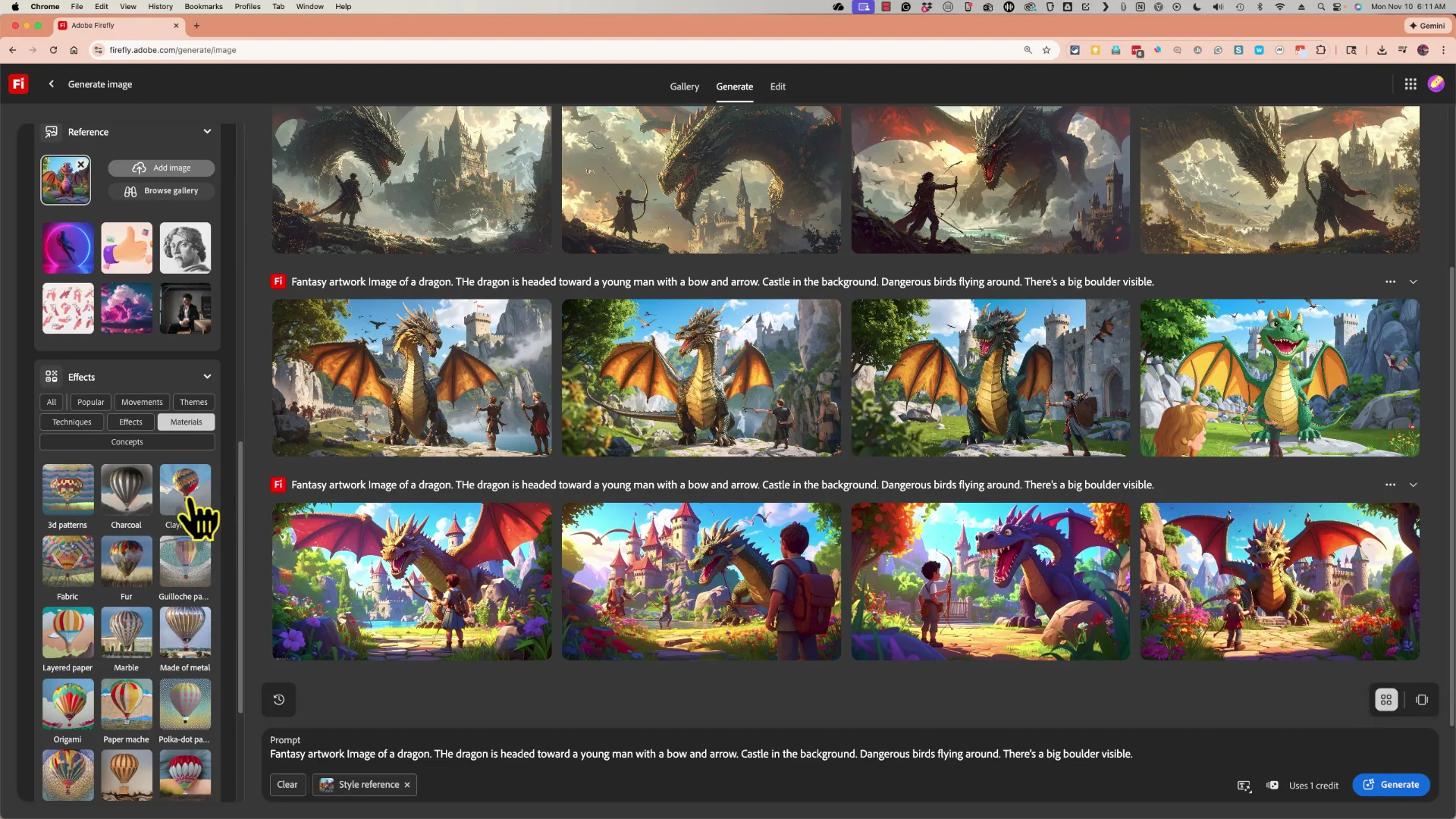
In addition to those, there are effects. I can choose a specific art effect and use drop downs to refine it. I can change the lighting. I can choose specific materials that I want the image to be made of, for example layered paper or marble.
Adobe Firefly Basics: Credits and Generation History
One of the newer features in Firefly is that as you try different options and settings and prompts, your past work is saved. I love this because it gives me the opportunity to try a bunch of things and go back at any point to choose my favorite option.
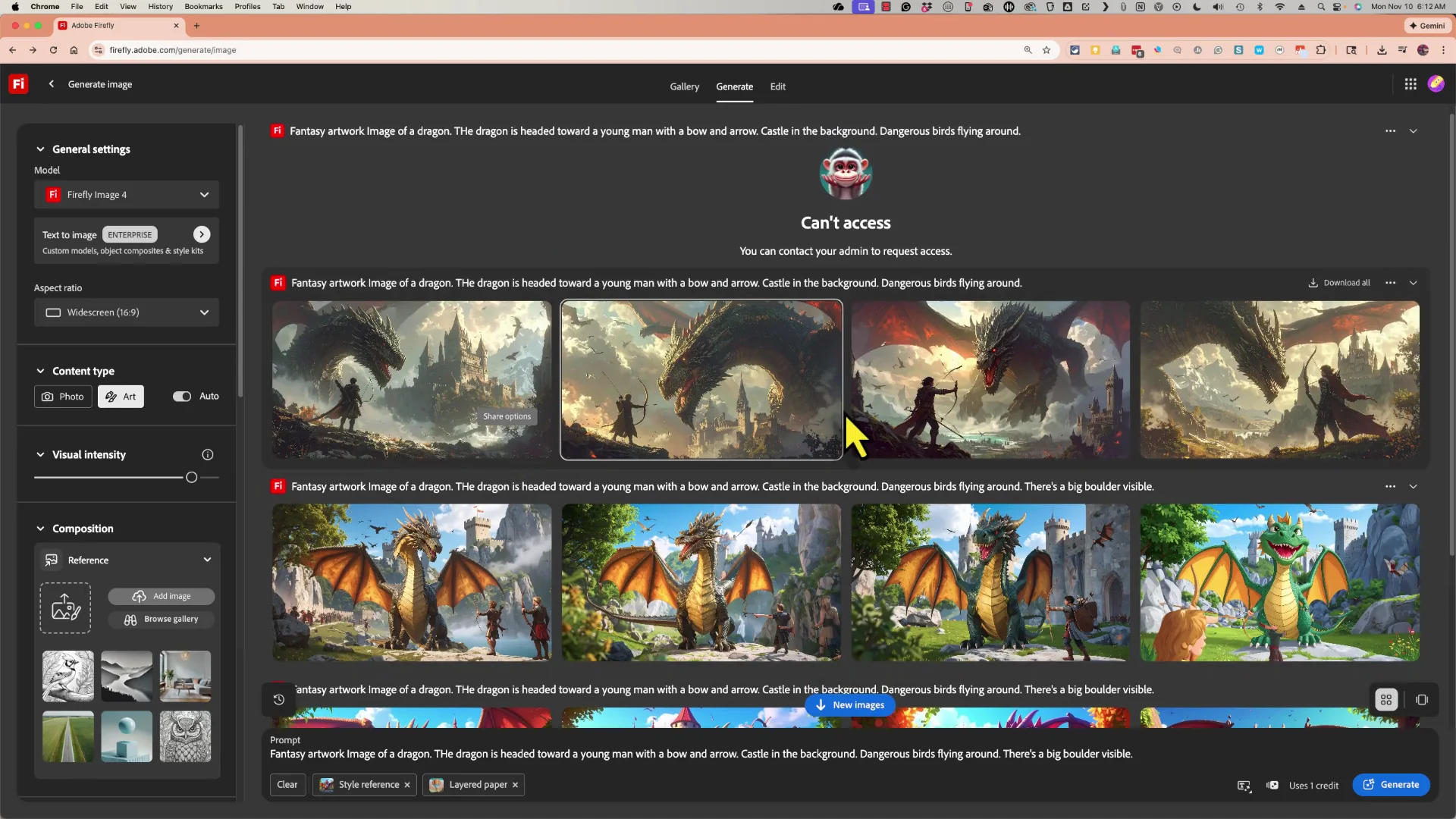
If I put my mouse on an image, I can choose to download a copy of the image to my computer. I can open it or go to my downloads folder to open it. This image is now on my computer. It no longer relies on Firefly. It is an independent image that I can upload to my own website or blog or to social media. I could put it in a presentation or in an online course or whatever I need to use this image in.
If I click on the image and I have upgraded to a paid version of Adobe Firefly, I can use AI prompts to make edits to the image. I could say replace the bow with a sword and it should do that.
Adobe Firefly Basics: Edit in Photoshop Web and Adobe Express
Going back to my generate history, I can open an image in Photoshop web. Adobe Firefly and Adobe Photoshop Web are connected online. So is Adobe Express as well as other Adobe products.
Step-by-Step: Replace an Object in Photoshop Web
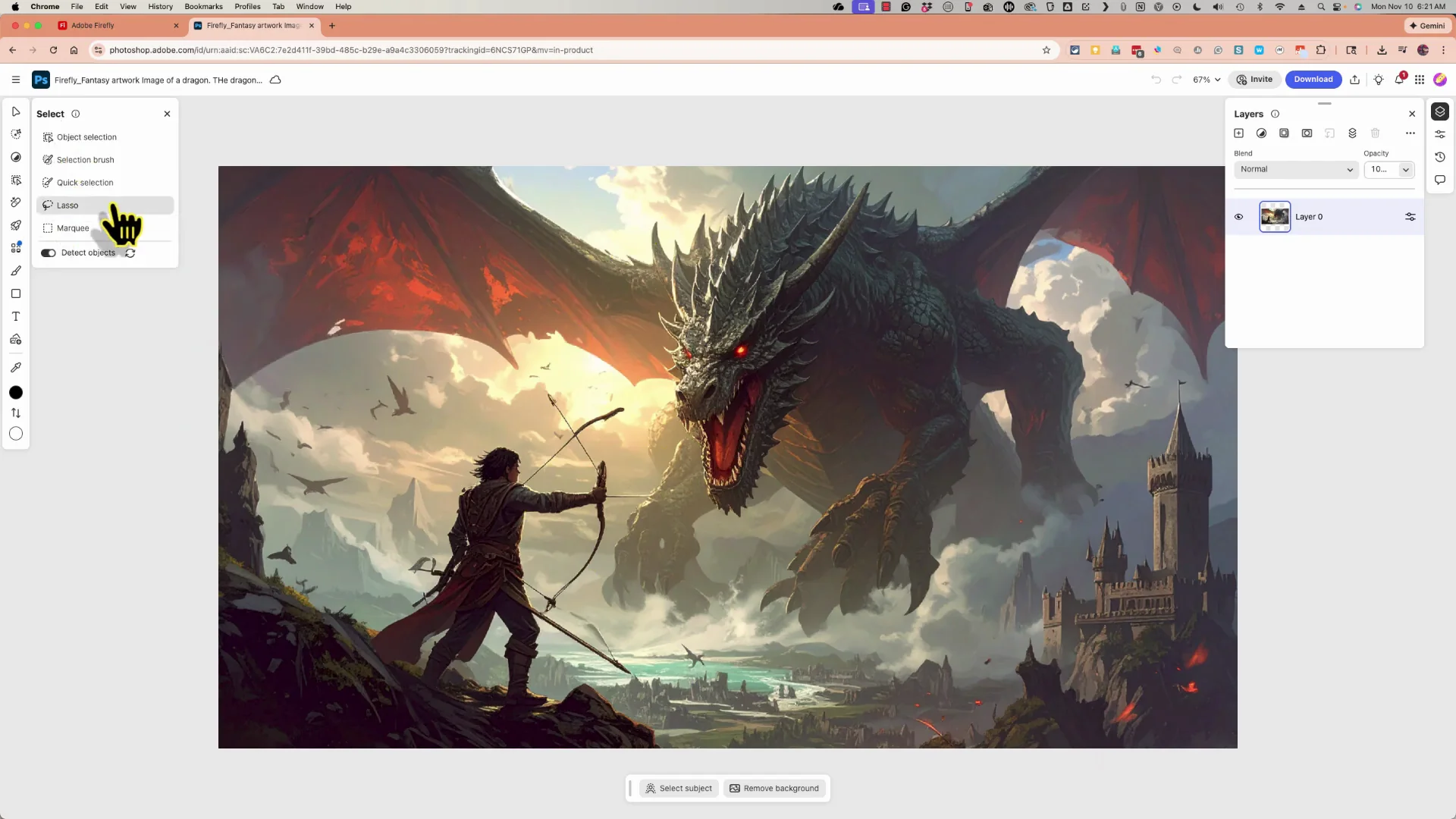
- Open in Photoshop Web.
- Select the Lasso tool.
- Click and drag to select the object you want to change.
- Choose Generative Fill.
- Type your replacement, such as sword.
- Click Fill and review the options.
Photoshop web can do a great job using AI to replace the bow and arrow with a sword. It may give you three options to choose from. You can click through to pick your favorite. Continue to lasso different elements, then replace them or remove them. Once the image is cleaned up, click Download and save it to your computer.
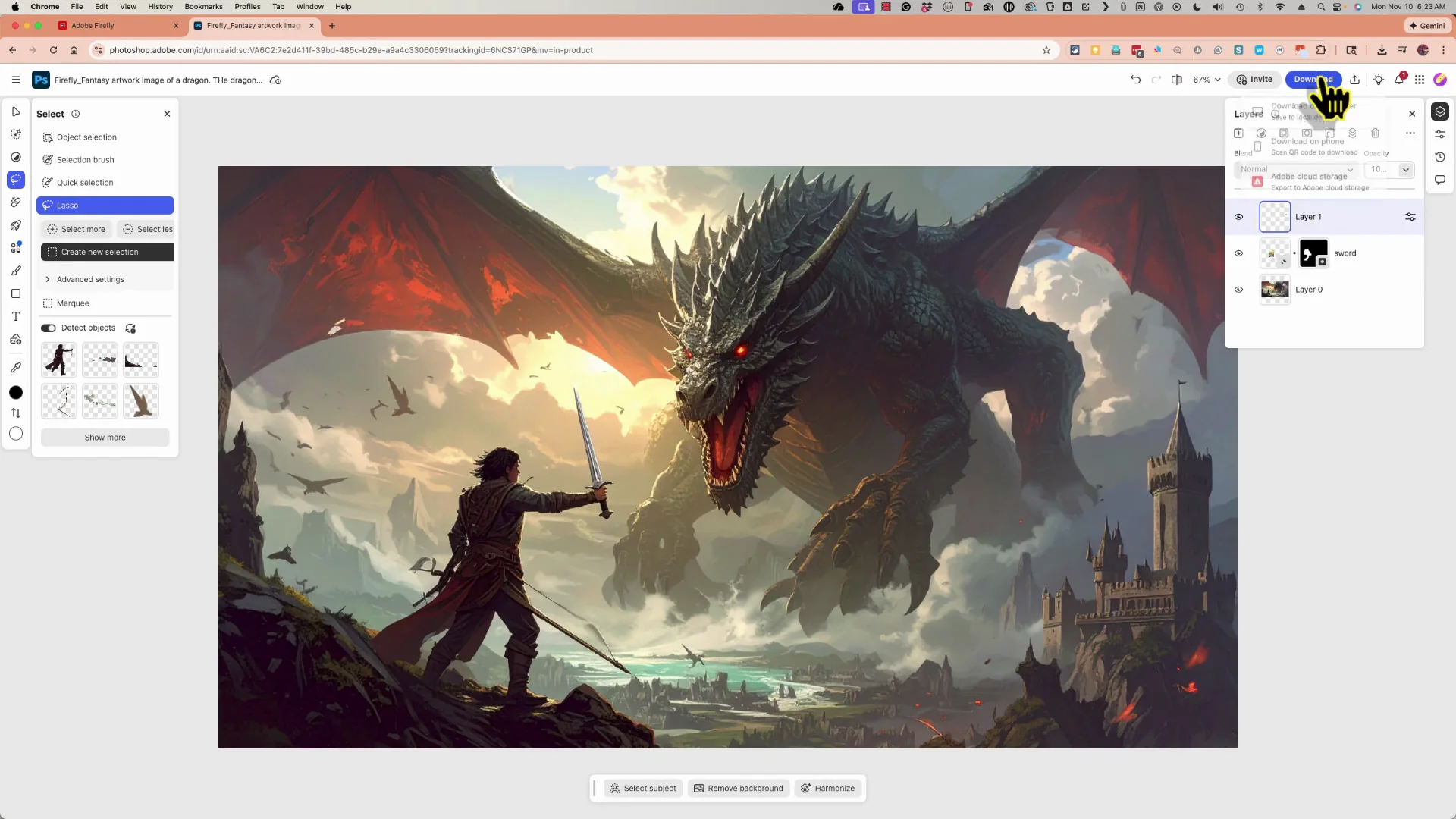
Adobe Express is an easier, more simplified version of Photoshop and other Adobe tools. If I want to use this image in Adobe Express, I can open it there. I can use Remove background or Insert object or Remove object to make similar edits.
Adobe Firefly Basics: Creative Boards
If you go to the Create section of Adobe Firefly, there is an option to create a board. This is a workspace for one particular project. Instead of generating random images that are not really connected to a specific project, you can create an Adobe Firefly board, name it after your project, and start uploading images.
I loaded one I used a few weeks ago. I uploaded my existing channel artwork or logo and used the Firefly board to generate similar images and look at other options I might use.
Generate Variations on a Board
- Select an image and choose Vary. I want more like this.
- It uses four credits.
- Click where you want those images to be located.
- Firefly produces additional images similar to the one you selected.
You can collect items and drag any of those items out if you want to. You can edit them and make them bigger. You can also select an image and choose to convert it to other things. That is a premium feature for now. Boards are saved in your Firefly account. It is a good idea to name them.
Final Thoughts
You have pretty much everything you need to know about creating images in Adobe Firefly. The site is constantly being updated and changed, and the look and feel may change, but the core functionality is similar. Adobe keeps adding more features and options and keeps linking it to more Adobe tools. There is a lot you can do with Adobe Firefly and its connected apps.
Recent Posts

How to use Grok 2.0 Image Generator?
Learn how to access Grok 2.0’s AI image generator (Premium required), write better prompts, and avoid pitfalls like real people and brands. Step-by-step tips.
How to use Instagram AI Image Generator?
Use Meta AI in Instagram DMs to turn text into images—and even animate them. It’s free, fast, and built in. No external apps needed; create art right in chat.
Leonardo AI 2026 Beginner’s Guide: Create Stunning Images Fast
Learn Leonardo AI step by step—sign up, explore Home, and generate or enhance photos with free, powerful tools. A quick, clear starter for beginners.