How to Run Alibaba’s Z‑Image Turbo on Google Colab
Overview
This shows how to run Alibaba Z-Image text-to-image model on Google Colab. They have three version. One is Z-Image Turbo, second Z-Image Base, third Z-Image Edit. For now we only have Z-Image Turbo version. You can try it on Hugging Face: you write a prompt and generate.
This one is JDM starboard model checkpoint. The picture quality is so clear. It also has the knowledge of location, like if you say generate an image of Taj Mahal it will create the image.
Set up Z-Image Turbo on Colab
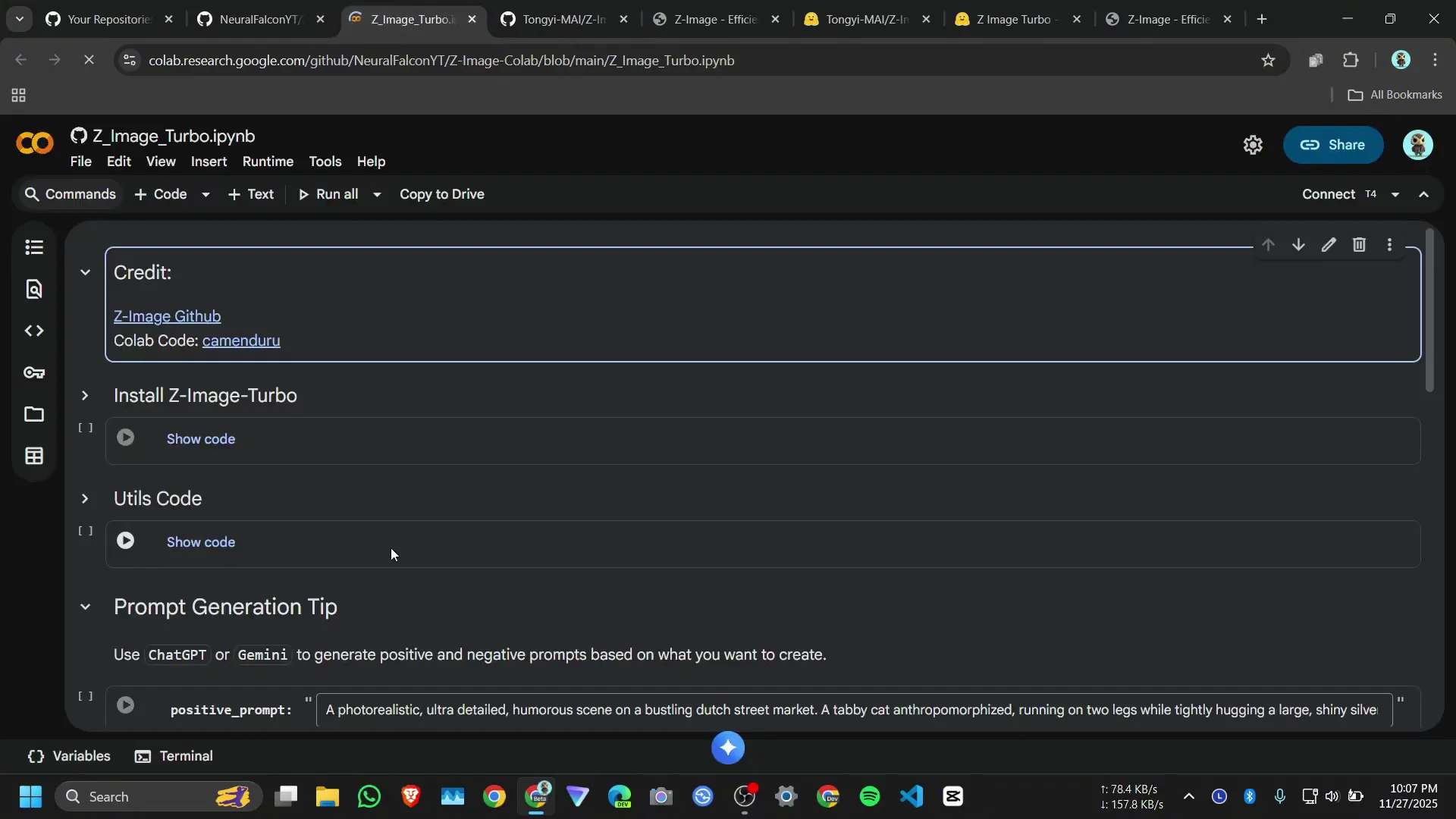
Connect a T4 GPU
Click on connect T4. It will take some time. We successfully connected with T4 GPU.
Install and prepare Comfy UI
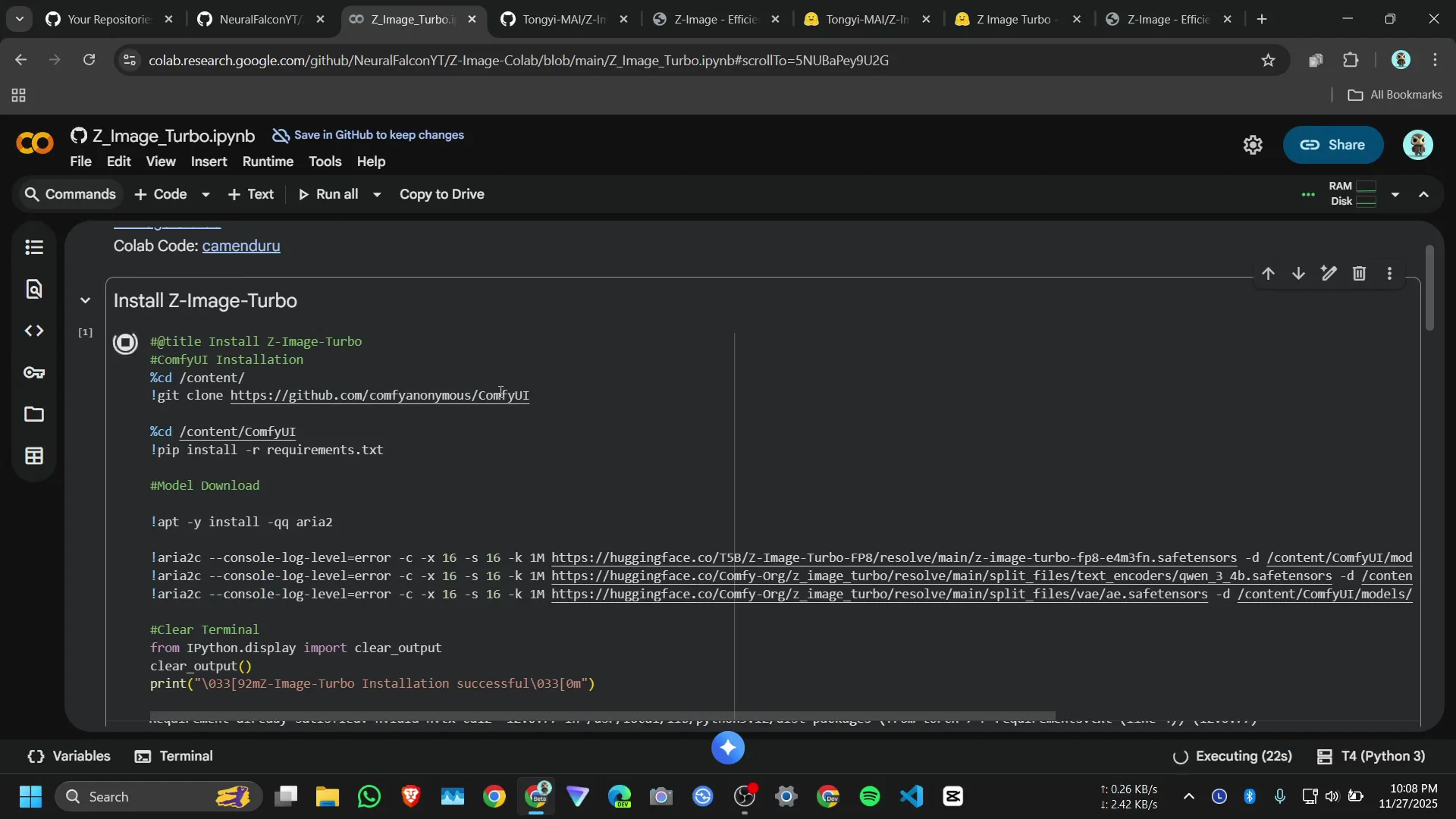
Click on install and run. We are not going to use diffuser. We will use Comfy UI. First install the Comfy UI requirement packages, then download the models which we need.
Use the Comfy UI code and generation function
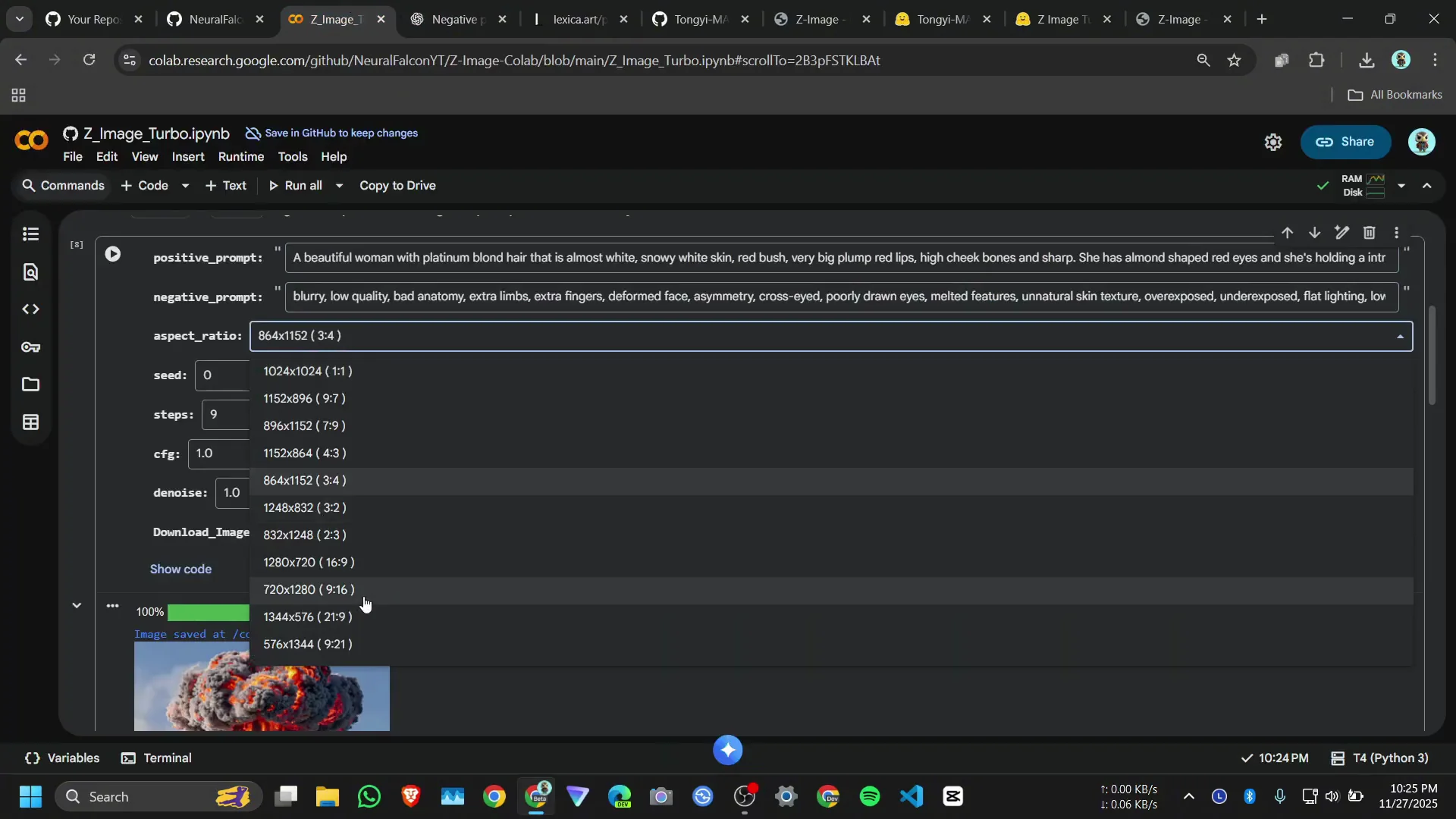
Use the Comfy UI code. A util function imports the nodes from Comfy. Then write a simple function. In the function we pass the image positive prompt, negative prompt, aspect ratio, seed, how many steps, cfg, and denoise.
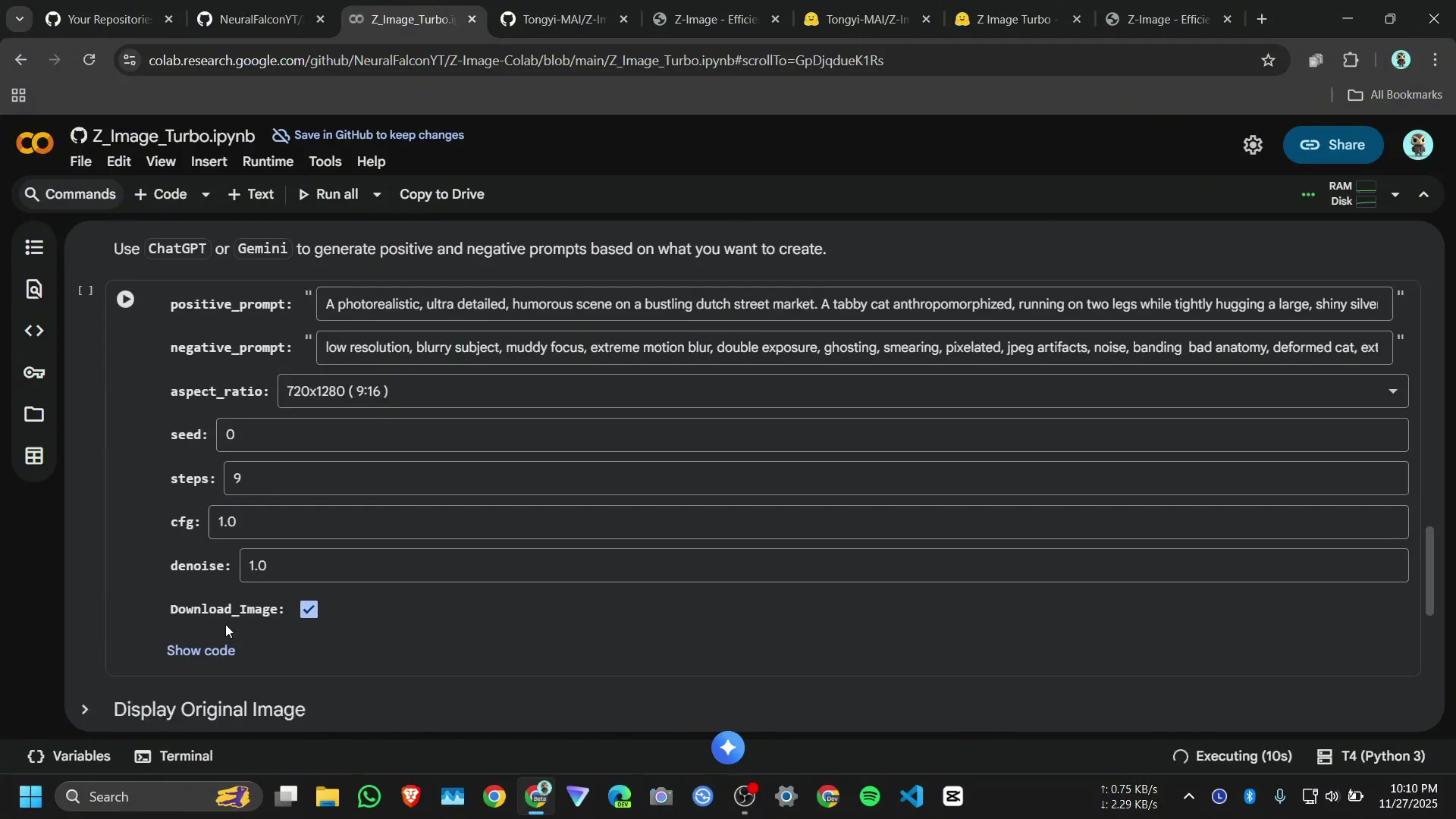
Whatever you will generate, it’s all depend on your prompt. For now I copy some text to image prompt. Here is the huge art gallery, so I can copy any prompt, and I need some negative prompt. For that I use ChatGPT so next time when I paste some prompt it will give me some negative prompt.
Example run and basic settings
Choose the image, copy the prompt, paste the prompt, and paste the negative prompt. Go with 9:16 and run. If you are a normal user, just give positive prompt, negative prompt, and the aspect ratio. If you set the seed number to 0 it will generate a random seed.
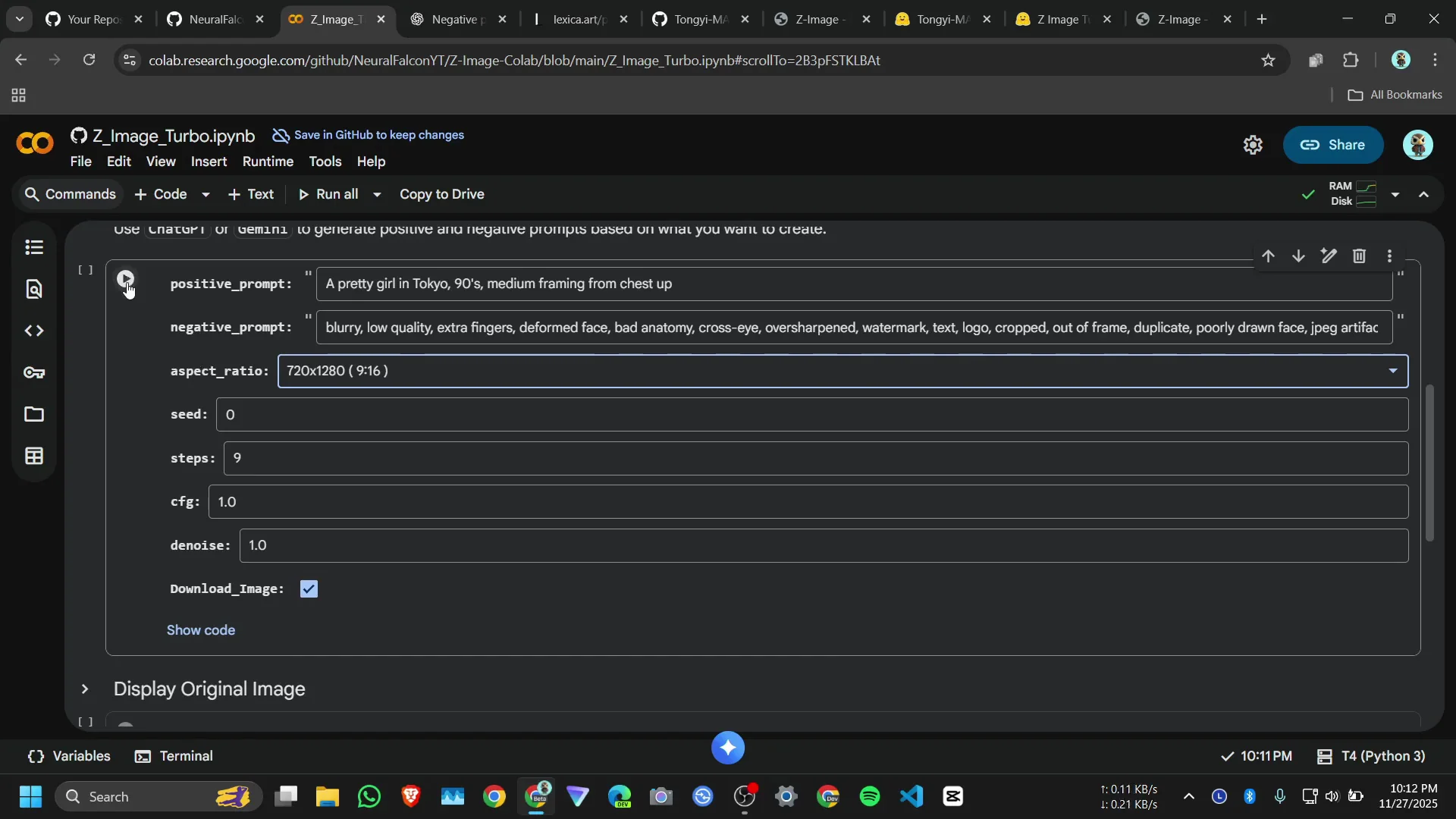
I recommend just use these three if you are a normal user. If you want to play with it, you can change the other values. For each image it will take almost 2 minutes to 2.5 minutes.
Memory limits and interface notes
I also created a gradual interface because what happening the Google Colab RAM is crashing because it is using more memory. If we want to create higher quality of image like 1080 by 1920, it will crash. That’s why we are limited to this resolution on the free Google Colab server.
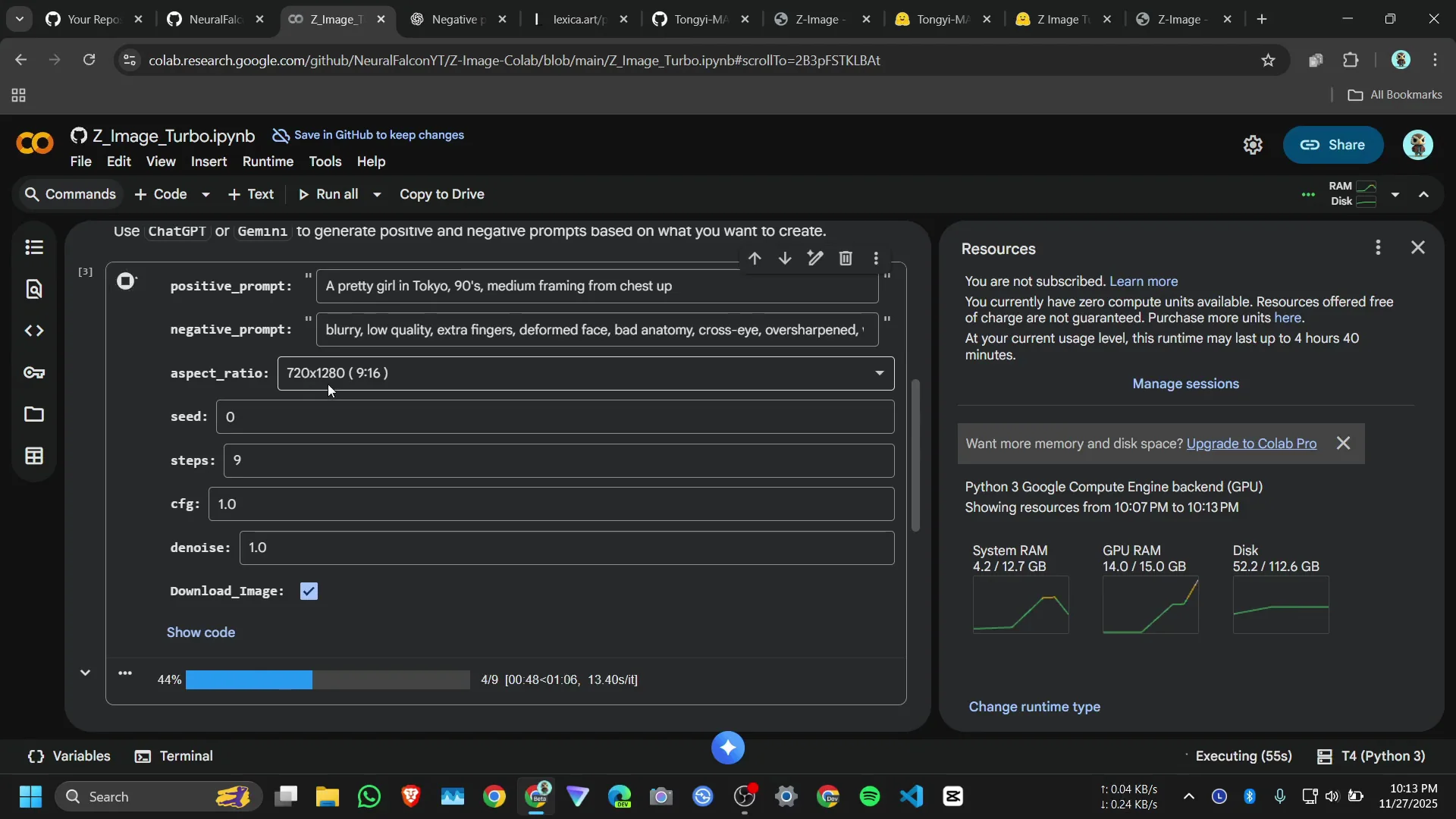
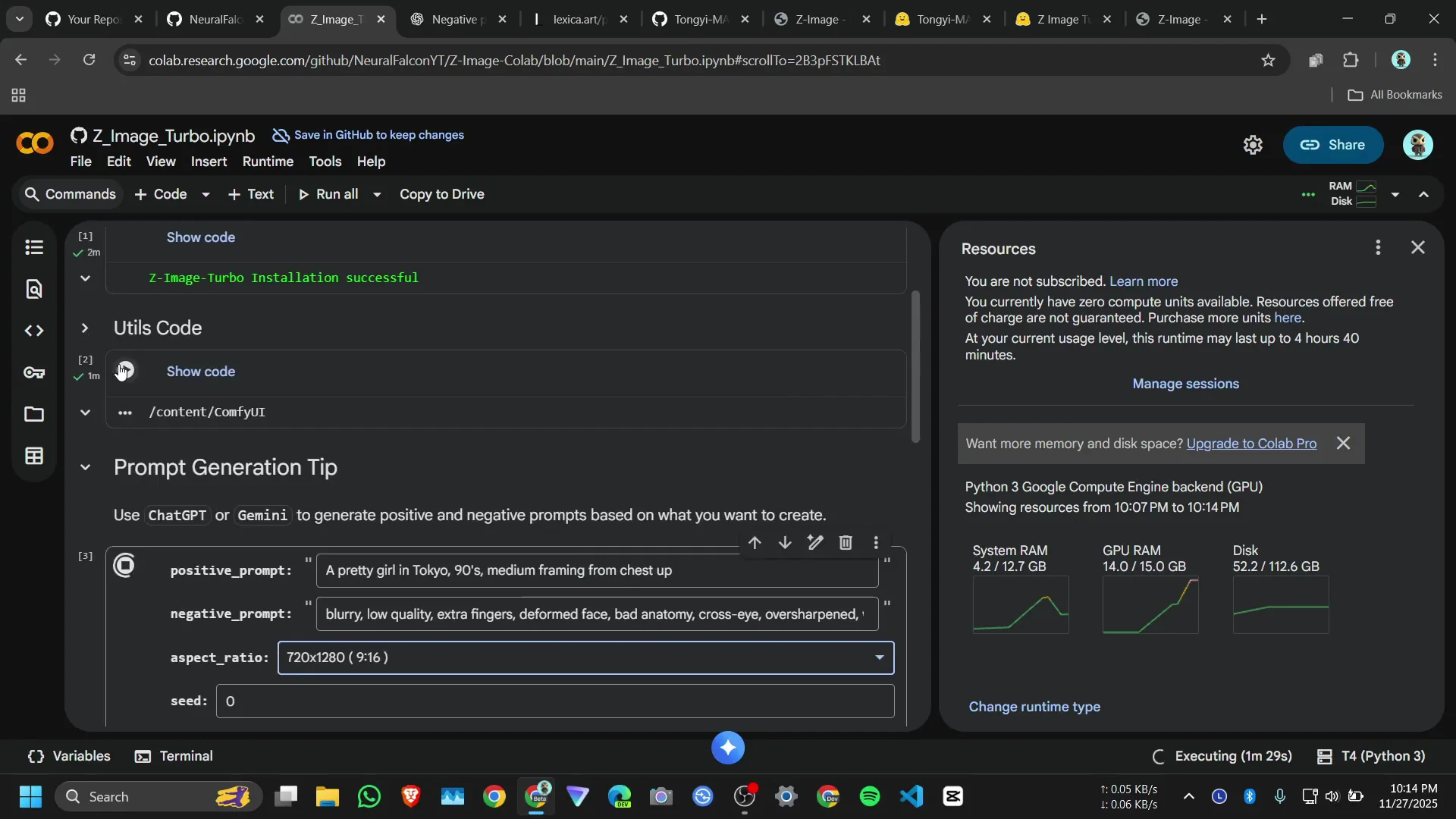
While generating these images, if your Colab server got disconnected, you need to just click on this qs code again, run this cell, then run this cell again. After generating the image, GPU memory drops to around 9.9 GB. If I run it again, CPU RAM goes down to about 5 GB. It will work on Colab.
Preview and download
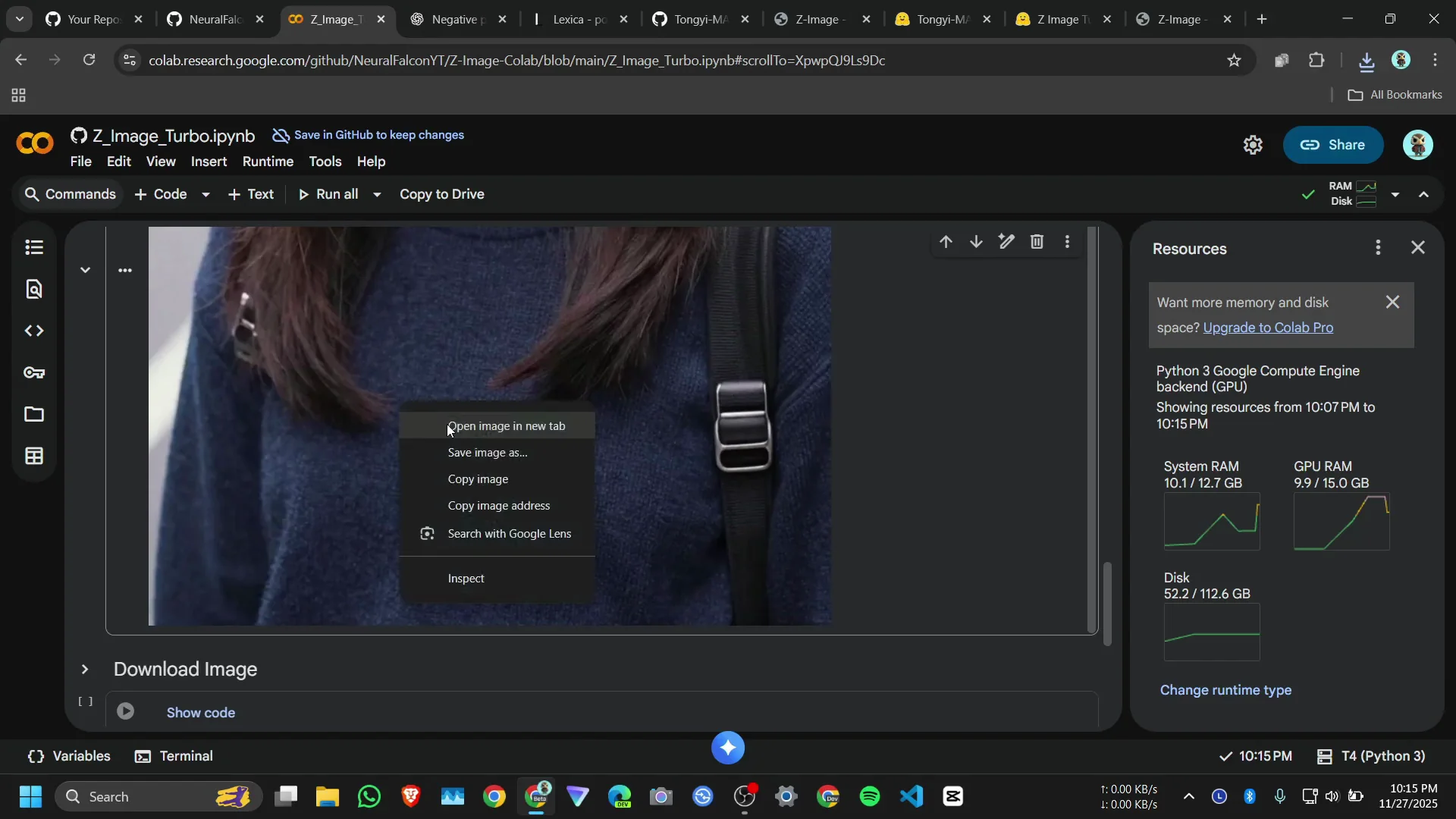
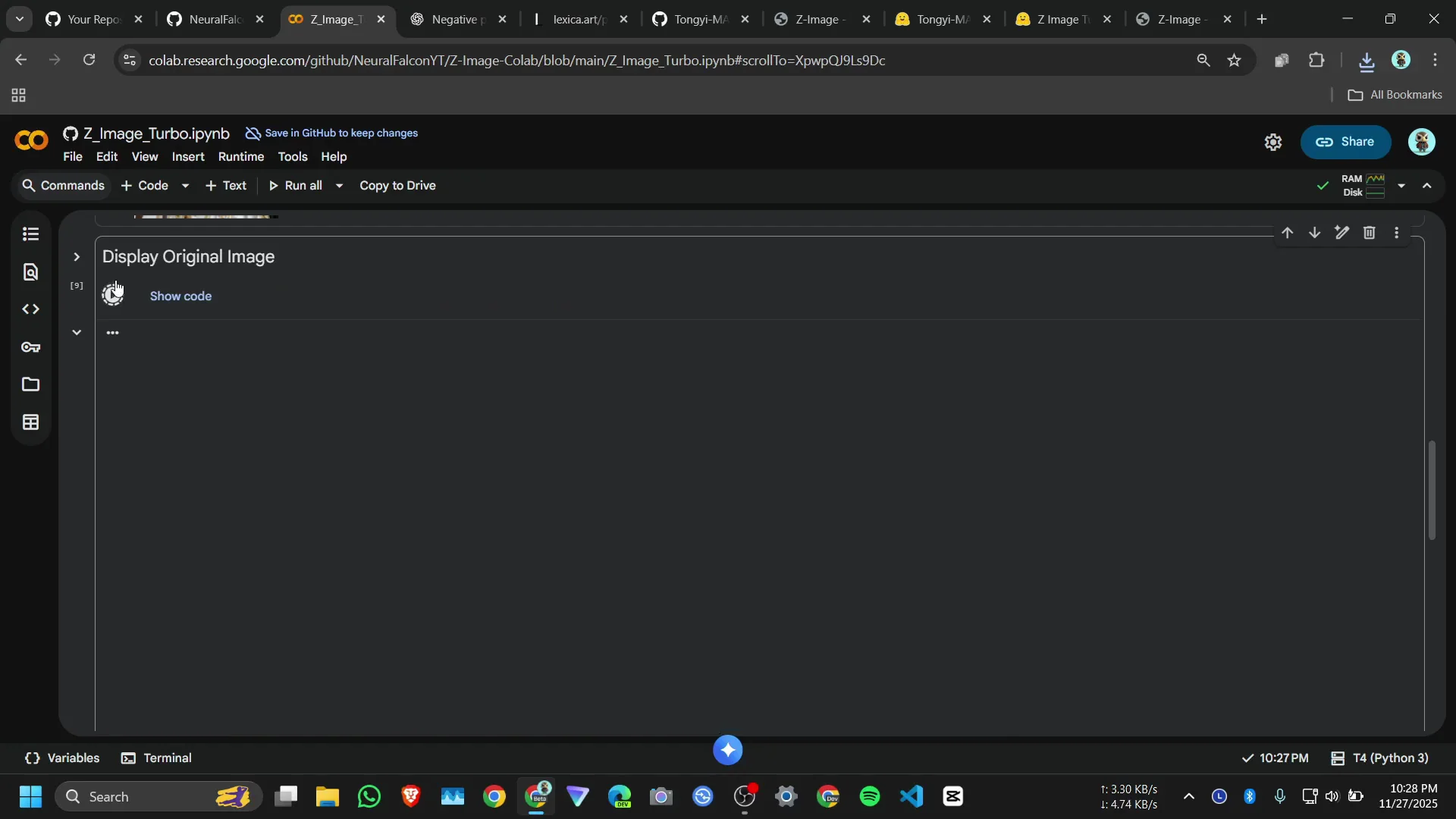
Here is a small preview. To display the original preview, run this one. You can also open the image in a new tab. I like the image. The image quality is very good, the skin tone. To download the image, click on it and it will download.
Examples and results with Z-Image Turbo on Colab
Movie poster example
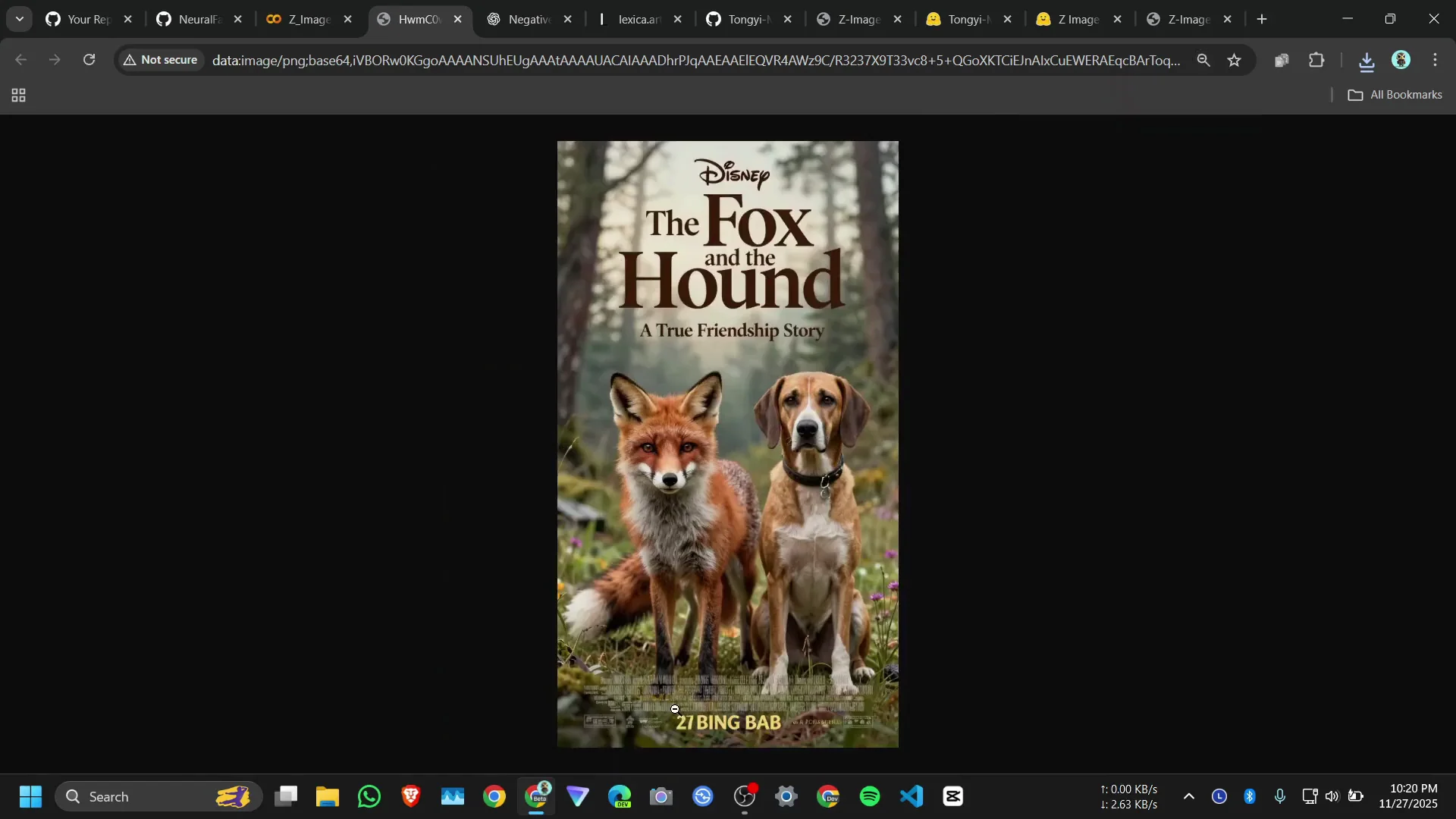
We are going to create a movie poster. We need positive and negative prompt. Paste the positive prompt and the negative prompt, then run. You will see the system RAM goes down to 5 GB to 4.5 GB, so it will work.
It is hallucinating here because it did not give any actual names for it, so it randomly adds some blur text. It is only a 6 billion parameter model.
Mount Fuji prompt
Massive exploding Mount Fuji like a nuke. I choose 1:1 and run. It is now Mount Fuji and it’s good.
Copy the prompt, paste it, and the negative prompt, then try 9:16. That’s better. Steps - I go for 10. Click on run.
Here’s the image. Click on it to see it full screen. Look at the details. It’s only 10 steps. Here was the original one. It’s only a 6 billion parameter model and it’s running on Google Colab.
Final Thoughts
Z-Image Turbo on Colab runs with Comfy UI, takes simple prompts with optional negative prompts, and produces clear images. Keep an eye on seed, steps, cfg, denoise, and aspect ratio. On the free Colab server, expect around 2 minutes per image and limit resolution to avoid RAM crashes.
Recent Posts
How to use Grok 2.0 Image Generator?
Learn how to access Grok 2.0’s AI image generator (Premium required), write better prompts, and avoid pitfalls like real people and brands. Step-by-step tips.
How to use Instagram AI Image Generator?
Use Meta AI in Instagram DMs to turn text into images—and even animate them. It’s free, fast, and built in. No external apps needed; create art right in chat.
Leonardo AI 2026 Beginner’s Guide: Create Stunning Images Fast
Learn Leonardo AI step by step—sign up, explore Home, and generate or enhance photos with free, powerful tools. A quick, clear starter for beginners.